Maytapi
The fastest way to lose a WhatsApp number is to connect it to an API and start sending at full speed on day one. WhatsApp watches how a number behaves, and automated traffic that looks like spam gets restricted or banned, sometimes within hours. This guide is about warming up a WhatsApp number: what triggers restrictions, how a 14-day warm-up works, and how Safe Mode and WhatsApp's new-chat limit help you pace a number so it stays healthy. If a number is already restricted, start with our WhatsApp API ban prevention page instead.
To be clear from the start: Maytapi is an unofficial API, and WhatsApp does not publish its enforcement rules. Nothing below guarantees a number won't be banned. These are the factors that consistently matter, plus the tools we built around them.
What gets WhatsApp numbers banned
WhatsApp doesn't publish a rulebook, but the same patterns come up again and again in restricted numbers:
- Reports and blocks. When recipients tap "Report" or "Block", that is the strongest signal there is. In the restricted numbers we see, a few reports in a short period can be enough.
- Cold outreach. Many first messages to people who have never messaged you, especially from a number with no history.
- Identical bulk content. The same text or image sent to many chats in a short window looks like a broadcast tool. Varying the wording, even slightly, helps.
- Links to new chats. A link in the very first message to someone who has never talked to you is treated far more suspiciously than the same link later in a conversation.
- Sudden volume. A number that sent ten messages last week and two thousand today. New SIMs and long-idle numbers are the most exposed.
- One-way traffic. WhatsApp pays attention to whether people answer. A number that only sends and almost never receives looks like spam even when nobody reports it.
- Machine-like rhythm. Messages leaving exactly every two seconds, around the clock.
"Banned" is not just one thing, either. Our WhatsApp API ban prevention page describes three levels:
| Restriction | What you see | Lifts on its own? |
|---|---|---|
| Direct ban | The number can't connect; the app says the account isn't allowed to use WhatsApp | No; appeal from the app on the phone |
| New-conversation restriction | Existing chats work; messages to new numbers fail with error F12 | Yes, at an end time WhatsApp sets |
| Linked devices only | Same as above from the API, but the phone itself can still start new chats | Yes |
If a number gets an F12, stop all first-contact messages until it lifts and keep answering people who write to you. Retrying only adds to the signal that caused it.
A 14-day warm-up plan for new numbers
Warming up means treating a new number like a new person on WhatsApp. It starts small, talks mostly with people who write back, and grows week by week. Safe Mode in the Maytapi console enforces this for you across five tiers, then switches itself off after day 14. The tiers are our own heuristics from restricted numbers we have seen, not limits WhatsApp publishes, and like Safe Mode itself they are in beta:
| Tier | Days | Msg/min | Min. gap | Msg/day | Sending window | New chats/day | Link in first message | Group actions |
|---|---|---|---|---|---|---|---|---|
| 1 | 0–1 | 1 | 45s | 60 | 6h | 8 | Blocked | Read-only |
| 2 | 2–3 | 2 | 35s | 150 | 8h | 18 | Blocked | Read-only |
| 3 | 4–7 | 3 | 18s | 400 | 10h | 40 | Allowed | Up to ~5 members at a time |
| 4 | 8–10 | 5 | 9s | 800 | 12h | 90 | Allowed | Allowed |
| 5 | 11–14 | 8 | 5s | 1500 | 16h | 150 | Allowed | Allowed |
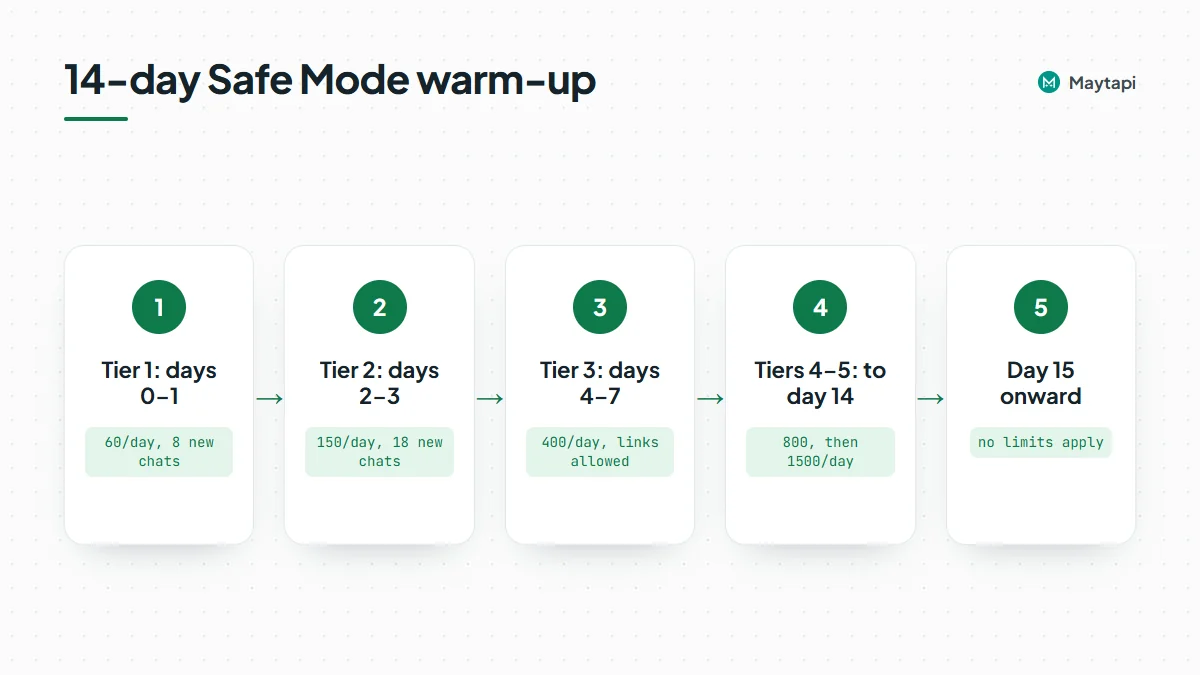
From day 15, no limits apply. Even if you don't turn Safe Mode on, these numbers are a reasonable benchmark for your own sending.
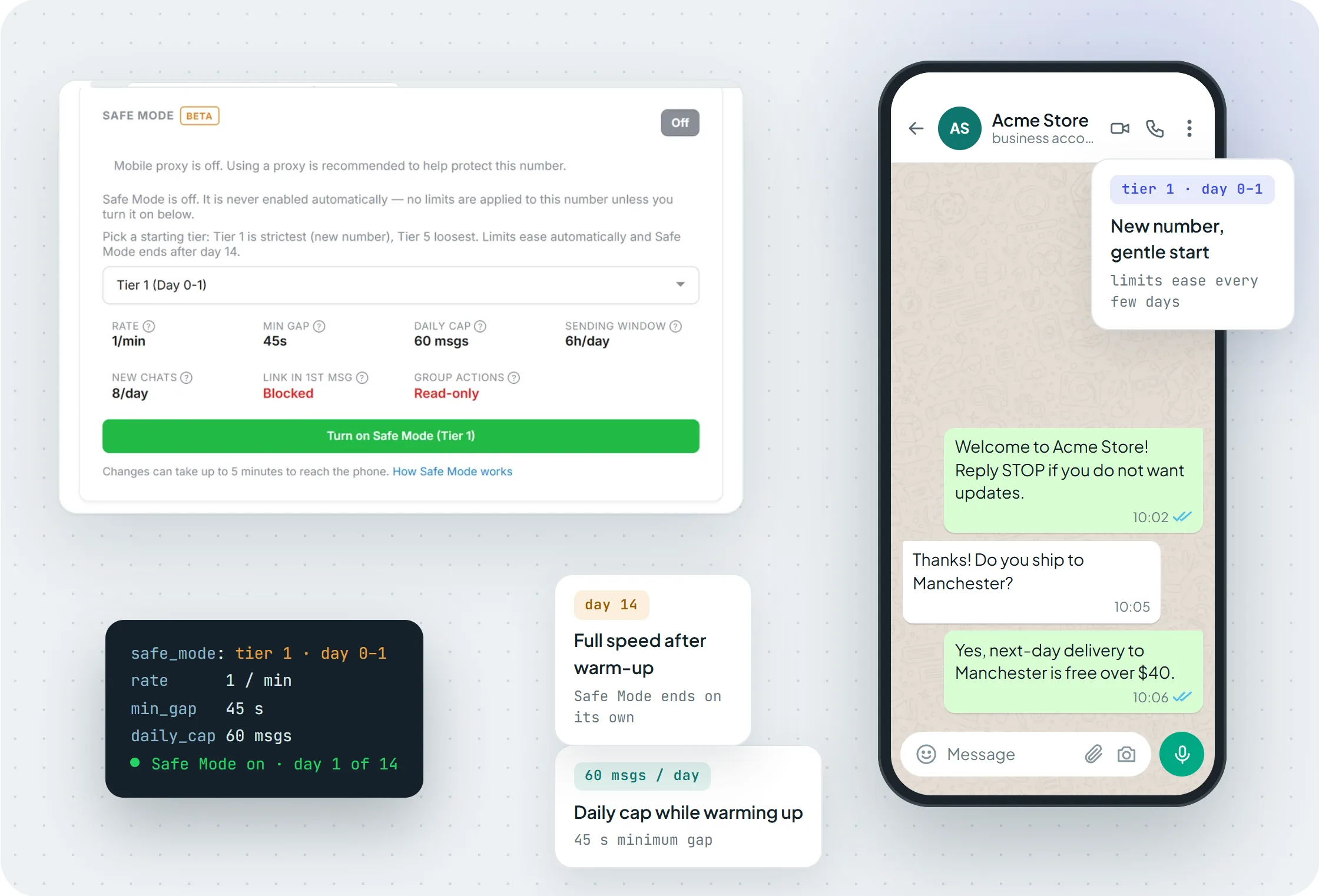 Safe Mode at Tier 1: 1 message a minute, a 45-second minimum gap, 60 messages a day and 8 new chats, with links in first messages blocked.
What a good first week looks like in practice:
- Days 0–1. Answer people who wrote to you, plus a handful of first contacts. No campaign.
- Days 2–3. Normal support traffic. First messages still don't contain links.
- Days 4–7. Links and group actions open up. Start adding outbound flows, but keep them to contacts who expect you.
- Days 8–14. Raise volume gradually toward your real workload.
The Warming Up tool in the console can build real conversation history alongside this: numbers in the warming pool message each other, so your number isn't sending into a void.
How Safe Mode enforces the limits
Safe Mode is set per number from the phone detail page in the console. It is only turned on when you ask for it: per number, or through an account option that switches it on for new phones you add later. It runs in one of two modes:
- Automatic. Maytapi picks the tier from how long the number has been connected to Maytapi, then adjusts it using the reply rate and chat history described below.
- Starting tier. You pick a starting tier yourself (Tier 1 for a brand-new SIM, a higher tier for a partly established number). The day counter starts when you switch it on and the number moves up one tier at a time on the calendar.
Safe Mode is currently in beta, so the exact limits may be adjusted between releases.
The difference between "delayed" and "rejected" matters when you build around it:
| Limit | What happens | Result |
|---|---|---|
| Messages per minute, minimum gap | The message waits in the queue and goes out when allowed (with small random variation in the gap) | Sent, just later |
| Link in a first message to a new chat | Not sent | Error F13 |
| Daily cap, daily sending window, new chats per day | Not sent until the counters reset at midnight UTC. The sending window opens with the day's first sent message and closes after the tier's hours | Error F14 |
| Group actions in early tiers | Not performed | Error F15 |
Safe Mode itself never drops a message silently: every rejection comes back with an error code, and a rejected message doesn't count against your quota. Delayed messages still follow the normal queue rules, so a message that waits in the queue for more than two days expires. The phone detail page shows today's usage: messages sent against the cap, new chats left, and how long the sending window stays open.
In automatic mode, two things can shift the tier the number actually uses. If you pick a starting tier yourself, the calendar alone decides:
- Reply rate. If fewer than 15% of recent messages get an answer, the number is held at Tier 2 at most. If more than 50% do, it runs two days ahead of the calendar. This only kicks in once there are at least 20 messages to measure.
- Existing chat history. An account with no chats at all is held at the strictest tier. One with 30+ chats can start from Tier 3.
Note: Safe Mode reduces risk; it doesn't undo a ban. If a number is already directly banned, only WhatsApp can reverse it. Appeal from the app on the phone, and don't keep re-scanning the QR code.
WhatsApp's own new-chat limit and getNewChatLimit
Separately from Safe Mode, WhatsApp itself has started limiting how many new contacts some numbers can message per cycle. WhatsApp is currently testing this, and for now it only appears on new WhatsApp accounts. When the quota is used up, messages to new numbers fail with error F16. Existing chats keep working, and new chats open again when WhatsApp resets the cycle.
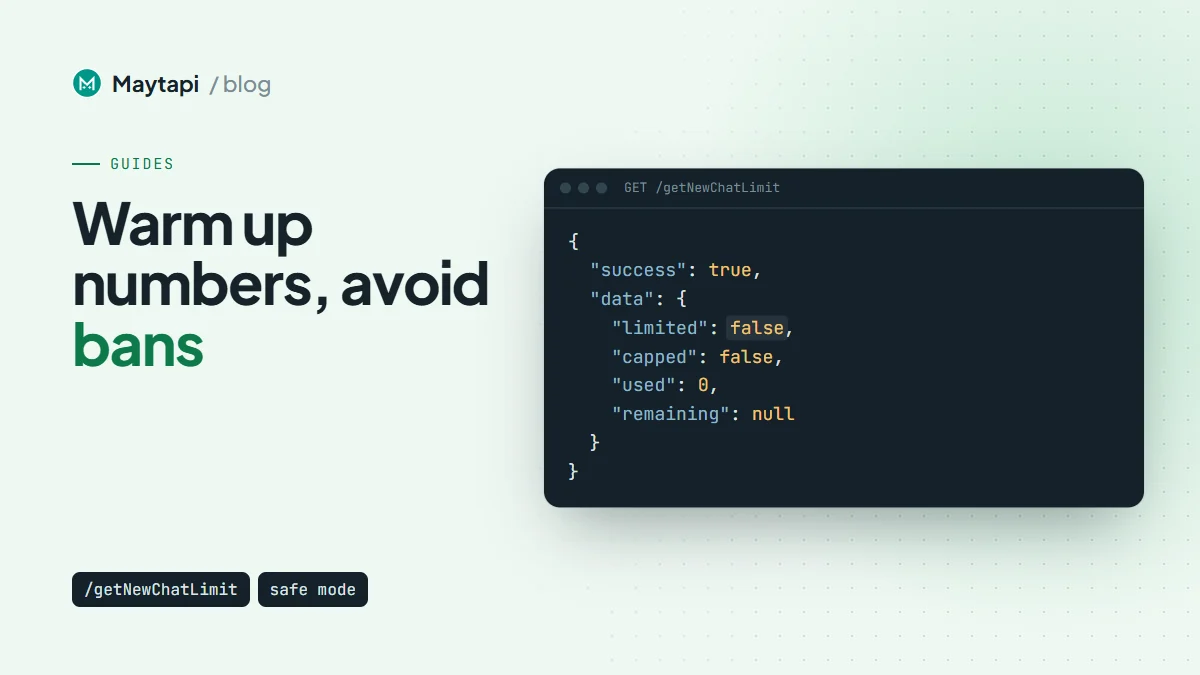
You can read the quota before you hit it with GET /getNewChatLimit:
curl "https://api.maytapi.com/api/$PRODUCT_ID/$PHONE_ID/getNewChatLimit" \
  -H "x-maytapi-key: $TOKEN"
{
  "success": true,
  "data": {
    "limited": false,
    "status": "none",
    "capped": false,
    "limit": null,
    "used": 0,
    "remaining": null,
    "cycleStart": 1704067200,
    "cycleEnd": 1706745599,
    "timestamp": 1704702074,
    "oteStatus": "not_eligible"
  }
}
When limited is false, WhatsApp applies no quota to the number, and limit and remaining are null. When it is true, limit, used and remaining are integers, capped becomes true once the quota is exhausted, and cycleStart/cycleEnd are Unix seconds. A simple guard before a batch of first contacts:
const res = await fetch(
  `https://api.maytapi.com/api/${PRODUCT_ID}/${PHONE_ID}/getNewChatLimit`,
  { headers: { "x-maytapi-key": TOKEN } }
);
const { data } = await res.json();

if (data.limited && (data.capped || data.remaining === 0)) {
  const resetsAt = new Date(data.cycleEnd * 1000);
  console.log(`New-chat quota used up; resumes after ${resetsAt.toISOString()}`);
} else {
  // safe to send first contacts (up to data.remaining when limited)
}
Content, consent and list hygiene
Pacing only goes so far if the messages themselves invite reports. The habits that help most:
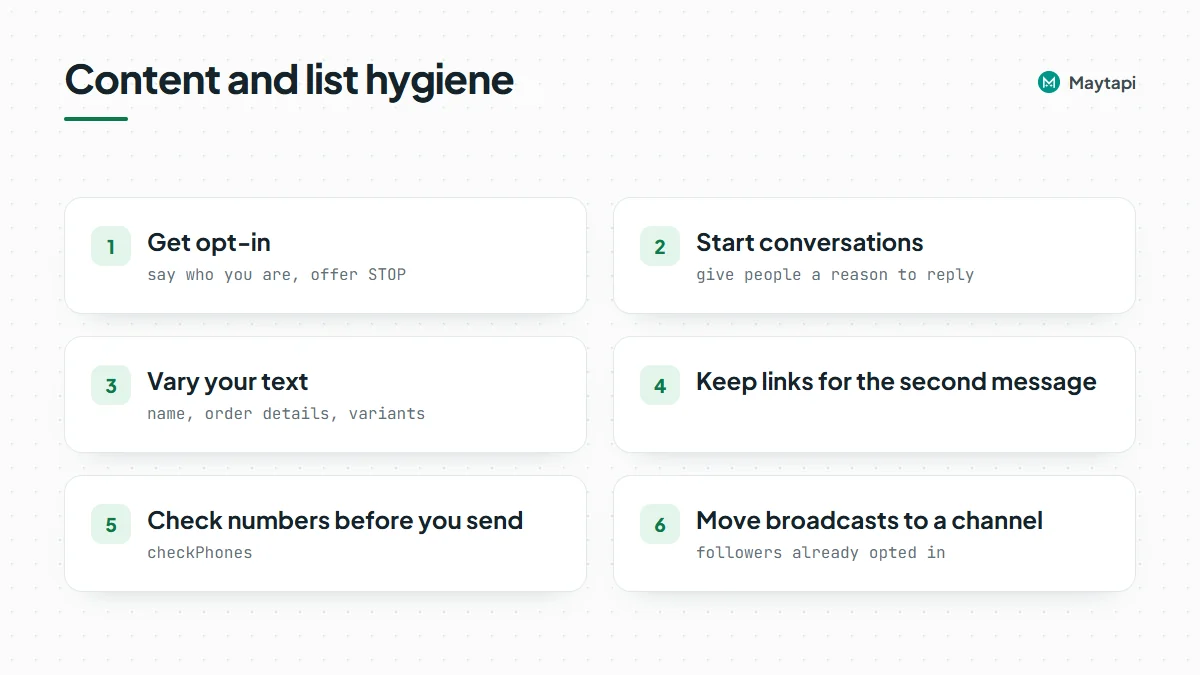
- Get opt-in. Message people who gave you their number and expect to hear from you: customers, sign-ups, existing contacts. Say who you are in the first line and make opting out easy ("Reply STOP to stop these updates"), then honor it.
- Start conversations, not campaigns. Ask a question or give a reason to reply. Replies are the best signal a number can have.
- Vary your text. Use the customer's name, order details and a few phrasing variants instead of one identical message for everyone.
- Keep links for the second message. Send the first message without a link and follow up once there is a conversation.
- Check numbers before you send. Messages to numbers that aren't on WhatsApp never arrive, and an old list full of dead numbers makes every campaign look colder. Run the list through
checkPhonesfirst, as shown in our bulk WhatsApp number check guide. - Move broadcasts to a channel. For news and announcements, a WhatsApp Channel reaches followers who opted in, without opening hundreds of one-to-one chats.
- Keep the session in the right region. A connection from far away from where the number is registered is an extra risk signal. A proxy in the right region keeps this consistent.
Next steps
Turn on Safe Mode for every new or recently restricted number before its first message. You'll find it on the phone detail page in the Maytapi console. Our ban prevention page explains how to diagnose a restriction you already have. If you're still choosing between the official Cloud API and an unofficial one, read our WhatsApp Business API alternative page for the trade-offs.