Maytapi
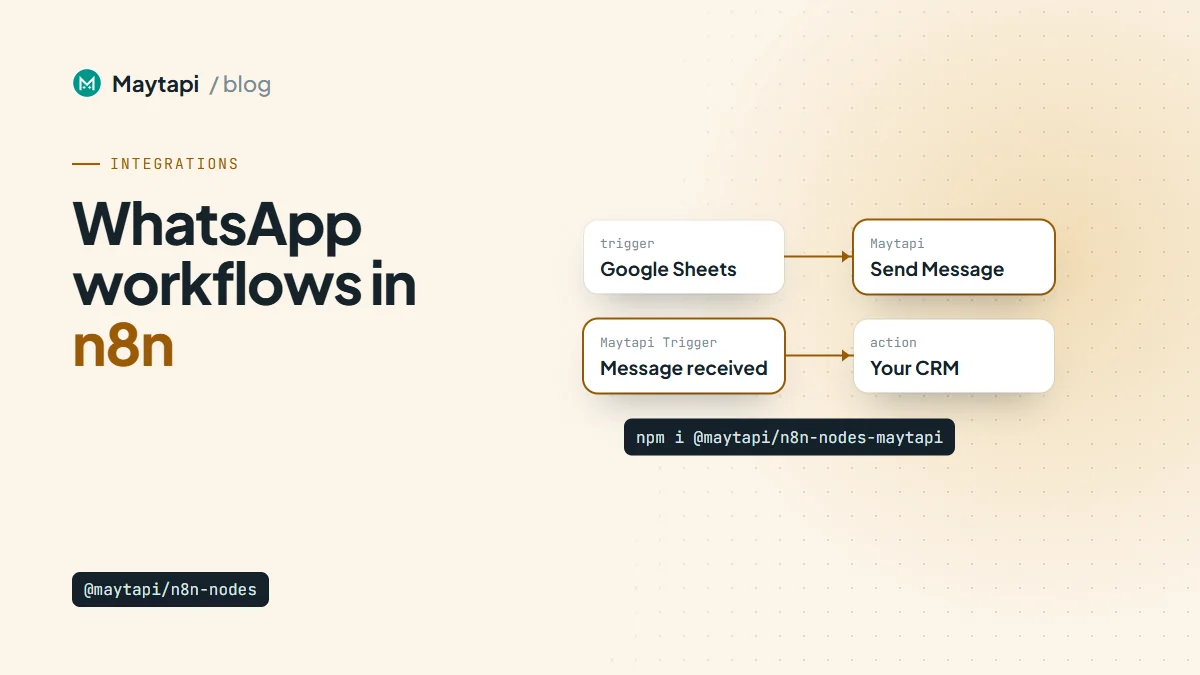
n8n is a workflow automation tool that connects hundreds of apps through a visual editor. With the Maytapi community node you can add WhatsApp to those workflows: send a message when a spreadsheet row appears, route incoming chats to an AI model, or post a reply when an order ships, without writing a backend. This guide covers installing the n8n WhatsApp node, setting up credentials, and building one sending and one receiving workflow, plus the details that tend to trip people up.
What the Maytapi n8n WhatsApp node includes
The package is published on npm as @maytapi/n8n-nodes-maytapi and adds two nodes to n8n:
| Node | Role |
|---|---|
| Maytapi | Action node. Sends messages and calls other API operations. |
| Maytapi Trigger | Trigger node. Starts a workflow when Maytapi delivers a webhook event. |
The action node is organized by resource. Message, Contact, Chat, Group, Queue, Call, Account, Session and Session Control cover the day-to-day work: sending any message type, checking numbers, archiving chats, managing group members, reading logs and checking the connection. Recent versions of the package also add Label, Community, Channel, Story, Presence and Business Catalog resources.
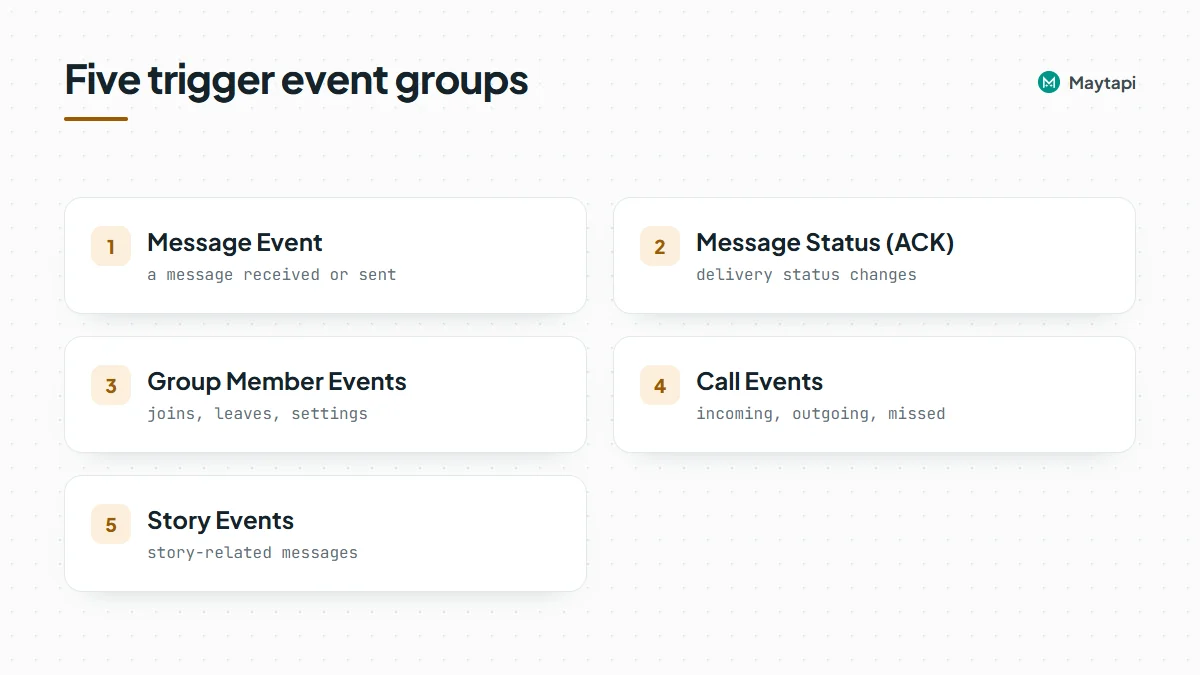
The trigger node listens for five event groups, and you choose which ones should start the workflow:
| Event | Fires when |
|---|---|
| Message Event | A message is received or sent on the number |
| Message Status (ACK) | Delivery status changes (sent, delivered, read) |
| Group Member Events | Someone joins or leaves a group, or group settings change |
| Call Events | Incoming, outgoing, missed or rejected calls |
| Story Events | Story-related messages arrive |
Behind both nodes is the regular Maytapi REST API: the node sends requests to https://api.maytapi.com/api/PRODUCT_ID/... with your token in the x-maytapi-key header. Anything the node does, you can reproduce with the API documentation if you need to.
Install the community node
On a self-hosted n8n instance:
- Open Settings > Community Nodes.
- Click Install, enter
@maytapi/n8n-nodes-maytapi, accept the risk notice and install. - The Maytapi and Maytapi Trigger nodes now appear in the node panel.
If you manage n8n through a config or Docker image, install the package with npm in n8n's nodes directory, ~/.n8n/nodes (inside the container for Docker, for example after docker exec -it n8n sh), and restart n8n:
mkdir -p ~/.n8n/nodes && cd ~/.n8n/nodes
npm install @maytapi/n8n-nodes-maytapi
n8n Cloud only lets you install verified community nodes. If the Maytapi node does not show up there, use a self-hosted instance or call the API with n8n's HTTP Request node.
You also need a Maytapi product with a paired number. Sign up for the 3-day free trial, add a phone and scan the QR code in the console.
Add your Maytapi credentials
Create a new credential of type Maytapi API with three fields:
| Field | Where to find it |
|---|---|
| Product ID | Console settings |
| Token | Same page; this is your x-maytapi-key |
| Phone ID | Optional. The default phone the nodes use. |
Every Maytapi operation outside the Account resource has a Phone ID Source option. Leave it on From Credentials to use the default phone, or switch to Custom to target a different number in that node. That is how one workflow can work with several WhatsApp numbers on the same product.
Send WhatsApp messages from a workflow
A common starting point: a new row in a Google Sheet (a form submission, a booking, a lead) should trigger a WhatsApp message to the person in that row.
Assume the sheet has columns name, phone and appointment. Build the workflow like this:
- Google Sheets Trigger, event Row Added, pointing at your sheet.
- Maytapi node:
- Resource: Message
- Operation: Send Message
- Message Type: Text
- To Phone Number:
{{ $json.phone }} - Message:
Hi {{ $json.name }}, your appointment on {{ $json.appointment }} is confirmed. Reply here if you need to change it.
Phone numbers go in international format without + or spaces, for example 3461xxxxx67. If your sheet stores numbers with spaces or a leading +, clean them with an expression such as {{ $json.phone.replace(/\D/g, '') }}.
The same Send Message operation handles the other message types: switch Message Type to media and give it a file URL plus an optional caption, or use location, vCard, poll, reaction and so on. The fields change with the type you pick.
Sending to many rows
If one run produces many items (for example, a scheduled workflow that reads 200 rows), n8n will call the Maytapi node once per item. Two habits keep that safe:
- Check numbers first. The Contact resource has a Check Phones operation that tells you which numbers are on WhatsApp, so you don't message numbers that can't receive it. The number checker post explains why this matters.
- Slow down. Put a Loop Over Items node with a small batch size and a Wait node between batches. Messages are queued per phone on Maytapi's side, but pacing still matters for how WhatsApp sees your number.
Bulk sends from a new or cold number are the most common reason WhatsApp restricts an account. Maytapi is an unofficial API that runs on your own number, so follow the ban prevention guidance before you automate outreach to people who haven't messaged you.
Trigger workflows from incoming WhatsApp messages
The second half of most automations is receiving. Add a Maytapi Trigger node, select your credential and tick Message Event.
When you activate the workflow, the trigger registers its n8n webhook URL with Maytapi automatically. For message events, its output includes ready-to-use fields alongside the raw payload in body:
| Field | Contents |
|---|---|
conversation |
Chat ID to reply to (3461xxxxx67@c.us or a group ID) |
fromNumber, fromName |
Sender's number and name |
messageType |
text, image, document and so on |
messageText |
Text of the message |
fromMe |
true for messages your own number sent |
messageId, timestamp |
Message ID and time |
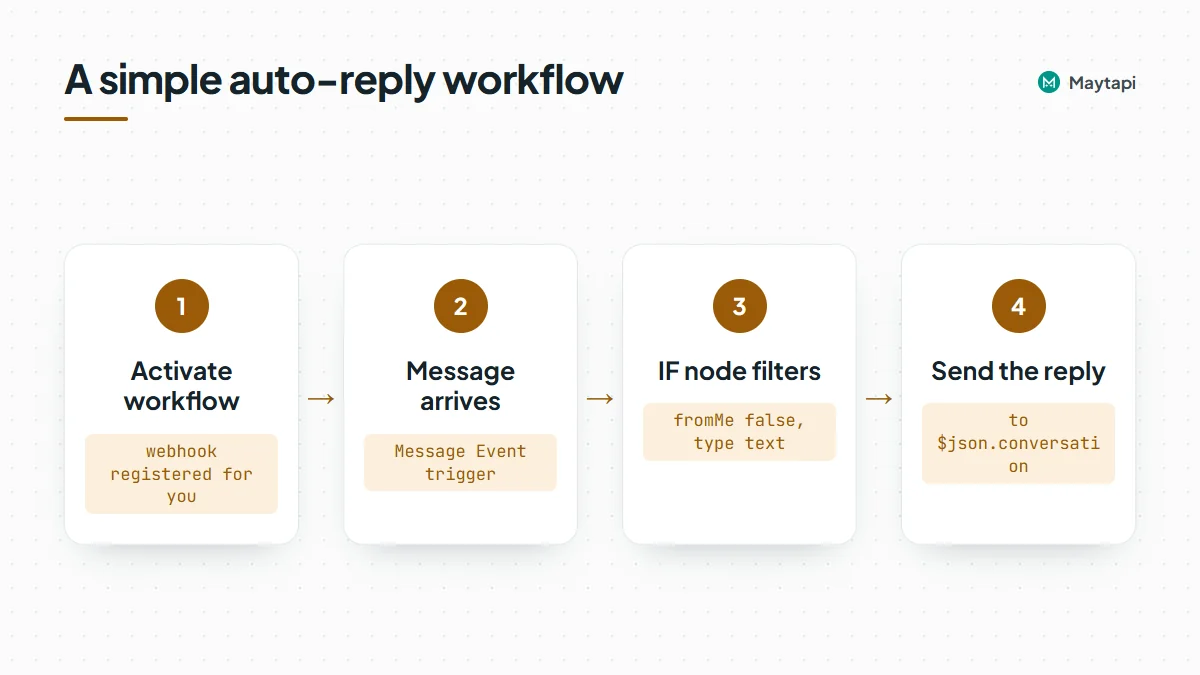
A simple auto-reply looks like this:
- Maytapi Trigger with Message Event.
- IF node:
{{ $json.fromMe }}is false and{{ $json.messageType }}equalstext. - Maytapi node, Send Message: To Phone Number
{{ $json.conversation }}, MessageThanks {{ $json.fromName }}, we'll get back to you shortly.
The fromMe check matters. Message events also fire for messages sent from the phone itself (fromMe: true), for example when a colleague replies in the WhatsApp app. Without the filter, the workflow would answer those too.
Note: The trigger sets the product-level webhook (the same one as
setWebhookin the API). If another system already receives your Maytapi webhooks, activating the n8n workflow replaces that URL, and deactivating the workflow does not restore it. Use one webhook consumer per product, fan events out from n8n to your other systems, or give the other system's phone its own URL withPOST /config, since phones with their own URL do not use the product webhook.
Route incoming chats to an AI model
Swap the fixed reply for an n8n AI Agent (or any LLM node). Feed it {{ $json.messageText }} as the user message, give it a system prompt that describes your business, and send its output back through the Maytapi node to {{ $json.conversation }}. Add a Switch node in front if some messages should go to a human instead: for example, route anything containing "refund" or "complaint" to a Slack channel and only let the model handle the rest. The AI agent guide builds this workflow step by step with Claude.
For a shared team inbox rather than a bot, the multi-agent platform runs on the same connection, so your n8n flows and your agents can work side by side.
Tips for reliable n8n WhatsApp workflows
- Test with the sandbox. Maytapi's free sandbox plan allows up to 5 recipient numbers, which is enough to build and debug a workflow without messaging real customers.
- Use production URLs. n8n has separate test and production webhook URLs. When you click Listen for test event, the trigger registers the test URL; once you activate the workflow, it uses the production one.
- Watch for duplicates.
sendMessagehas a duplicate filter that guards against sending the same message twice by accident. If a workflow legitimately repeats a message, turn on Skip Duplicate Filter in the Send Message node (the API'sskip_filter: true). - Check the session. A Session > Get Status node at the start of a scheduled workflow tells you if the phone is disconnected before you try to send.
- Pick only the events you need. Ticking ACK events on a busy number produces a lot of executions. Enable them only in workflows that actually track delivery.
Make, Pabbly and other tools
If your team uses Make or Pabbly Connect instead of n8n, the same pattern works with their generic modules: an HTTP request module calls sendMessage with your x-maytapi-key header, and a custom webhook module receives events once you point Maytapi's webhook at it. The webhook events guide shows what each payload looks like.
Next steps
- See the full operation list on the n8n integration page.
- Build a WhatsApp AI agent with n8n and Claude in the AI agent guide.
- Prefer to talk to WhatsApp through Claude or Cursor? Read the MCP server guide.
- Learn the webhook payloads your trigger receives in the webhook events guide.