Maytapi
Python is a good fit for a WhatsApp bot. Flask handles the webhook in a few lines, and requests sends the replies. This tutorial builds a WhatsApp bot in Python on the Maytapi API. It receives messages on a Flask webhook, shows a list menu, and replies with text, documents and polls. The last part covers running it in production: gunicorn, environment variables and handling messages in the background.
Maytapi is an unofficial WhatsApp API. You link your own WhatsApp number as a device by scanning a QR code, then drive it over REST and webhooks. There are no templates and no per-message fees. The other side of that is that the bot speaks from a normal WhatsApp account, so you need to respect WhatsApp's anti-spam rules. The production section links to the guidance.
Prerequisites and credentials
- Python 3.9 or newer.
- A Maytapi account with a connected phone. The trial is free for three days with no card. Scan the QR code in the console with the number the bot should use.
- Your product ID, token and phone ID. The first two are on the console's Product ID & Token page. The phone ID is shown on the Phones page, or you can get it from
GET /listPhones.
Install the dependencies in a virtual environment:
python -m venv .venv && source .venv/bin/activate
pip install flask requests gunicorn
Store credentials in environment variables from the start. The same code then runs on your laptop and on a server without changes:
export PRODUCT_ID="your-product-id"
export PHONE_ID="your-phone-id"
export TOKEN="your-token"
Send a test message with requests
First confirm that the number can send. This is the smallest possible sendMessage call:
import os
import requests

PRODUCT_ID = os.environ["PRODUCT_ID"]
PHONE_ID = os.environ["PHONE_ID"]
TOKEN = os.environ["TOKEN"]

res = requests.post(
    f"https://api.maytapi.com/api/{PRODUCT_ID}/{PHONE_ID}/sendMessage",
    headers={"x-maytapi-key": TOKEN},
    json={"to_number": "55119xxxxxx67", "type": "text", "message": "Hello from Python!"},
    timeout=10,
)
print(res.json())
Put the country code first, with no + or spaces. The response includes success, plus the chatId and msgId of the queued message. The Python quick reference has more single-request examples, such as media and webhook setup. This post focuses on the bot around them.
Receive WhatsApp messages on a Flask webhook
Maytapi posts every incoming message to the URL you register with setWebhook. Register the URL once, at product level:
requests.post(
    f"https://api.maytapi.com/api/{PRODUCT_ID}/setWebhook",
    headers={"x-maytapi-key": TOKEN},
    json={"webhook": "https://bot.example.com/maytapi/webhook"},
    timeout=10,
)
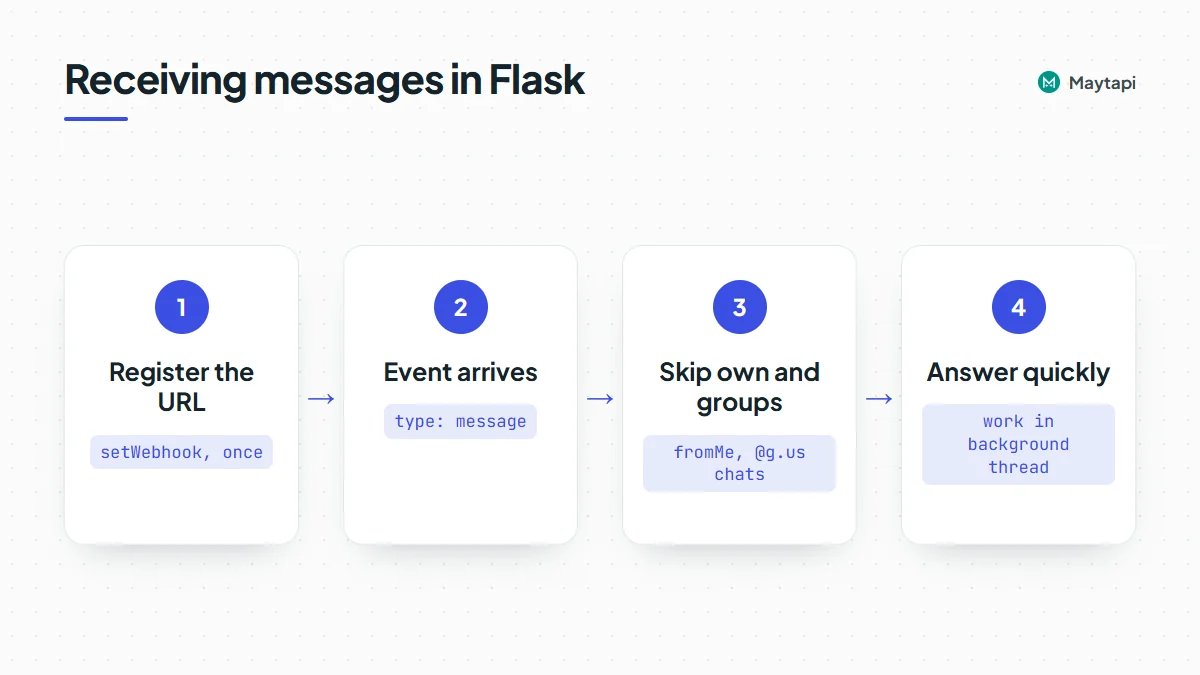
The webhook receives JSON with a top-level type. That is message for incoming messages, ack for delivery receipts and status for phone state changes. A message event carries the sender in user, the chat ID in conversation, the content in message, and a ready-made reply URL that points to sendMessage for the phone that received it. The webhook API page lists the full payloads.
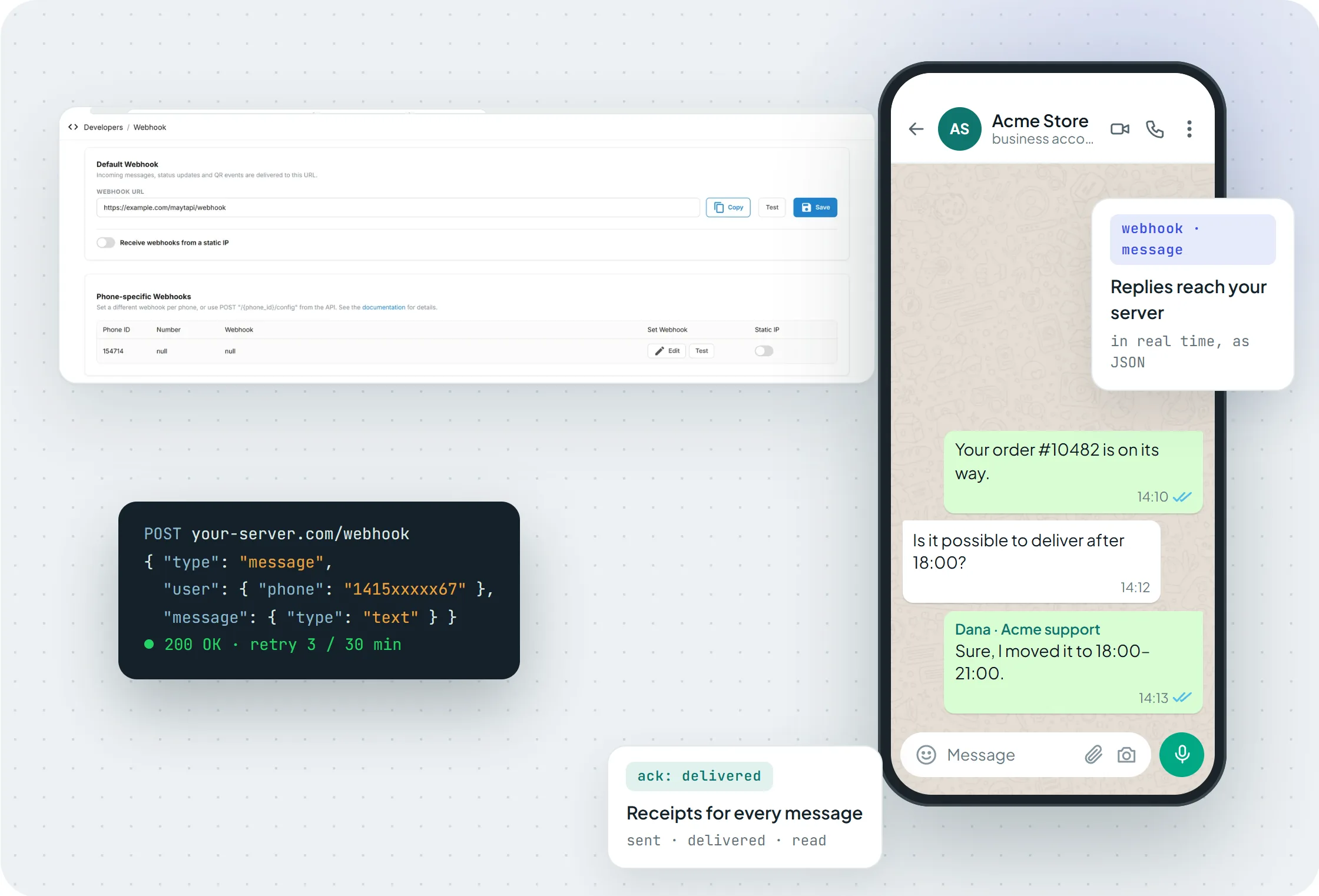 You can also set the webhook URL in the console, with an optional webhook per phone.
Check the reply URL before you send your token. Anyone who learns your webhook address can post a fake event to it, so never send x-maytapi-key to a URL taken from the request without checking it. The send helper below only accepts a reply that starts with https://api.maytapi.com/api/ followed by your own product ID. For extra protection, register the webhook with a hard-to-guess path or query parameter (for example /maytapi/webhook?key=…) and reject requests that don't carry it. If your firewall supports allowlists, the static IP option described in the webhook events guide lets you accept deliveries from one address only.
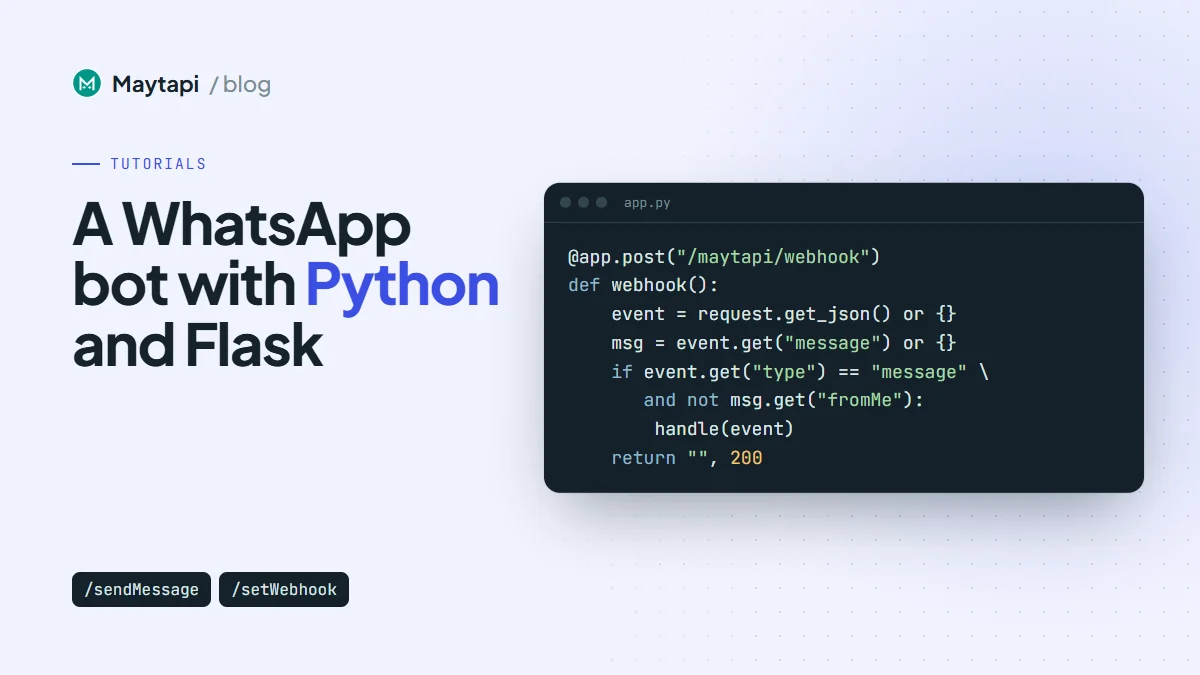
Here is a minimal app.py. It answers quickly and passes the real work to a background thread:
import os
import threading
import requests
from flask import Flask, request

TOKEN = os.environ["TOKEN"]
PRODUCT_ID = os.environ["PRODUCT_ID"]
REPLY_PREFIX = f"https://api.maytapi.com/api/{PRODUCT_ID}/"
app = Flask(__name__)
http = requests.Session()
http.headers.update({"x-maytapi-key": TOKEN})

def send(reply_url, body):
    # webhooks are unauthenticated: only send the token to your own Maytapi product
    if not (reply_url or "").startswith(REPLY_PREFIX):
        app.logger.error("unexpected reply URL: %s", reply_url)
        return
    res = http.post(reply_url, json=body, timeout=10)
    data = res.json()
    if not data.get("success"):
        app.logger.error("sendMessage failed: %s", data)

@app.post("/maytapi/webhook")
def webhook():
    event = request.get_json(silent=True) or {}
    msg = event.get("message") or {}
    if event.get("type") == "message" and not msg.get("fromMe"):
        threading.Thread(target=handle, args=(event,), daemon=True).start()
    return "", 200
Two checks keep the bot out of trouble. fromMe is true for messages your own number sends, including the bot's replies, so skipping them prevents loops. Group chats have IDs ending in @g.us. The handler below ignores them, so the bot only talks in one-to-one chats.
Build a menu with a WhatsApp list message
Typed commands work, but customers don't remember them. A list message shows a button that opens titled sections of rows. Each row has a rowId that your code receives when someone picks it.
MENU = {
    "type": "list",
    "title": "Acme Support",
    "message": "Hi! What can we help you with?",
    "footer": "Reply anytime",
    "button_text": "Open menu",
    "sections": [
        {
            "title": "Orders",
            "rows": [
                {"rowId": "invoice", "title": "Get my invoice", "description": "PDF of your last order"},
                {"rowId": "feedback", "title": "Rate your delivery", "description": "Quick one-question poll"},
            ],
        },
        {
            "title": "Help",
            "rows": [
                {"rowId": "agent", "title": "Talk to a person", "description": "A team member replies here"},
            ],
        },
    ],
}
When the customer picks a row, the webhook receives a text message. The row title is in text and the rowId is in payload. Reading payload first, then text, lets the router treat taps and typed words the same way. If the menu needs to look different, the buttons, lists and carousels guide shows the other interactive formats.
Reply with text, documents and polls
Each menu choice maps to a function that returns a sendMessage body:
def invoice():
    return {
        "type": "media",
        "message": "https://example.com/invoices/10482.pdf",
        "text": "Here is the invoice for order #10482",
        "filename": "invoice-10482.pdf",
    }

def feedback():
    return {
        "type": "poll",
        "message": "How was your delivery?",
        "options": ["Great", "OK", "Not good"],
        "only_one": True,
    }

def agent():
    return {"type": "text", "message": "Thanks! A team member will reply in this chat."}

ROUTES = {"invoice": invoice, "feedback": feedback, "agent": agent}
The media type covers images, video, audio and documents. Pass a public URL or a base64 data URI in message. filename sets the name a document shows in the chat, and text is the caption. A poll takes the question in message and the choices in options. With only_one set, each person can pick only one option. When people vote, your webhook receives pollVoteUpdate events, so you can record the results in your own database.
Now connect it all in handle:
SILENT_TYPES = {"reaction", "pollVoteUpdate", "message_edit", "pinMessage", "info"}

def handle(event):
    if event["conversation"].endswith("@g.us"):
        return
    msg = event["message"]
    if msg.get("type") in SILENT_TYPES:
        return  # reactions, poll votes, edits, pins, calls and group notices need no answer
    if msg.get("type") != "text":
        send(event["reply"], {"to_number": event["conversation"], "type": "text",
                              "message": "I can read text for now. Type *menu* to start."})
        return

    key = (msg.get("payload") or msg.get("text") or "").strip().lower()
    body = ROUTES[key]() if key in ROUTES else MENU
    send(event["reply"], {"to_number": event["conversation"], **body})
Reactions, poll votes, edits, pins and info notices (calls, group changes) also arrive as message events with their own message.type. The bot ignores them, so a vote on its own poll doesn't trigger the "I can read text" reply. Anything the bot doesn't recognize, including "hi", gets the menu, so a first-time user always has a next step. Media messages from customers also come to the webhook, with url, mime and filename. You can download and process them later.
Test locally with a tunnel
Start Flask's development server and expose it with a tunnel CLI in a second terminal:
flask --app app run --port 5000
# second terminal, pick one:
cloudflared tunnel --url http://localhost:5000
ngrok http 5000
Register the HTTPS URL the tunnel prints, with /maytapi/webhook added, using setWebhook. Then message the bot's number from another phone. Keep the tunnel outside your application code. The bot shouldn't care how it's reached, and in production there is no tunnel at all.
Deploy the Python WhatsApp bot with gunicorn
Flask's built-in server is for development only. In production, run the app with gunicorn behind HTTPS:
gunicorn --workers 2 --threads 4 --bind 0.0.0.0:8000 app:app
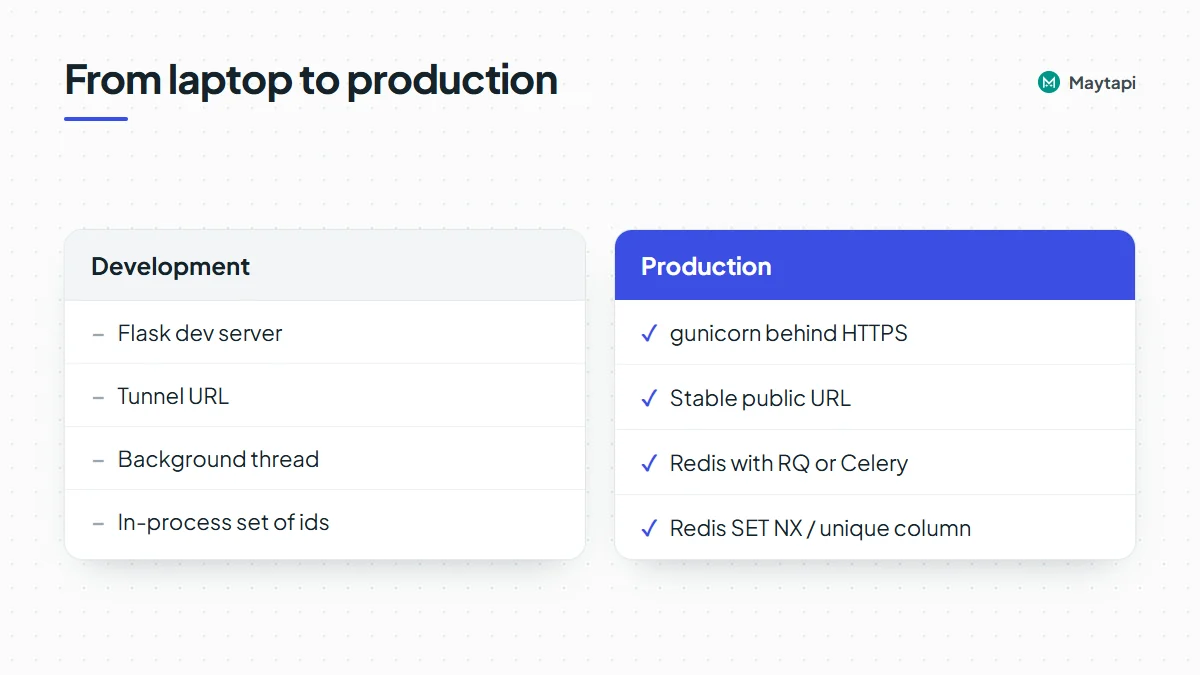
Put a reverse proxy or your platform's load balancer in front for TLS, then call setWebhook once with the public URL. A few more things are worth doing before real traffic arrives.
Move work off the request. The background thread above is fine for a small bot. When you add AI calls, database lookups or retries, push events onto a real queue such as Redis with RQ or Celery, and keep the webhook route to "parse, enqueue, return 200".
Be idempotent. Record each message["id"] you've handled and skip repeats. A redeploy or a duplicate delivery then can't send the same invoice twice. With several gunicorn workers, an in-process set isn't shared, so use Redis SET NX or a unique column in your database.
Watch the phone, not only the code. status events tell you when the number disconnects or shows the QR screen again. Alert on them. ack events show whether replies were delivered and seen.
Send like a person would. A bot that answers people who wrote first is the safest kind of automation on an unofficial API. Large proactive sends from a new number are what get accounts restricted. Read how Safe Mode prevents WhatsApp bans before you add broadcasts.
Note: Never commit
TOKENto your repository. Load it from the environment or a secret manager on the server, asapp.pydoes.
Next steps
Your Flask bot now receives messages, shows a menu, sends documents and runs polls. To go further:
- New to Maytapi? The getting started guide covers the account, QR pairing and webhook setup.
- Learn each webhook payload, including group and call events, in the webhook events guide.
- Prefer JavaScript? The Node.js bot tutorial builds the same idea with Express and reply buttons.
- Look up every request body in the API documentation.