Maytapi
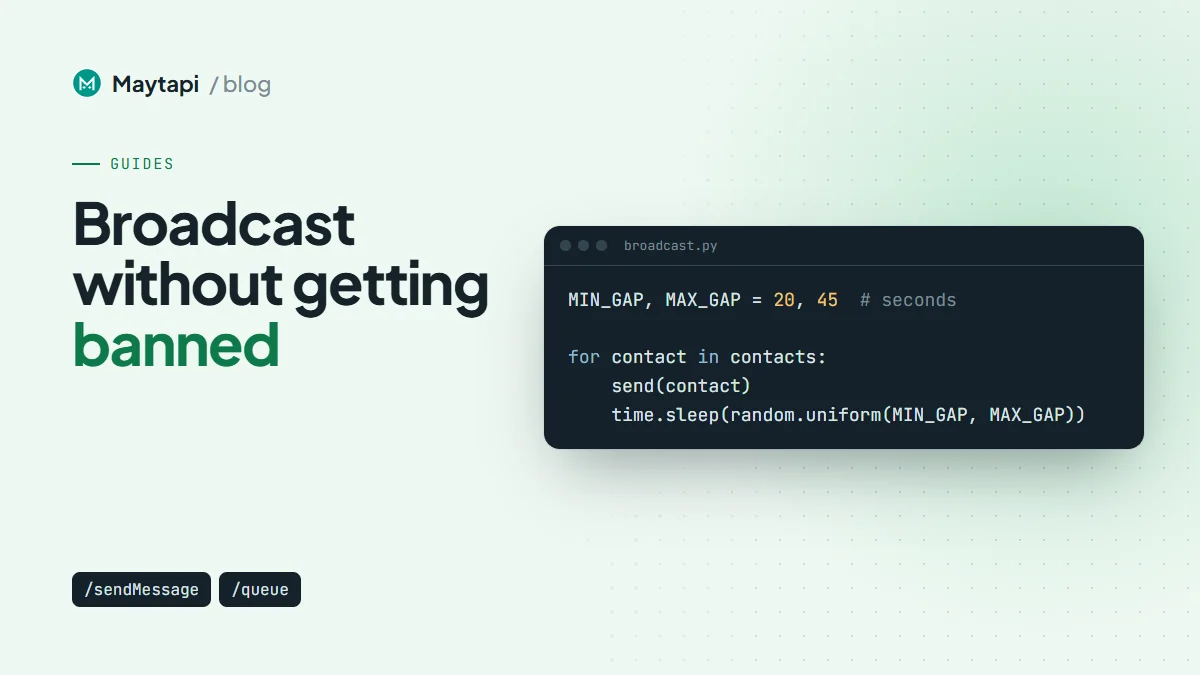
Sending the same announcement to a few hundred customers is one of the first things people try with a WhatsApp API, and it is also the fastest way to get a number restricted. This guide covers how a WhatsApp broadcast API send actually works in Maytapi, when a group or a Channel is a better fit, and how to build a send loop that personalizes each message, paces itself, watches the queue, tracks delivery and respects opt-outs.
Maytapi is an unofficial API: the messages go out from your own WhatsApp number, linked as a device. WhatsApp's rules still apply to that number, so most of this post is about sending in a way that doesn't look like spam.
What "broadcast" means on WhatsApp
In the WhatsApp app, a broadcast list is a saved set of contacts. You write one message and each person receives it as a normal one-to-one chat from you. Only people who have saved your number in their contacts receive it, and the list has a size cap.
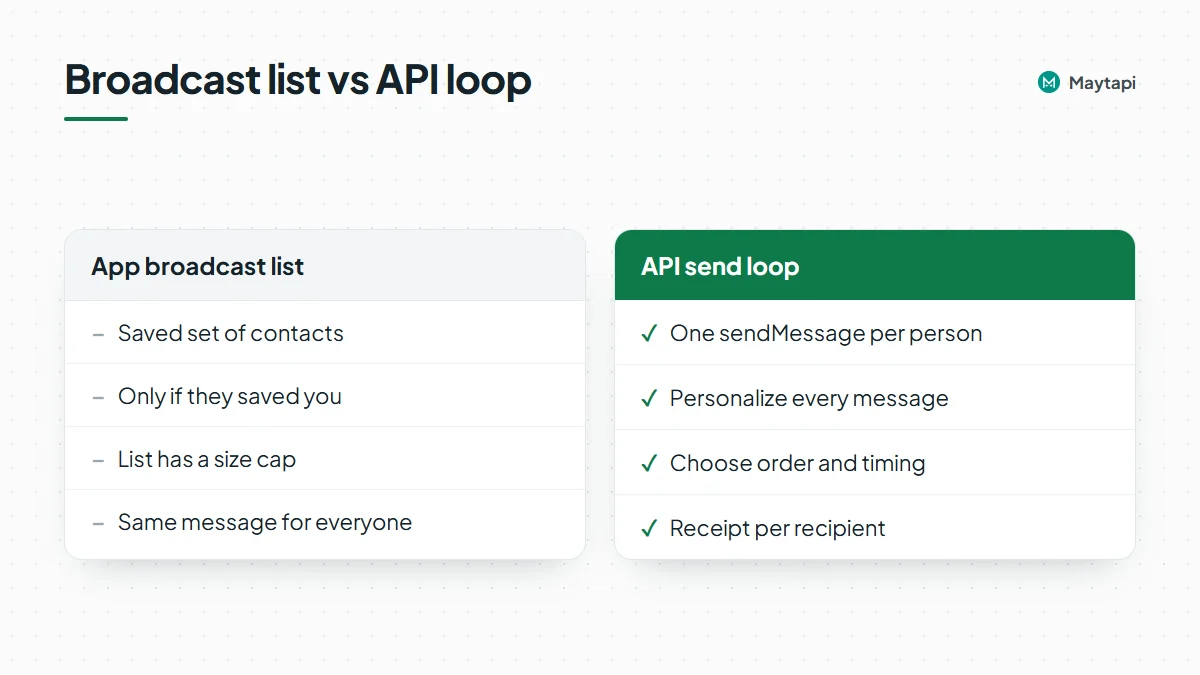
The Maytapi API has no broadcast-list endpoint. A broadcast over the API is a loop: your code calls sendMessage once per recipient, and each call creates or continues a one-to-one chat. That has real advantages over the app's lists. You can personalize every message, choose the order and timing, and get a receipt per recipient. It also means every recipient who has never chatted with you counts as a new chat, which is exactly what WhatsApp watches most closely.
Before writing the loop, check whether a one-to-one broadcast is the right tool at all:
| Option | Best for | Replies | Each send opens a 1:1 chat |
|---|---|---|---|
| API send loop | Personal, transactional or opt-in updates to known contacts | Private, per person | Yes |
| Group message | A team, class or customer group that talks among itself | Visible to the whole group | No, one message to the group |
| Channel post | News, offers and content for followers who chose to follow | None in chat (reactions, poll votes) | No, followers subscribe |
If your message is the same for everyone and nobody needs to reply privately, a Channel is usually the safer choice: followers opted in, and your number isn't starting hundreds of new conversations. Use the API loop when the message is personal (an order update, a renewal reminder, an appointment) or when you want each recipient to be able to answer you directly.
Start with opt-in and a clean list
Every number on your list should belong to someone who expects to hear from you on WhatsApp: a customer who gave you their number at checkout, a lead who filled in a form and ticked a WhatsApp box, a contact who has messaged you before. Bought lists and scraped numbers are the quickest path to reports, and reports are the strongest ban signal there is. Keep a record of when and how each person agreed, because privacy laws such as GDPR or KVKK may require you to show it. Pacing and varied wording lower the risk for messages people want; they don't make unsolicited marketing acceptable. For large promotional sends to people who haven't asked for them, Meta's official WhatsApp Business Platform with approved templates is the better fit. Our WhatsApp Business API alternative page compares the two.
Two pieces of list hygiene pay off before the first message goes out:
- Normalize the numbers.
to_numbertakes the country code followed by the national number, digits only, for example7916xxxxx67. - Drop numbers that aren't on WhatsApp. Sends to dead numbers fail and make your campaign look colder than it is. Run the list through
checkPhonesfirst; the bulk WhatsApp number check guide shows how to do it in batches and keep the results in your CRM.
Also keep an opt-out list from day one, and check it before every send. More on that below.
Personalize each WhatsApp broadcast message
Identical text sent to many chats in a short window is one of the patterns that makes a number look like a spam tool. Since the API sends one message per recipient anyway, there is no reason to send the same string to everyone:
- Use the person's name and something that is actually theirs: the order number, the appointment time, the product they asked about.
- Keep two or three phrasings of the same message and rotate them.
- Say who you are in the first line, and end with an easy way out, such as "Reply STOP to stop these updates."
- Leave links out of the first message to people who have never chatted with you. Send the link once they reply.
A small template helper in JavaScript:
const TEMPLATES = [
  "Hi {name}, this is Acme Store. Your order {order} is ready for pickup. Reply STOP to stop these updates.",
  "Hello {name}! Acme Store here: order {order} is packed and waiting for you. Reply STOP to opt out.",
  "{name}, good news from Acme Store: order {order} is ready. Reply STOP if you'd rather not get these."
];

function render(contact) {
  const template = TEMPLATES[Math.floor(Math.random() * TEMPLATES.length)];
  return template.replace(/\{(\w+)\}/g, (_, key) => contact[key] ?? "");
}
A WhatsApp broadcast API send loop with pacing
The loop below reads a list of contacts, skips anyone who opted out, sends one personalized text per person and waits a random interval between sends. The typing and duration fields are optional; they ask for a typing indicator in the chat for a few seconds (1 to 30) before the message is sent. Not every connection shows it, so treat it as a nice touch, not as your pacing.
const { PRODUCT_ID, PHONE_ID, TOKEN } = process.env;
const BASE = `https://api.maytapi.com/api/${PRODUCT_ID}/${PHONE_ID}`;
const HEADERS = { "x-maytapi-key": TOKEN, "Content-Type": "application/json" };

const MIN_GAP = 20, MAX_GAP = 45; // seconds between sends
const sleep = (ms) => new Promise((r) => setTimeout(r, ms));

async function send(contact) {
  const body = {
    to_number: contact.number,
    type: "text",
    message: render(contact),
    typing: "typing",
    duration: 3
  };
  const r = await fetch(`${BASE}/sendMessage`, { method: "POST", headers: HEADERS, body: JSON.stringify(body) });
  return r.json();
}

async function broadcast(contacts, optedOut) {
  const sent = {};
  for (const contact of contacts) {
    if (optedOut.has(contact.number)) continue;
    const result = await send(contact);
    if (result.success) {
      sent[result.data.msgId] = contact.number;
    } else {
      console.log("not queued:", contact.number, result.message);
    }
    await sleep((MIN_GAP + Math.random() * (MAX_GAP - MIN_GAP)) * 1000);
  }
  return sent;
}
Store the msgId from each response. It is the id that delivery receipts refer to later, so it connects a webhook event back to a contact.
How fast is safe depends on the number. A new or long-idle number should send far less than an established one with real conversation history. The limits Safe Mode enforces during its 14-day warm-up are a useful benchmark even if you don't turn it on: Tier 1 (days 0–1) allows 1 message a minute with a 45-second minimum gap, 60 messages and 8 new chats a day; Tier 5 (days 11–14) allows 8 a minute with a 5-second gap, 1,500 messages and 150 new chats a day. The full table is in how to avoid WhatsApp bans with Safe Mode.
The number to watch in a broadcast is new chats, not total messages. A message to someone who already chats with you is low risk; a first message to a stranger is not. Split your list into existing contacts and first contacts, send to existing contacts first, and keep the first-contact share small on any given day.
WhatsApp also applies its own new-chat quota to some numbers. It is still being tested and currently shows up on new WhatsApp accounts. Read it before a batch of first contacts with GET /getNewChatLimit, and stop when it is used up:
async function newChatsLeft() {
  const resp = await fetch(`${BASE}/getNewChatLimit`, { headers: HEADERS }).then((r) => r.json());
  if (!resp.success) throw new Error(resp.message); // limit could not be read; don't assume there is none
  const { limited, capped, remaining } = resp.data;
  if (!limited) return null; // WhatsApp applies no quota to this number
  return capped ? 0 : remaining;
}
Understand the sending queue
sendMessage doesn't send synchronously. It adds the message to your phone's sending queue and returns right away with success: true, a chatId and a msgId. A worker connected to your number takes messages off that queue one by one and sends them in order. So success: true means "queued", not "delivered".
Three endpoints let you look at and manage that queue:
| Endpoint | Scope | What it does |
|---|---|---|
GET /queue |
One phone | Returns stats.sending, the number of messages still waiting in that phone's queue |
GET /queues |
Product | Lists every phone in the product with its id, status and queue (waiting messages) |
GET /purgeQueue |
One phone | Clears the phone's send queue; messages still waiting are dropped |
curl "https://api.maytapi.com/api/$PRODUCT_ID/$PHONE_ID/queue" \
  -H "x-maytapi-key: $TOKEN"
{ "success": true, "stats": { "sending": 0 } }
The queue is useful in a broadcast in a few ways:
- Don't pile messages up. If you push the whole list at once, the queue holds everything, and the pace is no longer under your control. Keep your own delay between calls and check that
stats.sendingstays near zero. A growing number usually means the phone is disconnected or is being held back by limits. - With Safe Mode on, expect a backlog. Safe Mode doesn't reject messages that only exceed the per-minute rate or minimum gap; it holds them in the queue and releases them when allowed. A non-zero queue is normal then.
- Use purgeQueue as the stop button. If you spot a typo in a template or the number starts getting errors, call
purgeQueueto drop everything still waiting, and stop your loop. Messages that were already sent are not affected, and the one being sent at that moment may still go out.
Note: If the queue keeps growing and nothing is delivered, check the phone's connection status (
/queuesshows it per phone) before sending more. Messages left waiting in the queue for more than two days expire.
Track delivery with ack webhooks
Receipts for your broadcast arrive on your webhook as ack events. Each item in data has an ackCode (1 delivered to WhatsApp's servers, 2 reached the phone, 3 seen, 4 played, 5 deleted) and a msgId that matches the id sendMessage returned. Messages that couldn't be sent arrive as an error event with a code and a message, for example F14 when a Safe Mode daily limit is reached or F16 when WhatsApp's new-chat quota is used up. Ack delivery must be enabled for the product (ack_delivery in setWebhook or setAckPreference).
An Express handler that records receipts and handles opt-outs in the same endpoint:
import express from "express";

const app = express();
const STATUS = new Map();    // msgId -> highest ackCode seen (use your database)
const OPTED_OUT = new Set(); // numbers that replied STOP (use your database)
const STOP_WORDS = new Set(["stop", "unsubscribe", "cancel"]);

app.post("/maytapi/webhook", express.json(), (req, res) => {
  res.sendStatus(200);
  const event = req.body;

  if (event.type === "ack") {
    for (const ack of event.data || []) {
      STATUS.set(ack.msgId, Math.max(ack.ackCode, STATUS.get(ack.msgId) || 0));
    }
  } else if (event.type === "message") {
    const msg = event.message || {};
    if (!msg.fromMe && msg.type === "text" && STOP_WORDS.has((msg.text || "").trim().toLowerCase())) {
      OPTED_OUT.add(event.user.phone);
    }
  }
});

app.listen(3000);
Keep the highest ackCode per message rather than the latest one, because receipts can arrive out of order and more than once. In production, return 200 first and do the database work in the background. The WhatsApp webhook events guide has the full payloads and the rules for a reliable handler.
With receipts stored, you can answer the questions that matter after a broadcast: how many messages reached a phone, how many were read, and which numbers never got past delivered. Replies are worth tracking too. A broadcast that gets answers is a good sign for your number; one that gets silence and blocks is a warning to slow down.
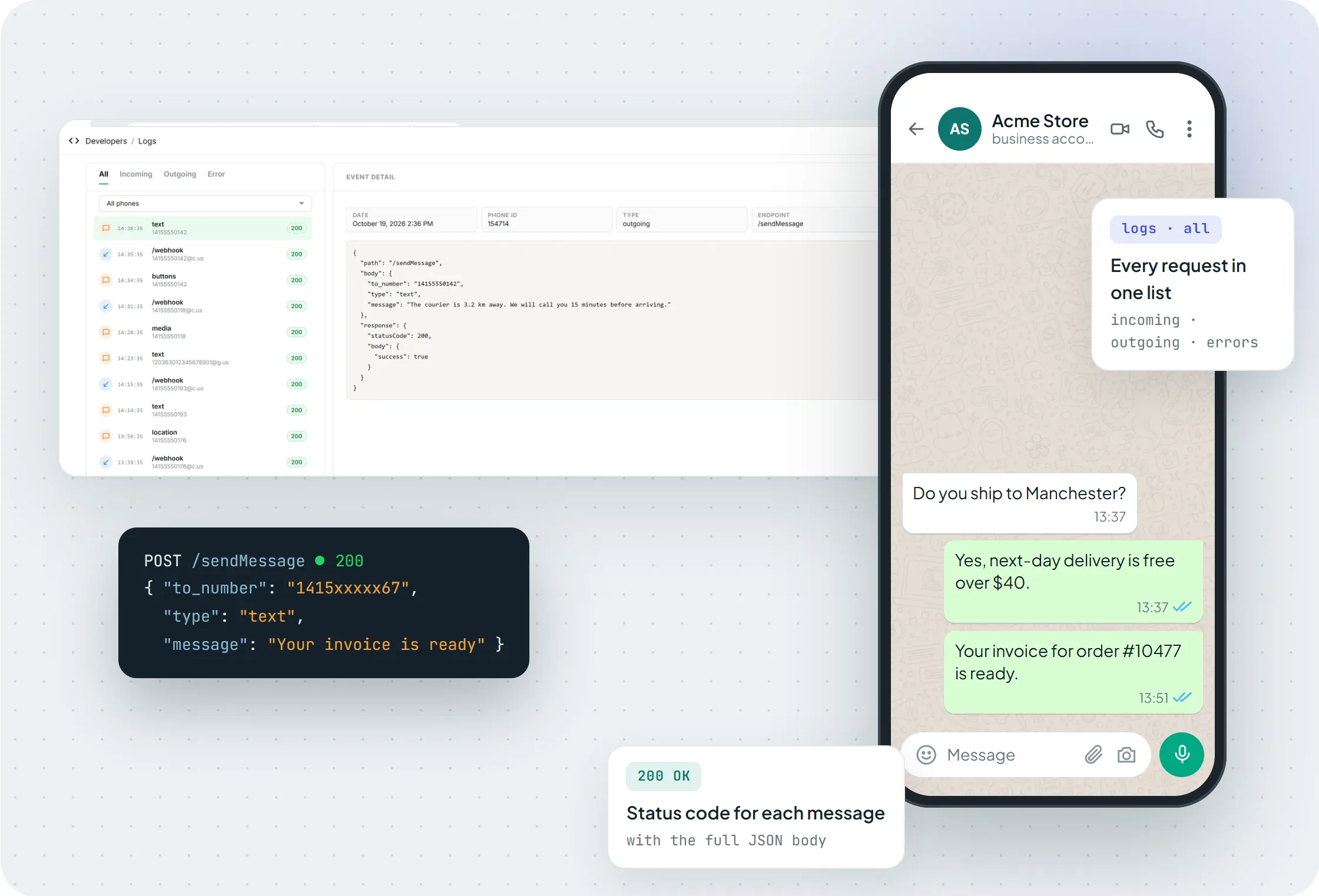 The Logs page in the console shows every sendMessage request and webhook delivery, filterable by incoming, outgoing and errors.
Handle opt-outs and errors as you go
An opt-out has to take effect before the next message, not at the next campaign. The handler above adds the number to the opt-out list the moment someone replies STOP; the send loop checks that list before every send. Send a short confirmation ("You won't get these updates anymore.") and don't message that number again unless they write to you first.
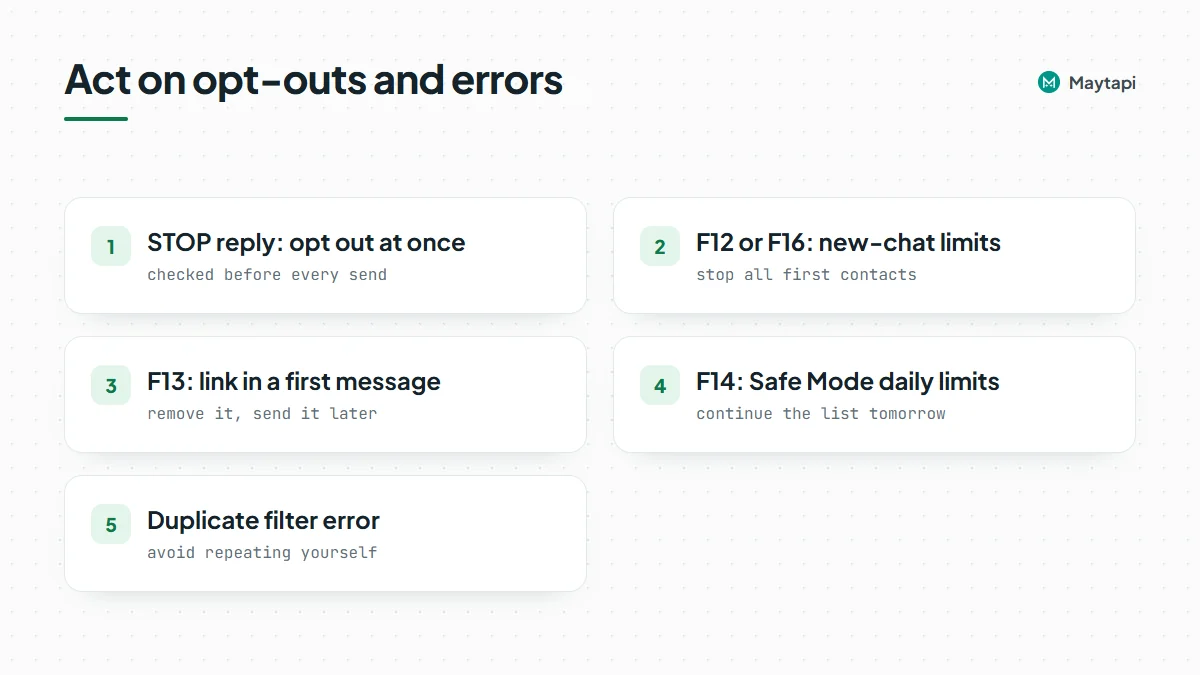
Treat errors the same way, as signals to act on rather than retry blindly:
- F12 (WhatsApp has restricted new conversations) and F16 (new-chat quota used up): stop all first contacts until the restriction lifts. Keep answering people who write to you.
- F13 (link in a first message to a new chat, blocked by Safe Mode): remove the link and send it later in the conversation.
- F14 (Safe Mode daily cap, sending window or new-chat limit): continue the rest of the list tomorrow.
The API also has a duplicate filter: sending the same content to the same chat several times within a few minutes gets dropped and reported as an error event. If a resend is intentional, sendMessage accepts "skip_filter": true, but for a broadcast the better fix is usually to avoid repeating yourself.
Next steps
Start small: pick a few dozen opted-in contacts who already chat with you, run the loop with a generous delay, and watch receipts and replies before you widen the list. If the number is new, turn on Safe Mode first and read the WhatsApp API ban prevention page so you know how to recognize a restriction early. For announcements that don't need private replies, move them to a WhatsApp Channel. The full request and response schemas for sendMessage and the queue endpoints are in the API documentation.