Maytapi
Posting to a WhatsApp group from code uses the same request as messaging one person. The difference is the recipient. This guide shows how to send messages to a WhatsApp group via API: text, images, documents, locations, contacts, polls, link previews and mentions, including the @all mention that notifies everyone at once. Each message type has a request example, followed by practices that keep busy groups readable and your number in good standing.
Everything goes through Maytapi's sendMessage endpoint. Maytapi runs on your own WhatsApp number linked as a device, so your number has to be a member of the group. If the group only lets admins send, your number has to be an admin.
Find the group ID
To send to a group, set to_number to the group ID, which ends in @g.us. If your number created the group through the API, createGroup already returned the ID. Otherwise, list your groups:
curl "https://api.maytapi.com/api/$PRODUCT_ID/$PHONE_ID/getGroups" \
  -H "x-maytapi-key: $TOKEN"
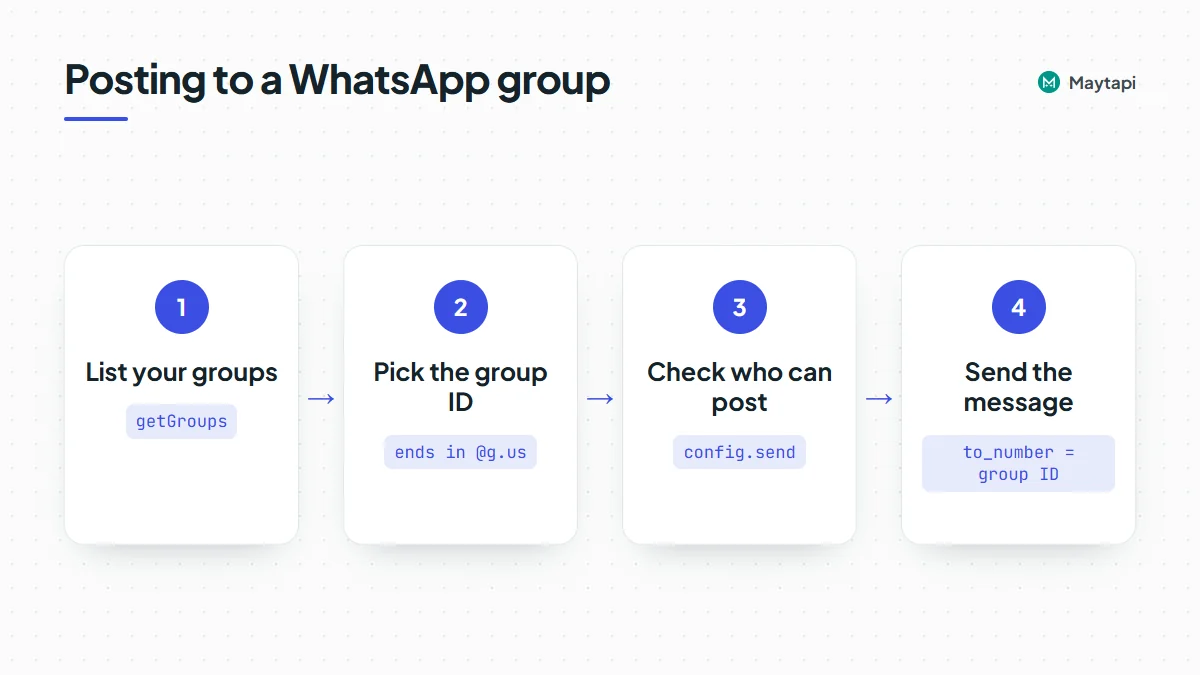
Each entry has an id such as 120363012345678901@g.us, plus name, participants, admins and config. Note config.send: when it is admins, only admins can post. You can also get the ID from your webhook. When anyone writes in a group, the incoming event's conversation field is the group ID.
The product ID and token are on the console's Product ID & Token page. To create groups and manage their members, see create and manage WhatsApp groups with an API.
Send a text message to a WhatsApp group
A text message to a group:
curl -X POST "https://api.maytapi.com/api/$PRODUCT_ID/$PHONE_ID/sendMessage" \
  -H "x-maytapi-key: $TOKEN" \
  -H "Content-Type: application/json" \
  -d '{
    "to_number": "120363012345678901@g.us",
    "type": "text",
    "message": "Store opens at 10:00 today. See you there!"
  }'
The response returns success: true, plus data.chatId (the group) and data.msgId. Keep the msgId if you might later reply to, pin or delete that message. WhatsApp formatting such as *bold* and _italic_ works in group messages too. The text formatter helps you preview it.
The same request in Node.js 18+:
const GROUP = "120363012345678901@g.us";

async function sendToGroup(body) {
  const res = await fetch(
    `https://api.maytapi.com/api/${PRODUCT_ID}/${PHONE_ID}/sendMessage`,
    {
      method: "POST",
      headers: { "x-maytapi-key": TOKEN, "Content-Type": "application/json" },
      body: JSON.stringify({ to_number: GROUP, ...body })
    }
  );
  return res.json();
}

await sendToGroup({ type: "text", message: "Store opens at 10:00 today." });
The examples below show only the JSON body. Each one goes to the same endpoint with the group ID in to_number.
Message types you can post to a group
| What you send | type |
Key fields |
|---|---|---|
| Text | text |
message |
| Image, video, audio | media |
message (URL or base64), text caption |
| Document with a file name | media |
message, filename, optional text |
| Location | location |
latitude, longitude, text |
| Link preview | link |
message (URL), optional text |
| Contact card (vCard) | vcard |
message.displayName, message.vcard |
| WhatsApp contact | contact |
message (one chat ID or an array) |
| Poll | poll |
message (question), options, only_one |
| Event | createEvent |
message, description, startTime, endTime, location |
| Reply to a message | any of the above | add reply_to with the message ID |
Images, video and documents
media covers every file type. Send a public URL (or a base64 data URI) in message and an optional caption in text:
{
  "to_number": "120363012345678901@g.us",
  "type": "media",
  "message": "https://example.com/images/autumn-collection.jpg",
  "text": "Our autumn collection is live. Members get early access until Friday."
}
For PDFs and other files, add filename so members see a proper name instead of a random one:
{
  "to_number": "120363012345678901@g.us",
  "type": "media",
  "message": "https://example.com/files/shift-plan-week-44.pdf",
  "filename": "shift-plan-week-44.pdf",
  "text": "Shift plan for next week"
}
sendMessage also accepts isGif for GIF-style videos and isHd for HD images, and has a separate sticker type. The media messages API page has more on files and formats.
Location, link previews and contacts
{
  "to_number": "120363012345678901@g.us",
  "type": "location",
  "text": "Meeting point: Fatih Sultan Mehmet Bridge",
  "latitude": "41.093292",
  "longitude": "29.061737"
}
A link message sends a URL as a rich preview. Use text for the line that goes with it:
{
  "to_number": "120363012345678901@g.us",
  "type": "link",
  "message": "https://example.com/events/spring-workshop",
  "text": "Schedule and materials"
}
To share a contact, use vcard with a full vCard string, or contact with an existing WhatsApp chat ID:
{
  "to_number": "120363012345678901@g.us",
  "type": "vcard",
  "message": {
    "displayName": "Acme Support",
    "vcard": "BEGIN:VCARD\nVERSION:3.0\nFN:Acme Support\nTEL;TYPE=CELL:+3461xxxxx67\nEND:VCARD"
  }
}
Polls
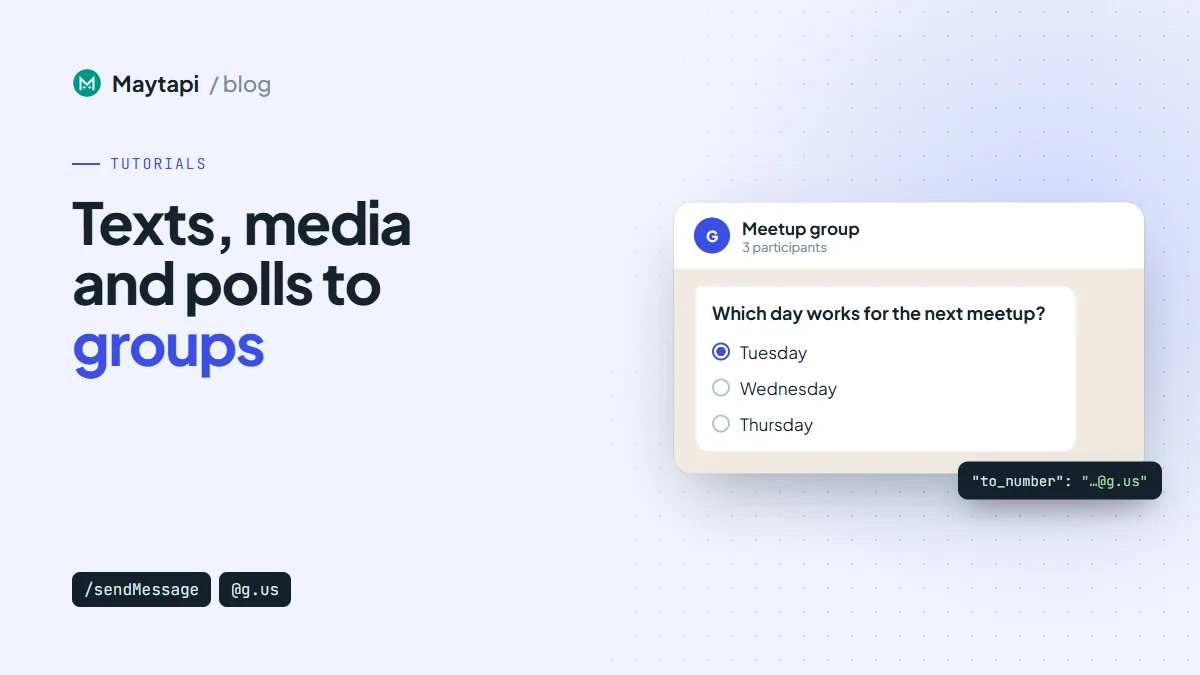
Polls are often the most useful message in a group: one message instead of fifty replies.
{
  "to_number": "120363012345678901@g.us",
  "type": "poll",
  "message": "Which day works for the next meetup?",
  "options": ["Tuesday", "Wednesday", "Thursday"],
  "only_one": true
}
only_one: true limits each member to one choice. Leave it out to allow multiple answers. Votes come to your webhook as pollVoteUpdate events, so you can count them without opening the phone.
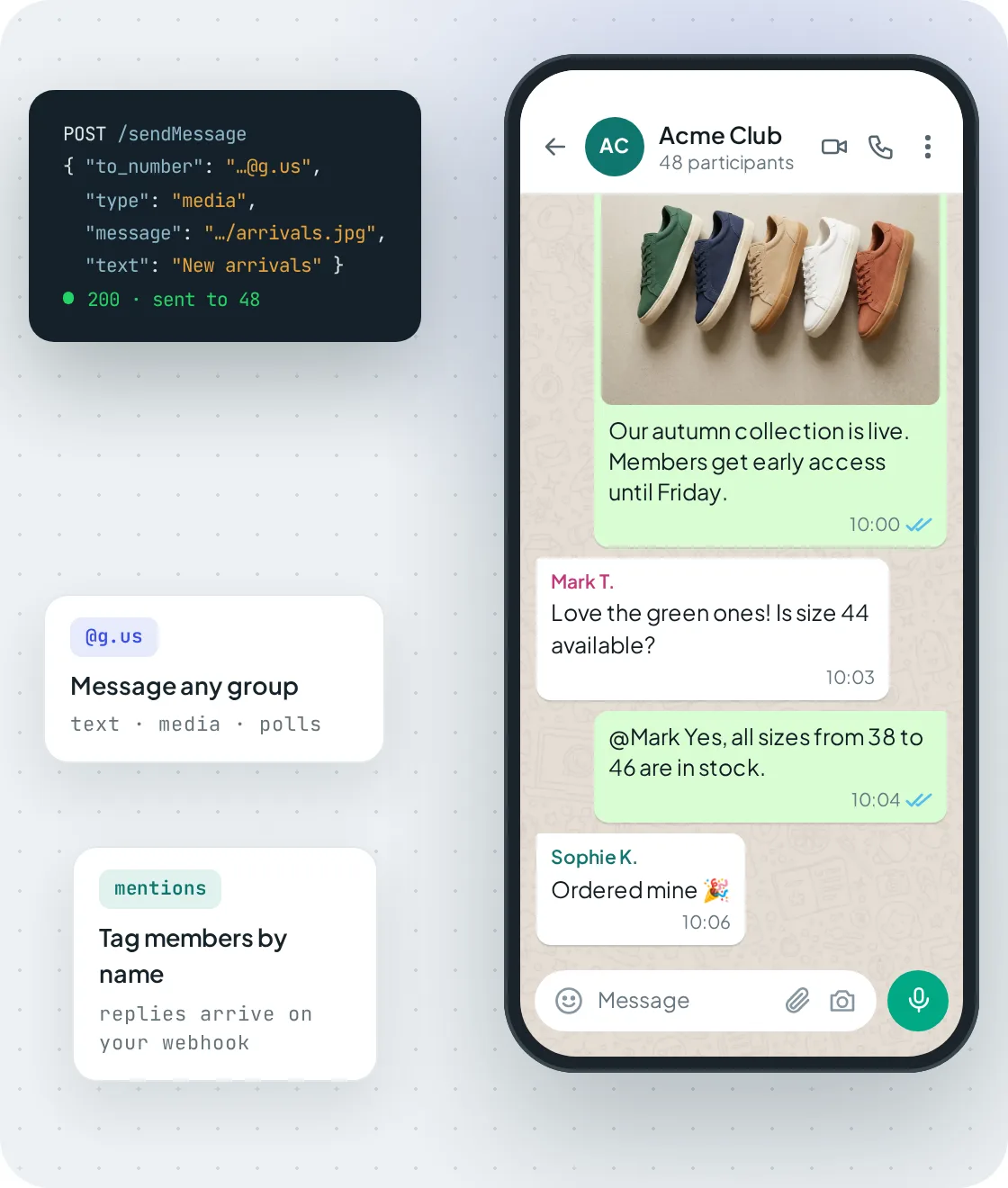
A media message sent with sendMessage to a group ID, followed by member replies and a mention.
Mention members and use @all
To mention someone, write @ followed by their number in the message text. The person sees it as a mention and gets notified:
{
  "to_number": "120363012345678901@g.us",
  "type": "text",
  "message": "@3461xxxxx67 your order is ready for pickup. @3461xxxxx68 yours ships tomorrow."
}
You can mention several people in one message. Since the 12.10.2026 release, there is also @all, which notifies every member without listing their numbers:
{
  "to_number": "120363012345678901@g.us",
  "type": "text",
  "message": "@all The meeting starts in 10 minutes."
}
Note:
@allworks intextandlinkmessages in group chats, and you can combine it with individual mentions. Following WhatsApp's own rule for mentioning everyone, it takes effect in groups with fewer than 33 participants, or when your number is a group admin. Otherwise the message is sent as plain text without the mention.
Mentions also work in the other direction. Incoming webhook messages include a mentions array of the chat IDs that were tagged. When someone uses @all, the array also contains the string "all". A bot can use that to answer only when it is tagged instead of reacting to every message in the group.
Reply, react, pin and delete in groups
sendMessage also handles the actions people use to keep a group conversation tidy. To reply to a specific message, add its ID in reply_to. For a received message, use the full serialized ID from the webhook. In groups it ends with the sender's chat ID (false_<group id>_<message id>_<sender id>). For your own messages, the msgId from the send response works. Other actions:
- React:
type: "reaction"with an emoji inmessageand the target inreply_to. - Pin:
type: "pinMessage",action: 1, adurationof 86400, 604800 or 2592000 seconds, andreply_to.action: 2unpins. - Delete for everyone:
type: "delete"with the message ID inmessageanddeleteForEveryone: true.
{
  "to_number": "120363012345678901@g.us",
  "type": "pinMessage",
  "action": 1,
  "duration": 604800,
  "reply_to": "false_120363012345678901@g.us_3EB0A81ECEA6D47F2F13_3461xxxxx67@c.us"
}
Pinning the week's schedule usually saves more questions than reposting it.
Best practices for busy WhatsApp groups
Make announcement groups read-only. If members shouldn't reply, set send to admins with group/config. Your number can still post, the group stays readable, and your webhook isn't flooded with replies.
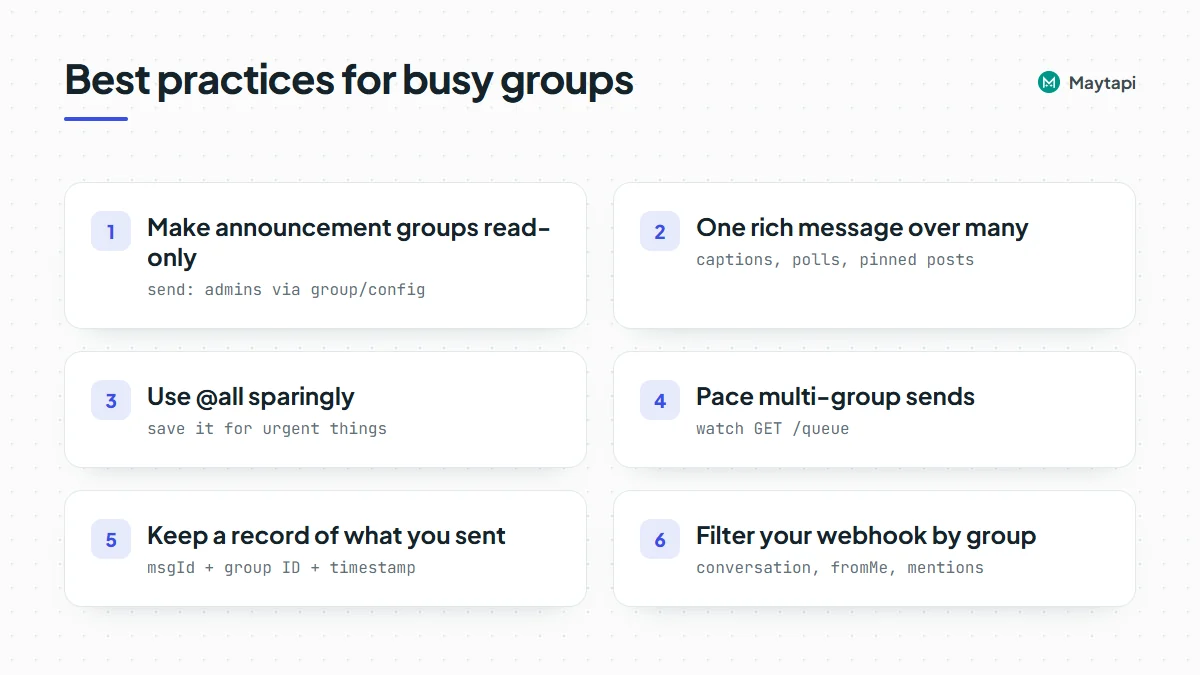
Prefer one rich message over many small ones. A caption on an image, a poll instead of "reply 1, 2 or 3", and a pinned message instead of daily reposts all mean fewer notifications. Members are less likely to mute or leave a group that doesn't ping them all the time.
Use @all sparingly. It notifies everyone, including people who muted the group's normal traffic. Save it for things that are actually urgent.
Pace multi-group sends. Posting the same announcement to dozens of groups in a burst is the kind of pattern WhatsApp's spam systems notice. Space the requests out. Watch GET /queue if messages build up, and remember that sendMessage has a duplicate filter for identical messages. The Safe Mode and warm-up guide explains how to warm up and pace a number.
Keep a record of what you sent. Save the msgId of each announcement together with the group ID and a timestamp. You need the ID to reply to, pin or delete the message later. It also lets you match ack events on your webhook to the right announcement, and it gives you a clean answer when someone asks whether a group was told about a change.
Filter your webhook by group. Every message in every group your number belongs to reaches your webhook. Check conversation against the groups you care about, ignore fromMe messages, and use mentions to decide when a bot should respond.
Next steps
- Create groups, manage members and handle join requests with create and manage WhatsApp groups with an API.
- See group messaging, members and events together on the WhatsApp group API page.
- For one-to-many announcements that members can't reply to, compare groups with WhatsApp channels.
You can try every request on this page with the 3-day free trial, no card needed.