Maytapi
Every contact list goes stale. People change numbers, landlines end up in the "mobile" column, and some customers never used WhatsApp at all. Messages sent to those numbers never arrive, and from WhatsApp's point of view they make your sending look colder than it is. This guide shows how to check if a number is on WhatsApp before you send, one at a time or in bulk with the checkPhones endpoint, and how to use the results to clean your CRM.
Checking a number sends nothing to it, and the owner is not notified. Only check numbers you already hold for a reason, such as customers, sign-ups or CRM contacts. A phone number is personal data under laws like GDPR and KVKK, and running generated or scraped number ranges through the check to find WhatsApp users goes against WhatsApp's terms.
Why check if a number is on WhatsApp before sending
Two reasons, one practical and one about keeping your number safe.
Delivery and reporting. If 20% of a list isn't on WhatsApp, 20% of your sends will fail, and your delivery numbers will be wrong. Knowing in advance lets you route those contacts to SMS or email instead, and keeps your WhatsApp metrics honest.
Ban risk. WhatsApp watches how a number behaves. First messages to many people, few replies and failed sends are all part of what an automated number looks like when it is about to be restricted. A clean list doesn't make cold outreach safe, but a dirty list makes every campaign look worse than it is. Combined with opt-in and a gradual warm-up (see how to avoid WhatsApp bans with Safe Mode), list hygiene is one of the cheapest protections you have.
Format numbers correctly first
Most "invalid" results come from formatting, not from the number itself. checkPhones expects international format: country code followed by the national number, digits only, with no +, spaces, dashes or brackets. That is E.164 without the leading +.
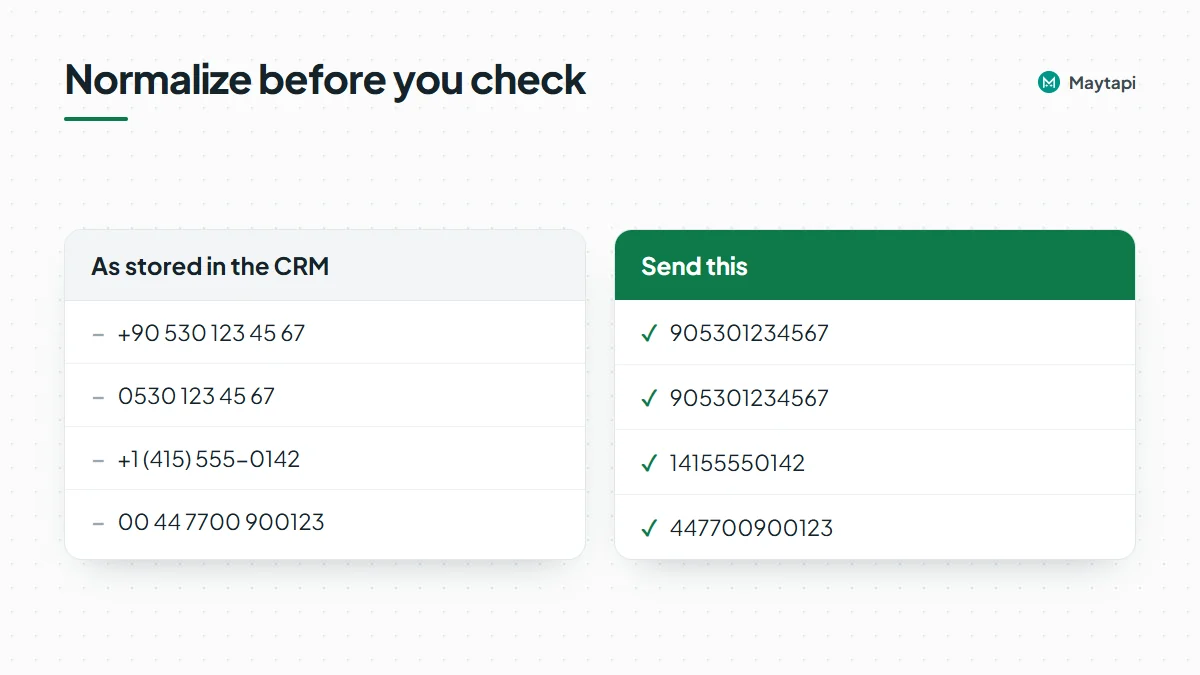
| As stored in the CRM | Send this |
|---|---|
+90 530 123 45 67 |
55119xxxxxx67 |
0530 123 45 67 (Turkey, national format) |
55119xxxxxx67 |
+1 (415) 555-0142 |
14155550142 |
00 44 7700 900123 |
447700900123 |
Watch two traps. National numbers often carry a trunk prefix (the leading 0 in Turkey or the UK) that must be dropped once you add the country code. And a number stored without a country code can't be guessed safely, so use the customer's billing country or flag it for review.
A small normalizer in JavaScript:
function normalize(raw, defaultCc = "90") {
  const digits = String(raw || "").replace(/\D/g, "");
  if (digits.startsWith("00")) return digits.slice(2);                // international prefix
  if (String(raw || "").trim().startsWith("+")) return digits;
  if (digits.startsWith("0")) return defaultCc + digits.slice(1);     // national format with trunk 0
  return digits;
}
Treat the output as a candidate, not a guarantee. The check itself tells you whether it is real.
Check numbers with the checkPhones API
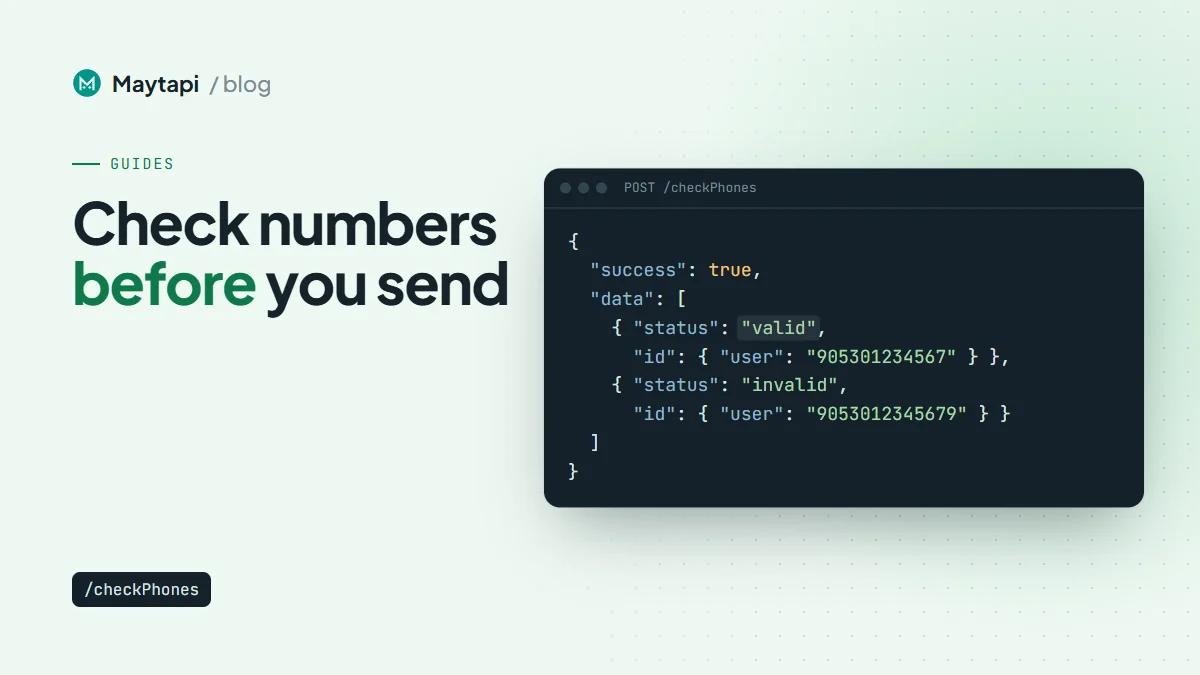
POST /checkPhones takes an array of numbers and returns one result per number. It runs through one of your connected phones, so the phone must be active.
curl -X POST "https://api.maytapi.com/api/$PRODUCT_ID/$PHONE_ID/checkPhones" \
  -H "x-maytapi-key: $TOKEN" \
  -H "Content-Type: application/json" \
  -d '{"numbers": ["55119xxxxxx67", "9053012345679"]}'
{
  "success": true,
  "data": [
    {
      "status": "valid",
      "valid": true,
      "id": { "server": "c.us", "user": "55119xxxxxx67", "_serialized": "55119xxxxxx67@c.us" }
    },
    {
      "status": "invalid",
      "valid": false,
      "id": { "server": "c.us", "user": "9053012345679", "_serialized": "9053012345679@c.us" }
    }
  ]
}
For each number you get:
valid:trueif the number is registered on WhatsApp.status:"valid"or"invalid", the same answer as a string.id._serialized: the WhatsApp id (for example55119xxxxxx67@c.us), which you can use directly asto_numberinsendMessage.
The number check API page has more examples, and the full schema is in the API documentation.
Checking a whole list in batches
The API doesn't document a hard maximum per request, but sending a 50,000-row export in one call is a bad idea. A failure loses the whole batch, and a sudden burst of lookups is not how a normal WhatsApp account behaves. Split the list into modest chunks and pause between them:
// Node.js 18+ (ESM)
const BASE = `https://api.maytapi.com/api/${PRODUCT_ID}/${PHONE_ID}`;
const sleep = (ms) => new Promise((r) => setTimeout(r, ms));

async function checkAll(numbers, size = 50, pauseMs = 5000) {
  const results = [];
  for (let i = 0; i < numbers.length; i += size) {
    const res = await fetch(`${BASE}/checkPhones`, {
      method: "POST",
      headers: { "x-maytapi-key": TOKEN, "Content-Type": "application/json" },
      body: JSON.stringify({ numbers: numbers.slice(i, i + size) }),
    });
    const body = await res.json();
    if (!body.success) throw new Error(body.message || "checkPhones failed");
    results.push(...body.data);
    await sleep(pauseMs);
  }
  return results;
}

const results = await checkAll(["55119xxxxxx67", "14155550142"]);
const onWhatsApp = results.filter((r) => r.valid).map((r) => r.id._serialized);
The batch size and pause above are starting points, not documented limits. The console's bulk tool is more cautious by default: 150 numbers per batch with a 20-minute pause. For large lists, spread the work over hours instead of minutes, and run checks on an established number rather than one you connected yesterday.
Use the results to clean your CRM
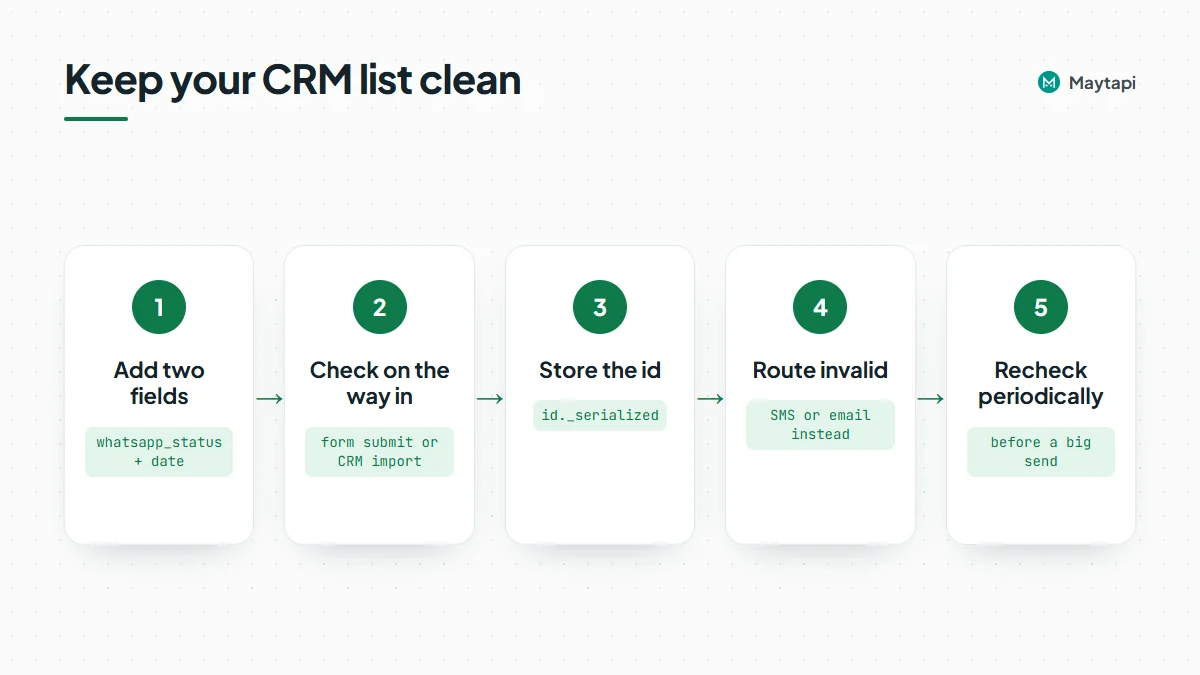
A check is only useful if the result lands where your team works. A simple pattern:
- Add two fields to the contact record:
whatsapp_status(valid,invalidorunchecked) andwhatsapp_checked_at. - Check on the way in. Run new numbers through
checkPhonesat form submission or CRM import, so bad numbers never reach a campaign. - Store the id. Save
id._serializedand send to that instead of the raw input. - Route invalid contacts elsewhere. Send them SMS or email, or ask them to confirm their number, instead of deleting them.
- Recheck periodically. Numbers change hands and people install WhatsApp later. A recheck before a big send, or every few months for active segments, keeps the field honest.
Once you start messaging the valid contacts, the Google Contacts integration can save each recipient to your Google address book automatically when you include firstname and lastname in sendMessage. Saved contacts help keep a WhatsApp account healthy.
The free WhatsApp number checker and the console bulk tool
You don't always need code.
- One number: the free WhatsApp number checker tells you whether a single number is on WhatsApp.
- A spreadsheet: the multi number checker under Tools in the Maytapi console takes an Excel or CSV file with numbers in column A, checks them through one of your connected phones and lets you download the results. It splits the file into batches with a pause between them by default, for the same pacing reason as above.
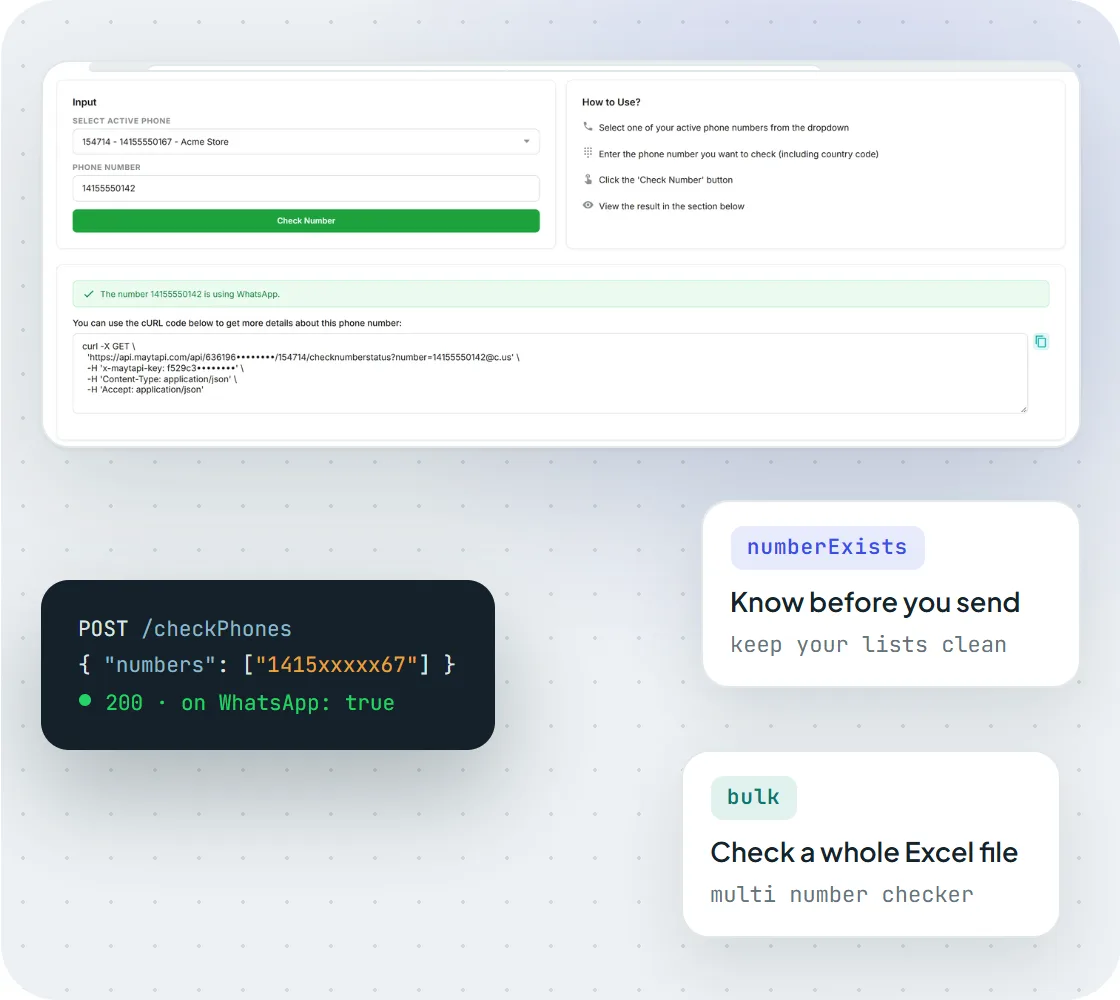
The console checker confirms that a number is on WhatsApp. The same check is available through POST /checkPhones for bulk use.
Note: A valid result only means the number can receive WhatsApp messages. It doesn't mean the person agreed to hear from you. Opt-in still decides who you message.
When a number you trust comes back invalid
If a customer swears they use WhatsApp but the check says valid: false, look at these first:
- Missing or doubled country code.
5301234567without90, or9090530...after a normalizer ran twice. - Trunk prefix left in.
9005301234567keeps the national0after the country code. - Extra or missing digits. The second number in the example above has one digit too many, so it comes back invalid even though it looks almost right.
- A different number on WhatsApp. Some people use WhatsApp on a second SIM or an old number. Ask them to confirm which one.
- The checking phone is offline. If the connected phone isn't active,
checkPhonescan't answer. Check the phone's status in the console before you trust a batch of failures.
Fix the formatting, then recheck only the invalid rows. There's no need to run the whole list again.
Next steps
Format your numbers, run the list through checkPhones in batches, and write the results back to your CRM before your next send. You can try it on the 3-day free trial with no card. Then see 8 WhatsApp API use cases for business for what to do with a clean list.