Maytapi
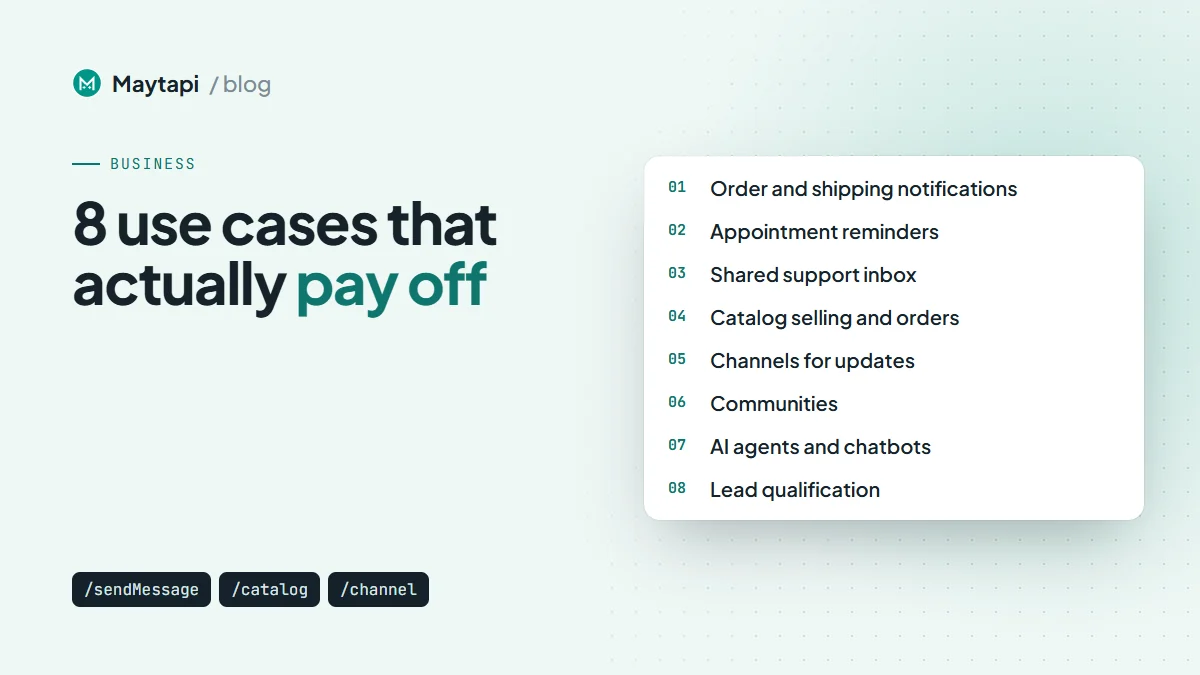
Most customers already have WhatsApp open all day, so a message there gets read when an email might sit unopened. The hard part is picking which jobs to automate and wiring them up properly. Below are eight ways businesses use a WhatsApp API for business on their own number. For each one you get what it does, the Maytapi endpoints or features behind it, and one practical tip for running it well.
Everything here runs on Maytapi, an unofficial WhatsApp API: you link your existing number as a device with a QR code, then send and receive through REST calls and webhooks. You need no template approval and pay no per-message fees, but you also have to keep the number healthy yourself. We come back to that at the end.
1. Order and shipping notifications
What it is. When an order is confirmed, packed, shipped or delivered, your store or ERP sends the customer a WhatsApp message. You can attach the invoice PDF or a tracking link.
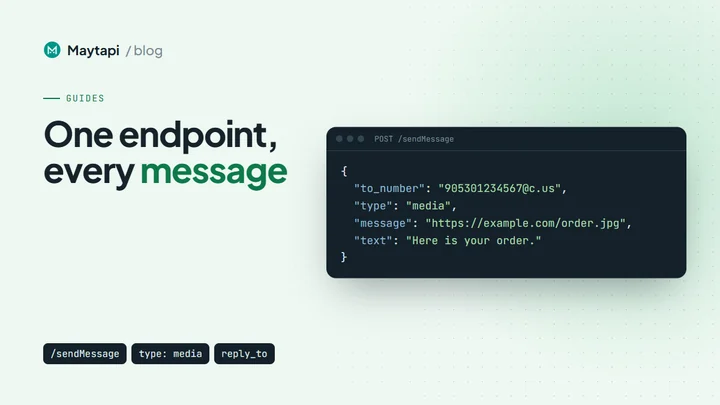
What powers it. POST /sendMessage with type: "text" for status updates and type: "media" for the invoice, with a URL in message and an optional filename. Delivery and read receipts (acks) come back to your webhook, so you can tell which customers actually saw the update.
{
  "to_number": "55119xxxxxx67",
  "type": "media",
  "message": "https://example.com/invoice-10482.pdf",
  "text": "Your order #10482 has shipped. Invoice attached.",
  "filename": "invoice-10482.pdf"
}
Tip. Only message people who gave their number at checkout and expect updates. Hold the tracking link for the second message ("Your package is on its way") instead of putting it in the very first message to a new contact. Links in a first message are a strong spam signal.
2. Appointment reminders
What it is. Clinics, salons, repair services and consultants send a reminder the day before and let customers confirm or reschedule in the chat.
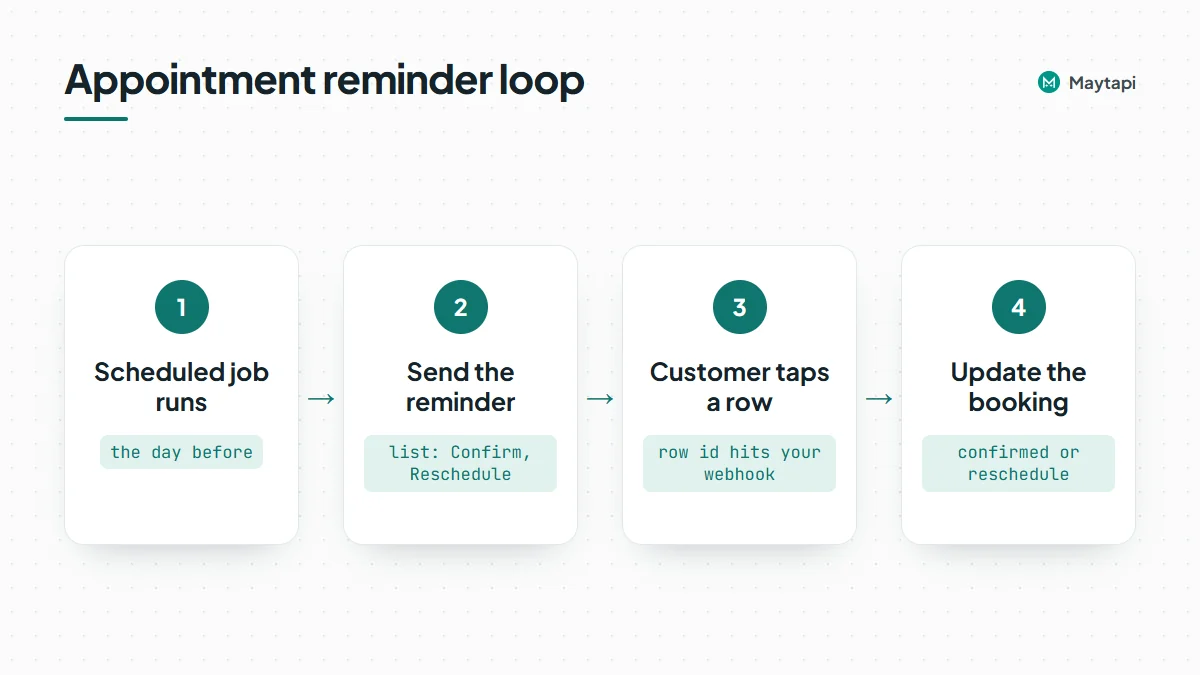
What powers it. A scheduled job calls sendMessage. Interactive messages make the answer one tap: a list message (type: "list") with "Confirm" and "Reschedule" rows returns the chosen row's id to your webhook, and reply buttons (type: "buttons") work too, as long as your handler also accepts a typed "confirm". For bookings that are fixed, the createEvent message type sends a native WhatsApp event with a start time, end time and location.
Tip. Treat the reply as data. Write "confirmed" or "reschedule" back to your booking system as soon as the webhook arrives, so staff don't have to read chats to know who is coming. The appointment reminders guide builds this flow step by step.
3. Customer support with a shared WhatsApp inbox
What it is. One well-known support number, answered by several people at once without passing a phone around.
What powers it. The multi-agent platform uses the same connection as the API. Every incoming message lands in a shared inbox. Agents sign in from their browser, take a conversation, reply and close it, and you see waiting, taken and closed conversations per agent. One agent is included free. Bots and webhooks keep running on the same number, so automation can answer the easy questions and agents can handle the rest.
Tip. Use WhatsApp Business labels (createLabel, addLabel) to tag chats by topic or status, such as "refund" or "VIP". Label changes also reach your webhook, so your CRM can stay in sync with what agents do.
4. Catalog selling and order webhooks
What it is. Customers browse your products inside WhatsApp and send an order without leaving the chat.
What powers it. The product catalog API (catalog/addProduct, catalog/editProduct, collections) keeps the WhatsApp catalog in sync with your web shop. sendMessage with type: "product" or type: "catalog" shares one product or the whole catalog in a chat. When a customer places an order, it arrives on your webhook as an order message, and catalog/getOrders/{orderId} returns the products, quantities and prices.
Tip. Save every order to your own database the moment the webhook arrives. getOrders only keeps orders received while the session is running, so treat it as a convenience, not your record. The catalog is a WhatsApp Business feature, so the connected number must be a WhatsApp Business account.
5. Channels for broadcasting updates
What it is. A WhatsApp Channel is a one-to-many feed that people choose to follow. It works well for product launches, price changes, opening hours and news, the kind of messages you would otherwise blast to a contact list.
What powers it. The channel API creates and configures channels. sendMessage posts to the channel id (for example 120363098765432109@newsletter) with types such as channel_text, channel_media, channel_link and channel_poll. channel/statistics/{conversation_id} reports follower and reach numbers.
Tip. Channels are the safest way to reach many people from one number. Followers opted in, and you are not opening hundreds of new one-to-one chats. Move broadcast-style content here and keep direct messages for transactional and personal conversations. If you still need to message a list one by one, read how to send a WhatsApp broadcast via API first.
6. Communities for members, customers and partners
What it is. A WhatsApp Community groups related groups under one announcement group. Schools, franchises, clubs and B2B partner networks use it to send one announcement to everyone while topic groups stay separate.
What powers it. The community API covers createCommunity, community/addSubGroup, member management and admin promotion. Announcements go to the announcement group through sendMessage. Member comments under an announcement can be read and answered (type: "comment").
Tip. Give each sub-group a clear purpose, such as one per branch or one per product line, and automate the joining step. When someone signs up, add them with community/add or send them a group invite, so nobody ends up in the wrong group.
7. AI agents and chatbots
What it is. An AI assistant or rule-based bot answers common questions at any hour, collects details before a human takes over, or lets your team run WhatsApp from tools they already use.
What powers it. Several routes, depending on how much code you want to write:
| Route | Best for | How it connects |
|---|---|---|
| Your own bot | Full control over logic | Webhook in, sendMessage out |
| n8n integration | No-code workflows with an LLM step | Maytapi Trigger node for incoming messages, Maytapi node for replies (example with Claude) |
| MCP server | Claude, Cursor and other MCP clients | 140 tools for messages, groups, channels and more |
Tip. Always give the bot a way out. When it can't answer, or the customer asks for a person, label the chat and hand it to the shared inbox instead of looping. In your webhook, ignore messages where message.fromMe is true so the bot never replies to itself.
8. Lead qualification and number checks
What it is. Before sales calls or messages a new lead, confirm that the number is on WhatsApp, start the conversation, and route qualified leads to the right person.
What powers it. POST /checkPhones takes an array of numbers and returns valid: true or false for each one, plus the WhatsApp id to use as to_number. After that, labels mark the lead's stage, and your webhook pushes replies into the CRM.
Tip. Check numbers when you collect them, at form submission or CRM import, not at send time. A list full of numbers that aren't on WhatsApp leads to failed sends, and first contacts with no replies hurt your number. Our guide to bulk WhatsApp number checks shows the batching pattern.
Keep the number healthy
Every use case above runs on your own WhatsApp number, linked the same way WhatsApp Web is. That gives you a lot of flexibility, but WhatsApp is not endorsed by or partnered with any unofficial API. You must follow WhatsApp's terms, and numbers that send unwanted messages get restricted or banned. In practice:
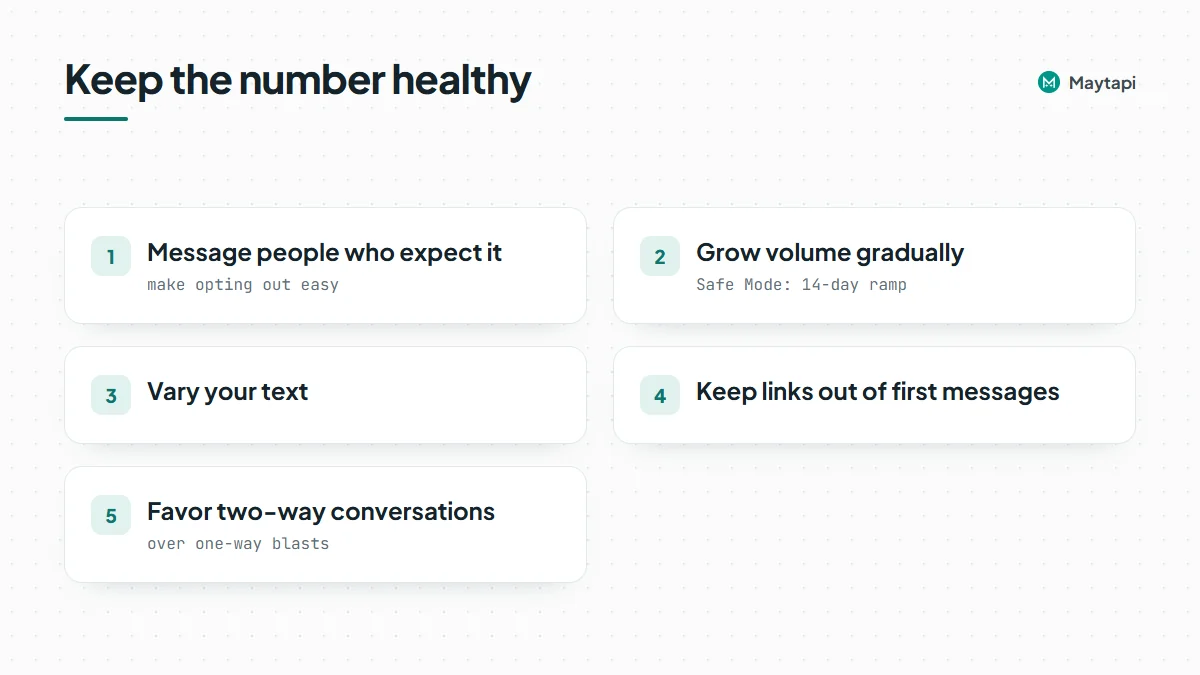
- Message people who expect to hear from you, and make opting out easy.
- Grow volume gradually on new numbers. Safe Mode in the console ramps a number up over 14 days.
- Vary your text, keep links out of first messages, and favor two-way conversations over one-way blasts.
Our post on avoiding WhatsApp bans with Safe Mode and warm-up covers this in detail.
Next steps
Pick one use case, usually order notifications or support, and get it working end to end before adding the next. The getting started guide takes you from QR code to first message and webhook. You can start a 3-day free trial with no card. Pricing is a flat fee per number with unlimited messages, and every endpoint mentioned here is in the API reference.