Maytapi
Running a few WhatsApp groups by hand is fine. Running one per customer, class, event or project isn't, once the groups need consistent settings and up-to-date member lists. This guide shows how to create WhatsApp groups with an API and manage them from code: create a group, add and promote members, handle join requests, change settings and invite links, and follow group events on your webhook. Every request below uses the Maytapi API, and the request bodies match the API documentation.
Maytapi connects your own WhatsApp number as a linked device. Groups you create belong to that number, and it becomes their admin. That means the groups behave exactly like groups you create in the WhatsApp app, including WhatsApp's own privacy rules for who can be added.
Group IDs and the base request
All examples use the same base URL and header. In the shell examples, set these first:
export PRODUCT_ID="your-product-id"
export PHONE_ID="your-phone-id"
export TOKEN="your-token"
Your product ID and token are on the console's Product ID & Token page. The phone ID identifies the WhatsApp number that will own the groups.
A group is identified by its ID, which ends in @g.us, for example 120363012345678901@g.us. Most group endpoints take it as conversation_id. To see the groups your number is already in, call getGroups:
curl "https://api.maytapi.com/api/$PRODUCT_ID/$PHONE_ID/getGroups?sort=true&page=1" \
  -H "x-maytapi-key: $TOKEN"
Each group in data comes with its id, name, description, participants, admins and config. Groups that belong to a community also have a communityId. The response is paginated (count, total, limit, page), and the docs recommend combining page with sort=true. Use GET /getGroups/{conversation_id} to fetch a single group.
Create a WhatsApp group with the API
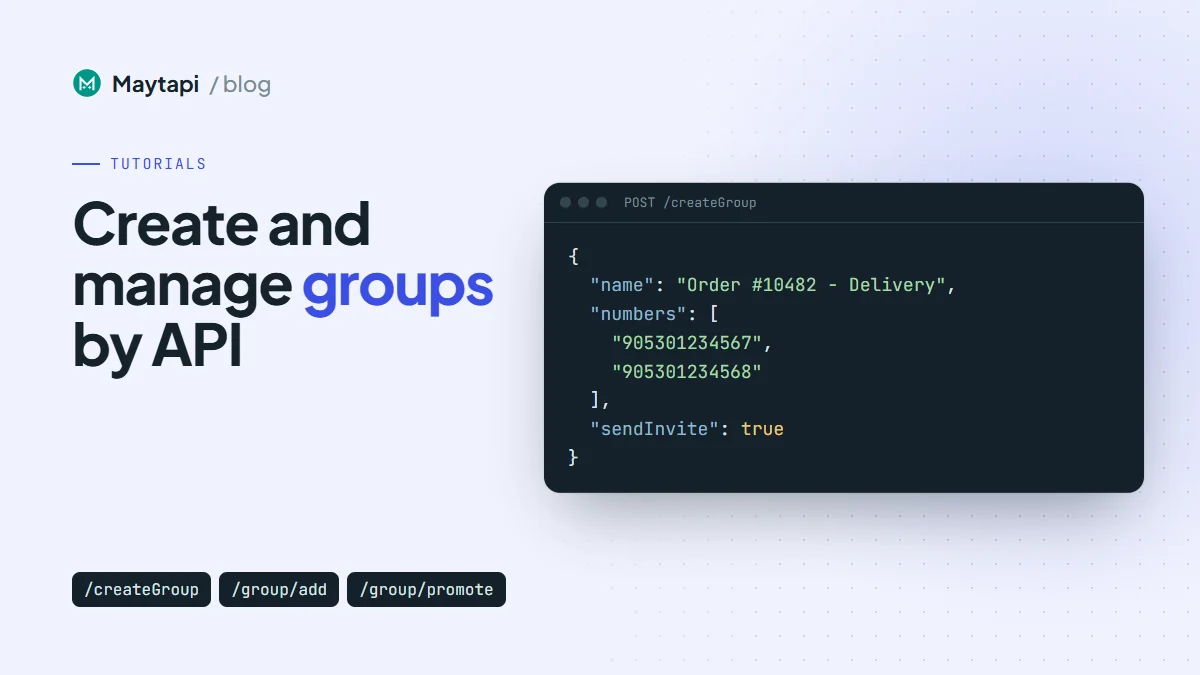
createGroup takes a name and the numbers to add. You can also set the group photo and the settings in the same call:
curl -X POST "https://api.maytapi.com/api/$PRODUCT_ID/$PHONE_ID/createGroup" \
  -H "x-maytapi-key: $TOKEN" \
  -H "Content-Type: application/json" \
  -d '{
    "name": "Order #10482 - Delivery",
    "numbers": ["55119xxxxxx67", "55119xxxxxx68"],
    "sendInvite": true,
    "message": "Hi! This group is for your delivery updates.",
    "image": "https://example.com/images/group-logo.png",
    "config": {
      "edit": "admins",
      "send": "all",
      "disappear": false,
      "membersCanAddMembers": false,
      "approveNewMembers": true
    }
  }'
Maytapi first tries to add each number directly. Some people's privacy settings don't allow anyone to add them to groups. For those numbers, with sendInvite: true, they get a private invitation with your message, which they can accept themselves. Your number becomes an admin automatically.
The response returns the new group, including its id. Store that ID next to the record it belongs to (the order, the class, the customer), because every later call uses it.
Add, remove, promote and demote members
group/add accepts a list of numbers and the same invitation fallback as createGroup:
curl -X POST "https://api.maytapi.com/api/$PRODUCT_ID/$PHONE_ID/group/add" \
  -H "x-maytapi-key: $TOKEN" \
  -H "Content-Type: application/json" \
  -d '{
    "conversation_id": "120363012345678901@g.us",
    "numbers": ["905301234569", "905301234570"],
    "sendInvite": true,
    "message": "You are invited to the Spring Workshop group."
  }'
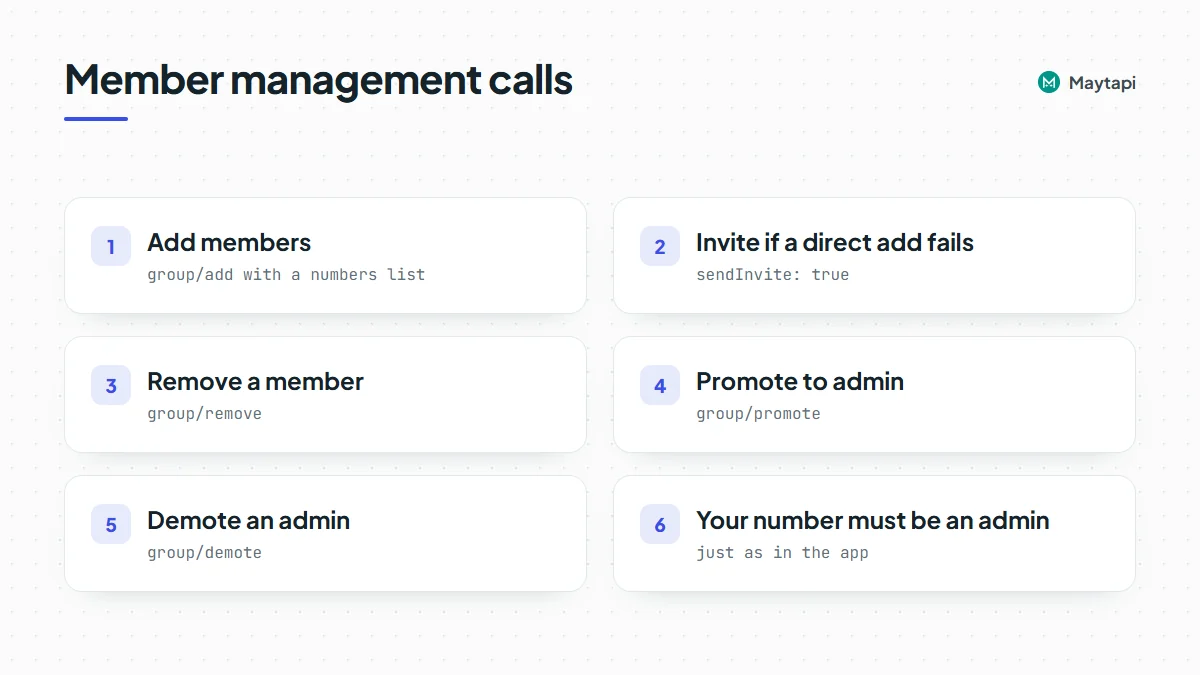
Removing, promoting and demoting work on one participant at a time. The participant goes in number, in chat ID form:
curl -X POST "https://api.maytapi.com/api/$PRODUCT_ID/$PHONE_ID/group/promote" \
  -H "x-maytapi-key: $TOKEN" \
  -H "Content-Type: application/json" \
  -d '{"conversation_id": "120363012345678901@g.us", "number": "905301234569@c.us"}'
Change the path to group/demote to take admin rights away, or to group/remove to remove the person from the group. All three return success. Your number has to be an admin of the group for these calls to work, just as in the app.
Note: If the number is warming up in Safe Mode, calls that change a group (
createGroup,group/add,group/remove,group/promote,group/demote,group/config,group/revokeInvite) fail with error F15 in Tiers 1 and 2. In Tier 3 only calls with more than five members at once are blocked. Reading groups and sending messages to them keeps working.
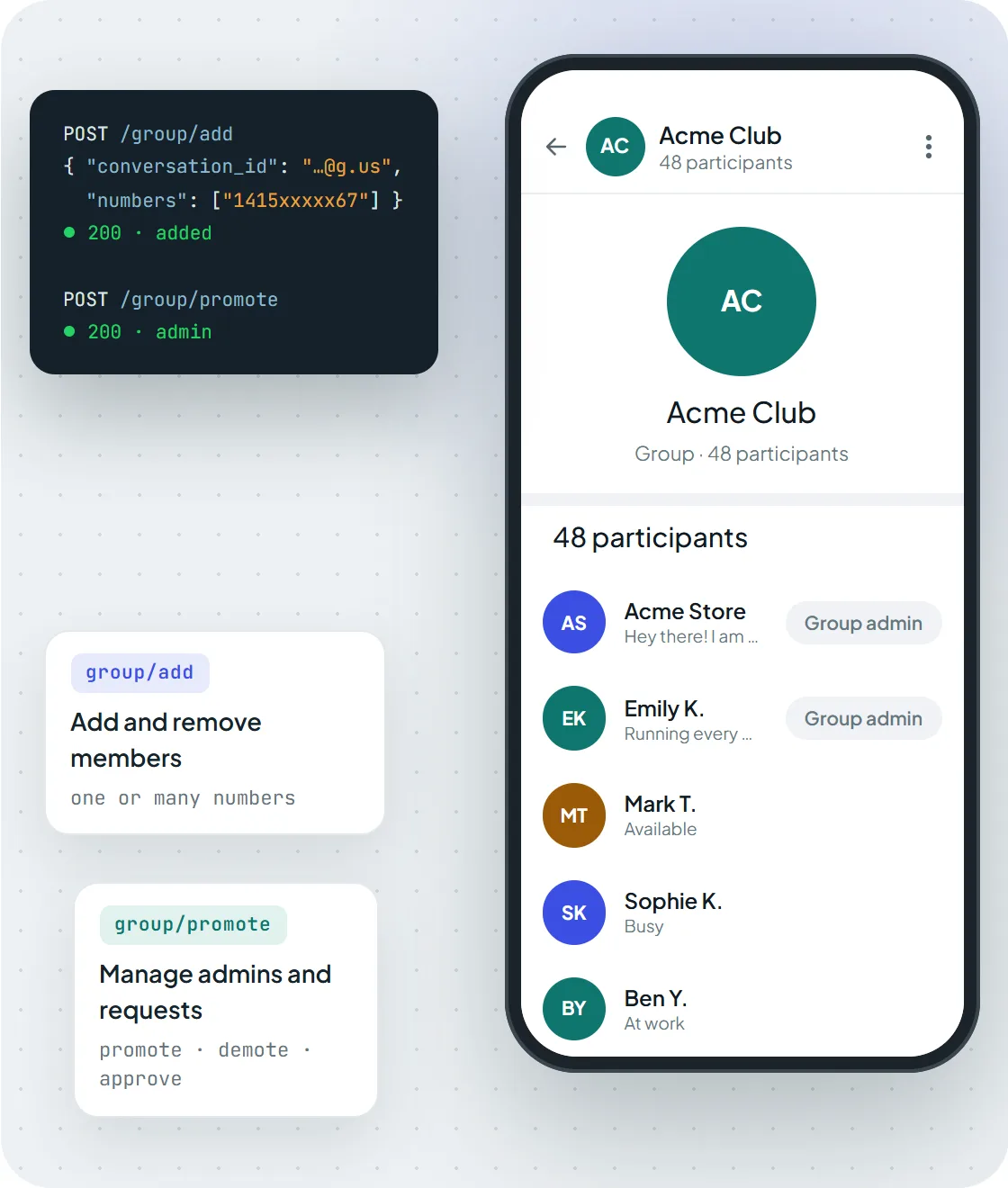
Members added with group/add and an admin promoted with group/promote show up in the group like any other change.
Change group settings, name and photo
group/config updates any combination of settings. Send only the keys you want to change:
curl -X POST "https://api.maytapi.com/api/$PRODUCT_ID/$PHONE_ID/group/config" \
  -H "x-maytapi-key: $TOKEN" \
  -H "Content-Type: application/json" \
  -d '{
    "conversation_id": "120363012345678901@g.us",
    "config": {
      "name": "Spring Workshop 2026 - Announcements",
      "description": "Schedules and materials. Questions go to the main group.",
      "send": "admins"
    }
  }'
| Key | Values | What it controls |
|---|---|---|
edit |
admins / all |
Who can edit the group info |
send |
admins / all |
Who can send messages (admins makes it an announcement-style group) |
disappear |
true / false |
Disappearing messages |
membersCanAddMembers |
true / false |
Whether non-admins can add people |
approveNewMembers |
true / false |
Whether joins need admin approval |
name, description |
text | Group subject and description |
To change the photo, call group/setProfileImage with conversation_id and an image URL. The docs recommend a square image, ideally 512x512. group/deleteProfileImage removes it and brings back the default avatar.
Handle join requests and invite links
With approveNewMembers on, people who use the invite link wait for approval instead of joining right away. List the pending requests:
curl "https://api.maytapi.com/api/$PRODUCT_ID/$PHONE_ID/group/approvalRequestList/120363012345678901@g.us" \
  -H "x-maytapi-key: $TOKEN"
Each entry has a timestamp and userInfo with the person's id, name and phone. Approve or reject in bulk with plain numbers:
curl -X POST "https://api.maytapi.com/api/$PRODUCT_ID/$PHONE_ID/group/approvalRequest/Approve" \
  -H "x-maytapi-key: $TOKEN" \
  -H "Content-Type: application/json" \
  -d '{"conversation_id": "120363012345678901@g.us", "numbers": ["905301234571"]}'
group/approvalRequest/Reject takes the same body. This is the usual place for your own rules. For example, approve only numbers that exist in your CRM or that bought a ticket, and reject the rest. Our WhatsApp group join requests guide shows that approval flow end to end.
Invite links. Add invite=true to getGroups or getGroups/{conversation_id} to include the group's invite link. If a link leaks, group/revokeInvite with the conversation_id invalidates it and returns a new inviteCode and inviteLink. To invite one person privately, send a groupInvite message through sendMessage with groupId set to the group.
Invites your number receives. When someone sends your number a group link or invitation, the webhook delivers it as a group_invite or group_invite_v4 message with the invite code. GET /group/getGroupInfoByInviteCode/{inviteCode} shows which group it is before you decide anything. group/acceptInvite (or group/acceptInviteV4, using the fields from the webhook) joins it.
Leave groups you no longer need
When a project or order is finished, archive what you need and leave the group:
curl -X POST "https://api.maytapi.com/api/$PRODUCT_ID/$PHONE_ID/leaveGroup" \
  -H "x-maytapi-key: $TOKEN" \
  -H "Content-Type: application/json" \
  -d '{"conversation_id": "120363012345678901@g.us"}'
A number that stays in hundreds of old groups keeps receiving their messages and webhook traffic. Cleaning up regularly keeps both your phone and your webhook quieter.
Example: one group per order, from start to finish
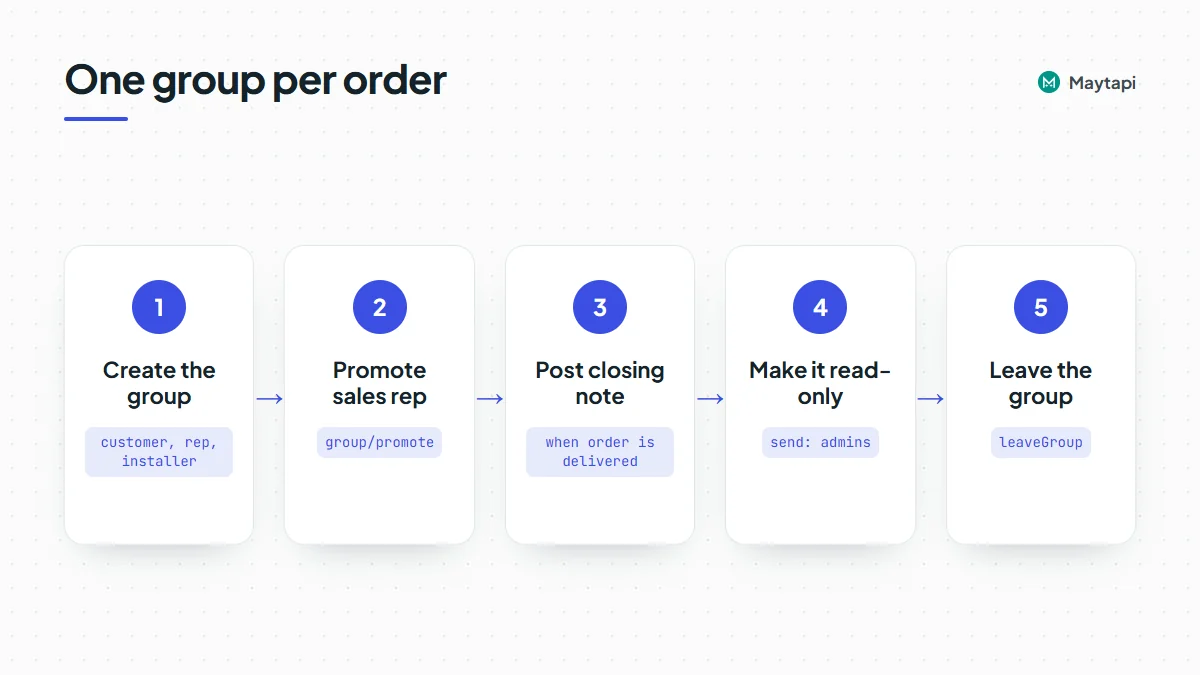
Here is how the endpoints work together in a common setup. Each high-value order gets its own group with the customer, the sales rep and the installer. When the order is closed, the group is closed too.
const BASE = `https://api.maytapi.com/api/${PRODUCT_ID}/${PHONE_ID}`;
const call = (path, body) =>
  fetch(`${BASE}/${path}`, {
    method: "POST",
    headers: { "x-maytapi-key": TOKEN, "Content-Type": "application/json" },
    body: JSON.stringify(body)
  }).then((r) => r.json());

const { data } = await call("createGroup", {
  name: `Order ${order.id}`,
  numbers: [order.customerPhone, order.repPhone, order.installerPhone],
  sendInvite: true,
  config: { edit: "admins", membersCanAddMembers: false }
});
await call("group/promote", { conversation_id: data.id, number: `${order.repPhone}@c.us` });
await db.saveGroupId(order.id, data.id);
The sales rep becomes a second admin, so a person can still manage the group if your integration is down. Members can't add other people, and only admins can change the name or description, so the group stays tied to the order.
When the order is delivered, post a closing message, set send to admins with group/config so the chat becomes read-only, and call leaveGroup after a grace period. The history stays on the members' phones, and your number stops collecting old groups. Every step is an ordinary API call, so it fits into whatever job runner or workflow tool you already use.
Track group events on your webhook
Group changes come to your webhook as messages with type: "info" inside message, plus a subtype and usually the participant involved. The conversation field is the group ID.
| Subtype | When it fires |
|---|---|
group/add, group/invite |
Someone was added, or joined through a link |
group/remove, group/leave |
Someone was removed, or left |
group/promote, group/demote |
Admin rights changed |
group/name, group/description |
Subject or description changed |
group/announce, group/restrict |
Who can send messages or edit info changed |
group/member_add_mode, group/membership_approval_mode |
Add permissions or approval mode changed |
group/revoke_invite |
The invite link was reset |
A small Express handler is enough to keep a member list in sync:
app.post("/maytapi/webhook", express.json(), (req, res) => {
  res.sendStatus(200);
  const { type, message, conversation } = req.body;
  if (type !== "message" || message.type !== "info") return;

  if (message.subtype === "group/add" || message.subtype === "group/invite") {
    db.addMember(conversation, message.participant);
  } else if (message.subtype === "group/remove" || message.subtype === "group/leave") {
    db.removeMember(conversation, message.participant);
  }
});
Note: Participants who hide their phone number can appear as
@lidIDs instead of@c.us.getGroups?refresh=truere-fetches group info and resolves them where possible. The LID to phone number guide explains the rest.
Adding many strangers to groups is one of the patterns WhatsApp watches for spam. Add people who expect it, use invitations when direct adds fail, and grow new numbers slowly. The ban prevention guide covers the details.
Next steps
- See all group capabilities on one page in the WhatsApp group API overview.
- Post text, media, polls and
@allmentions to the groups you created with send messages to WhatsApp groups via API. - Groups that belong together can live under one umbrella. See the community API guide.