Maytapi
A public invite link is the easiest way to grow a WhatsApp group, and the fastest way to fill it with people who shouldn't be there. WhatsApp's answer is approval mode: anyone who opens the link sends a join request, and an admin decides. That works for a dozen requests a week. For a paid community, a customer group or a course cohort, you want the decision made by your own rules. This guide shows how to turn approval mode on with the Maytapi API, read pending join requests, approve or reject them in bulk, and run the whole thing on a schedule against your CRM or paid-member list.
How group join requests work
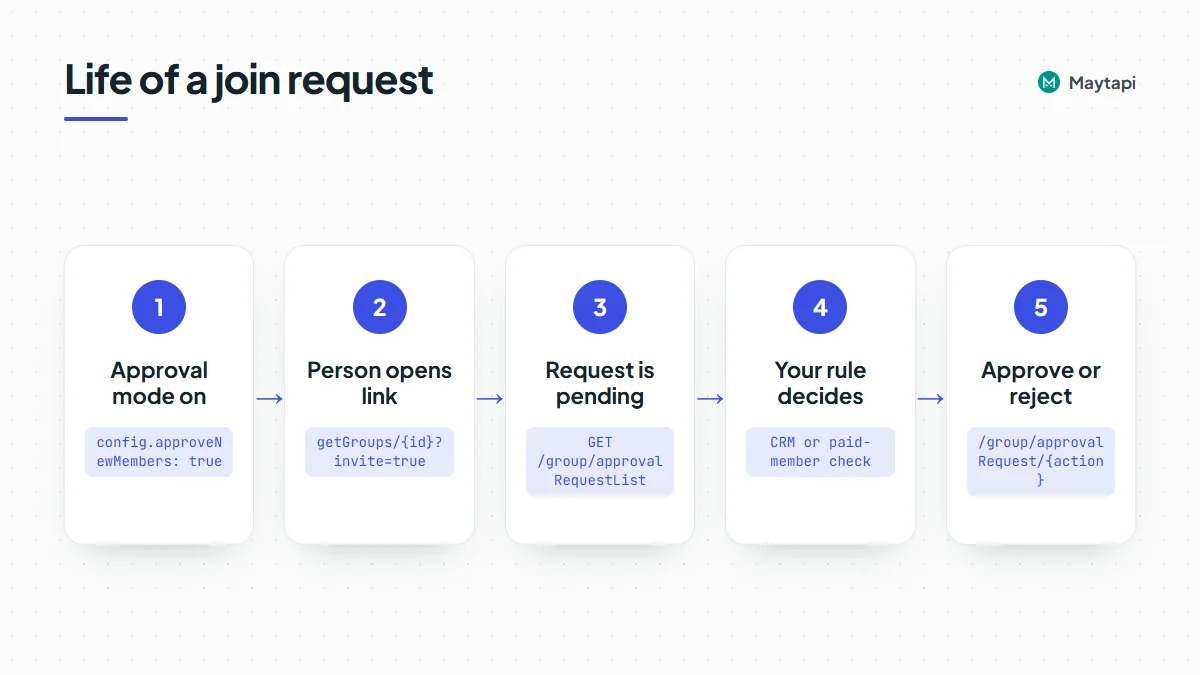
When approval mode is on, a person who taps the group's invite link doesn't join right away. They become a pending request, and the group's admins can approve or reject it. Maytapi exposes every step of that flow:
| Task | Endpoint | Body or parameter |
|---|---|---|
| Turn approval mode on or off | POST /group/config |
conversation_id, config.approveNewMembers |
| List pending requests | GET /group/approvalRequestList/{conversation_id} |
|
| Approve requests | POST /group/approvalRequest/Approve |
conversation_id, numbers array |
| Reject requests | POST /group/approvalRequest/Reject |
conversation_id, numbers array |
| Get the invite link | GET /getGroups/{conversation_id}?invite=true |
|
| Reset the invite link | POST /group/revokeInvite |
conversation_id |
| Inspect a group by invite code | GET /group/getGroupInfoByInviteCode/{inviteCode} |
All of them live under https://api.maytapi.com/api/PRODUCT_ID/PHONE_ID/ and use your token in the x-maytapi-key header. Your connected number must be an admin of the group. Only admins see join requests, and approving or rejecting fails for a non-admin.
Turn on approval mode
Approval mode is one key in the group's config. Send only the keys you want to change; everything else stays as it is:
curl -X POST "https://api.maytapi.com/api/$PRODUCT_ID/$PHONE_ID/group/config" \
  -H "x-maytapi-key: $TOKEN" \
  -H "Content-Type: application/json" \
  -d '{
    "conversation_id": "120363012345678901@g.us",
    "config": { "approveNewMembers": true }
  }'
Send false to switch it off again, and from then on anyone with the link joins directly. The same config object also takes edit, send, disappear, membersCanAddMembers, name and description, so you can lock down a new group in one call. The group API guide covers those.
To check the current state, read the group with GET /getGroups/{conversation_id}. Its config.approveNewMembers field is true when requests need approval.
If someone changes the setting from a phone, your webhook receives an info message with the subtype group/membership_approval_mode:
{
  "type": "message",
  "conversation": "120363012345678901@g.us",
  "conversation_name": "Pro Members",
  "message": {
    "type": "info",
    "subtype": "group/membership_approval_mode",
    "id": "false_120363012345678901@g.us_3EB0C4A1F2D9E8B7A6C5",
    "_serialized": "false_120363012345678901@g.us_3EB0C4A1F2D9E8B7A6C5"
  },
  "user": { "id": "55119xxxxxx67@c.us", "name": "Ayse", "phone": "55119xxxxxx67" },
  "timestamp": 1761552000
}
user is the admin who made the change. The event says that the setting changed, not what it changed to, so read getGroups/{conversation_id} again if your automation depends on the new value. It's a good trigger for an alert: if approval mode gets switched off by hand, your rules stop applying to new members.
List pending join requests
curl "https://api.maytapi.com/api/$PRODUCT_ID/$PHONE_ID/group/approvalRequestList/120363012345678901@g.us" \
  -H "x-maytapi-key: $TOKEN"
The response holds one entry per pending request:
{
  "success": true,
  "data": [
    {
      "timestamp": 1761551820,
      "userInfo": {
        "id": "55119xxxxxx67@c.us",
        "name": "55119xxxxxx67",
        "phone": "55119xxxxxx67"
      },
      "requsetMethod": "NonAdminAdd"
    }
  ]
}
| Field | Meaning |
|---|---|
timestamp |
When the request was made, in Unix seconds |
userInfo.id |
The person's WhatsApp id (@c.us) |
userInfo.name |
Contact name if known, otherwise the number |
userInfo.phone |
Number with country code, no +. Use this for approve and reject |
requsetMethod |
How the request was made, as reported by WhatsApp |
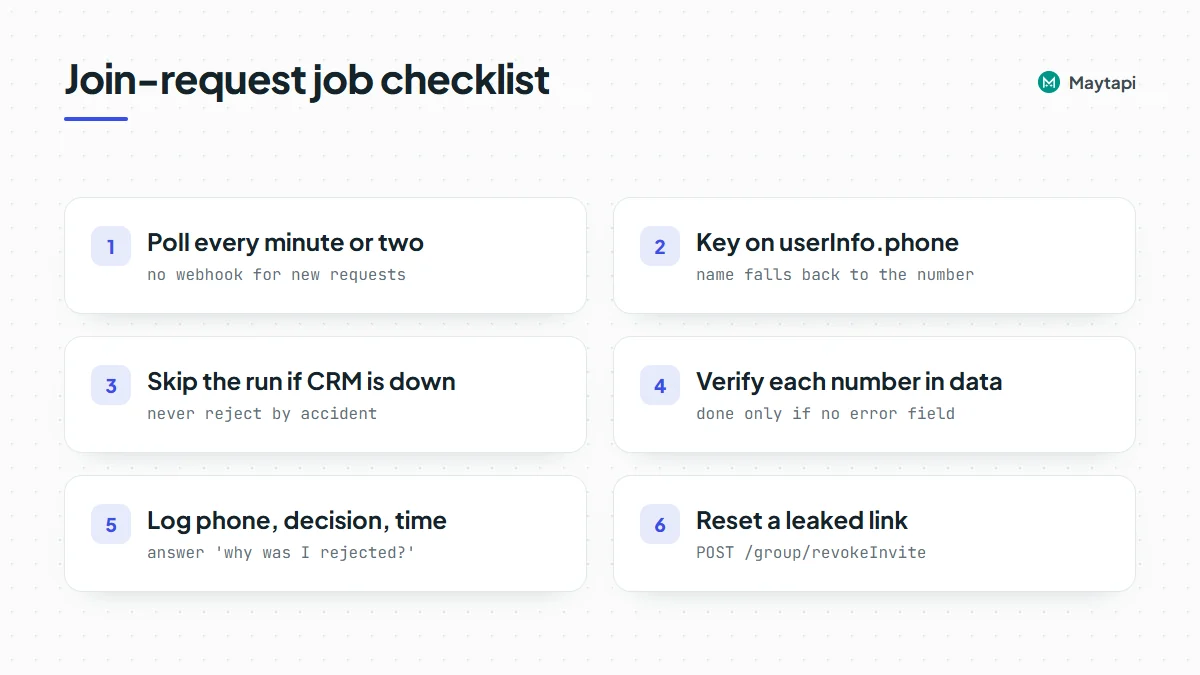
Two details to plan for. The key really is spelled requsetMethod, so read it with that spelling. And use userInfo.phone as your key, since name falls back to the number when your phone doesn't know the contact. Treat userInfo as optional in your code too, and skip any entry that has no number rather than crashing the whole run.
Approve or reject requests
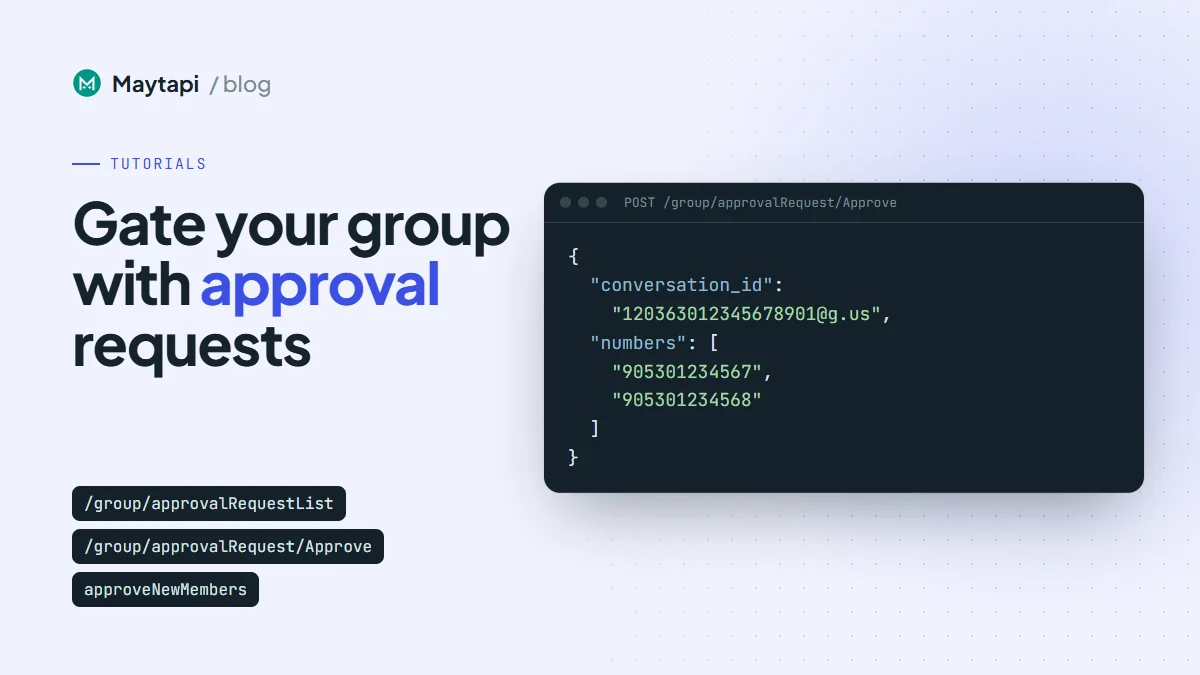
Both actions take the group id and an array of plain numbers, country code first:
curl -X POST "https://api.maytapi.com/api/$PRODUCT_ID/$PHONE_ID/group/approvalRequest/Approve" \
  -H "x-maytapi-key: $TOKEN" \
  -H "Content-Type: application/json" \
  -d '{
    "conversation_id": "120363012345678901@g.us",
    "numbers": ["55119xxxxxx67", "55119xxxxxx68"]
  }'
group/approvalRequest/Reject takes exactly the same body. The action in the path is case sensitive: Approve and Reject work, and anything else returns Unknown action.
A successful call returns the numbers that were handled:
{
  "success": true,
  "data": [
    { "id": { "server": "@c.us", "user": "55119xxxxxx67", "_serialized": "55119xxxxxx67@c.us" } }
  ]
}
Don't assume every number you sent was processed. Check each one against data. A number counts as done only if it appears there without an error field. A number that had no pending request (it was already approved from the phone, or the person withdrew it) can be missing from data, or come back with an error, or fail the call with success: false. The safest check is to list the requests again on the next run. Anything still pending simply gets processed again.
Automate it: approve paid members, reject the rest
WhatsApp doesn't send your webhook an event when a new join request arrives. The settings change above is delivered, but a person waiting at the door is not. So the automation works by polling: every minute or two, list the pending requests, check each number against your own data, and approve or reject in batches.
Here is a Node.js version. isAllowed is where your rule goes: a CRM lookup, a paid-subscriptions table, a ticket list.
const BASE = `https://api.maytapi.com/api/${PRODUCT_ID}/${PHONE_ID}`;
const headers = { "x-maytapi-key": TOKEN, "Content-Type": "application/json" };
const GROUP_ID = "120363012345678901@g.us";

async function isAllowed(phone) {
  // Replace with your CRM or paid-member check
  return paidMembers.has(phone);
}

async function decide(action, numbers) {
  if (!numbers.length) return [];
  const r = await fetch(`${BASE}/group/approvalRequest/${action}`, {
    method: "POST",
    headers,
    body: JSON.stringify({ conversation_id: GROUP_ID, numbers })
  });
  const res = await r.json();
  if (!res.success) {
    console.warn(action, "failed:", res.message);
    return [];
  }
  return (res.data || []).filter((d) => !d.error).map((d) => d.id.user);
}

async function processRequests() {
  const r = await fetch(`${BASE}/group/approvalRequestList/${GROUP_ID}`, { headers });
  const res = await r.json();
  if (!res.success) return console.warn("list failed:", res.message);

  const approve = [];
  const reject = [];
  for (const req of res.data || []) {
    const phone = req.userInfo && req.userInfo.phone;
    if (!phone) continue;
    (await isAllowed(phone)) ? approve.push(phone) : reject.push(phone);
  }

  const approved = await decide("Approve", approve);
  const rejected = await decide("Reject", reject);
  console.log({ approved, rejected });
}

let running = false;
setInterval(async () => {
  if (running) return; // skip if the previous run is still going
  running = true;
  try {
    await processRequests();
  } catch (err) {
    console.error("run skipped:", err.message); // e.g. CRM down: requests stay pending
  } finally {
    running = false;
  }
}, 60 * 1000);
A few choices make this hold up in production:
- Reject on purpose, not by accident. If your CRM is down,
isAllowedshould throw and skip the run, not returnfalseand reject everyone. Keep a request pending until you know the answer. - Hold instead of rejecting for unclear cases. Leaving a request pending is a valid outcome. A person who paid five minutes ago may not be in your table yet; leave them for the next run instead of rejecting them.
- Tell people what happened. After a rejection you can send a short message with
sendMessage(to_number,type: "text",message) explaining how to sign up, so they aren't left guessing. Keep it to people who actually requested, and don't message the same number on every run. - Log decisions. Store the phone, the decision and the time. When someone asks why they weren't let in, you have the answer.
- Keep the interval sensible. One list call per group per minute is plenty. If you manage many groups, process them one after another rather than all at once.
The same loop works for several groups: keep a list of group ids and a rule per group, for example one group per course with its own enrolment list. If you'd rather not run a server, the same steps fit an n8n workflow with a schedule trigger and HTTP request nodes.
Keep the invite link under control
Approval mode protects the group, but the link is still how requests reach you. Get the current link with GET /getGroups/{conversation_id}?invite=true, which returns it in the invite field. If the link ends up somewhere you didn't intend and the request list fills with spam, reset it:
curl -X POST "https://api.maytapi.com/api/$PRODUCT_ID/$PHONE_ID/group/revokeInvite" \
  -H "x-maytapi-key: $TOKEN" \
  -H "Content-Type: application/json" \
  -d '{ "conversation_id": "120363012345678901@g.us" }'
The old link stops working and the response returns the new one as data.inviteCode and data.inviteLink. Put the new link wherever members are supposed to find it (your members' area, a welcome email). Requests that are already pending are separate from the link, so reject the spam ones with group/approvalRequest/Reject as usual. Resets also show up on your webhook as group/revoke_invite, including ones made from a phone.
Going the other direction, GET /group/getGroupInfoByInviteCode/{inviteCode} tells you which group a code belongs to, its participants and its config, including approveNewMembers. Use it to check a link you received before you post it or join through it.
Note that group/config and group/revokeInvite change the group, so on numbers in the stricter Safe Mode tiers they can be blocked while reading still works. Check the response's success and message rather than assuming the change went through.
Next steps
Approval mode plus a small polling job gives you a gated WhatsApp group without anyone tapping through requests by hand. Turn on approveNewMembers, list the requests on a schedule, decide with your own data, and keep the invite link fresh.
- Set up groups, members and settings with the group API guide.
- Post to the groups you manage with send a message to a WhatsApp group.
- Run larger member structures with the WhatsApp Community API guide.
- See every group event your server can receive in the webhook events guide.
- Match members whose ids show up as LIDs with LID to phone number.
- Check every parameter in the API documentation.