Maytapi
Writing a WhatsApp webhook handler is easy. Testing it is the awkward part: Maytapi needs a public URL to post events to, and your code is running on localhost:3000. Deploying every change to a server just to see one incoming message is slow. A tunnel fixes that. This guide shows how to run a small receiver on your machine, expose it with ngrok or cloudflared, point a Maytapi webhook at it, look at every request in the ngrok inspector and replay it while you fix your code, and then switch back to your production URL without losing traffic.
How local webhook testing works
A tunnel tool runs on your machine and gives you a public HTTPS address. Requests that reach that address are forwarded to a local port. Maytapi doesn't know or care that the other end is your laptop. It sends the same JSON POST it would send to a production server.
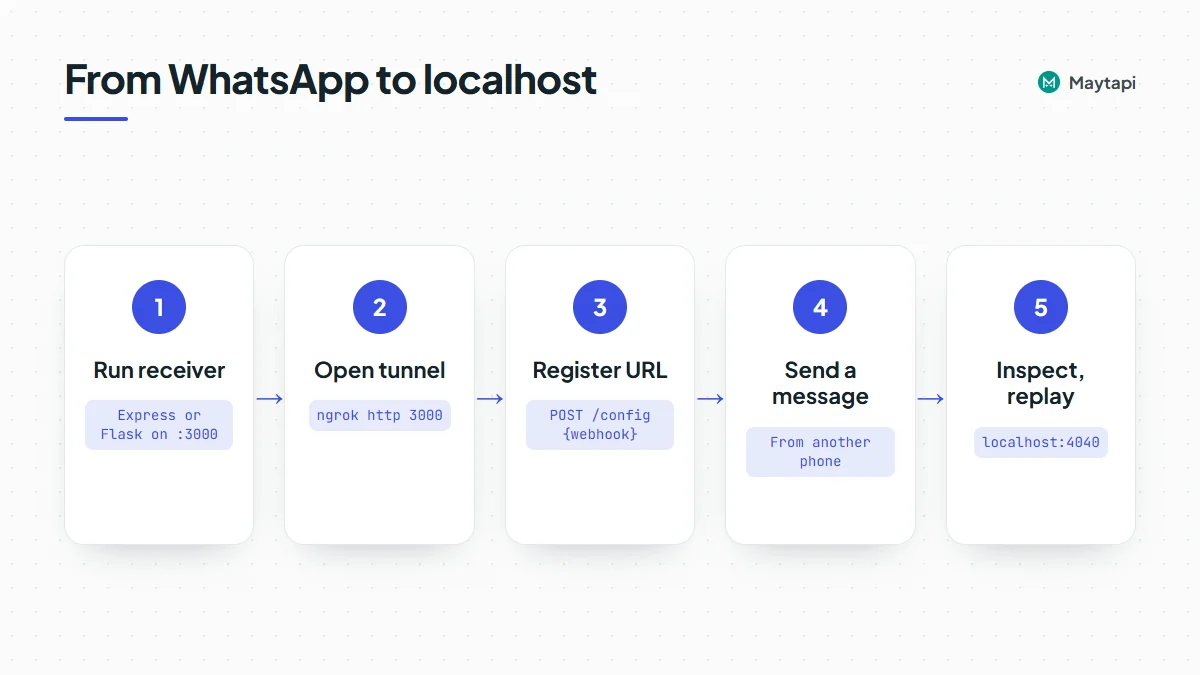
| Step | What you run | Where |
|---|---|---|
| Start a receiver | Express on port 3000 | Your machine |
| Open a tunnel | ngrok http 3000 or cloudflared tunnel --url http://localhost:3000 |
Your machine |
| Register the URL | POST /config (one phone) or POST /setWebhook (whole product) |
Maytapi API |
| Send a test message | WhatsApp, from another phone | Real chat |
| Inspect and replay | http://localhost:4040 |
ngrok inspector |
The API calls use https://api.maytapi.com/api/PRODUCT_ID/PHONE_ID/ (or the product-level base without PHONE_ID) and your token in the x-maytapi-key header. If you don't have those yet, the getting started guide shows where to find them.
Run a local receiver
Start with a receiver that logs everything and answers 200 right away. You want to see raw payloads before you write any routing logic.
Node.js with Express:
import express from "express";

const app = express();

app.post("/maytapi/webhook", express.json({ limit: "5mb" }), (req, res) => {
  res.sendStatus(200); // answer first, work after

  const event = req.body;
  console.log(event.type, JSON.stringify(event, null, 2));
});

app.listen(3000, () => console.log("Listening on http://localhost:3000"));
Check it before you add a tunnel, so you know any later problem is the tunnel and not your code:
curl -X POST http://localhost:3000/maytapi/webhook \
  -H "Content-Type: application/json" \
  -d '{"type": "message", "message": {"type": "text", "text": "hello"}}'
Expose port 3000 with a tunnel
With ngrok installed and logged in:
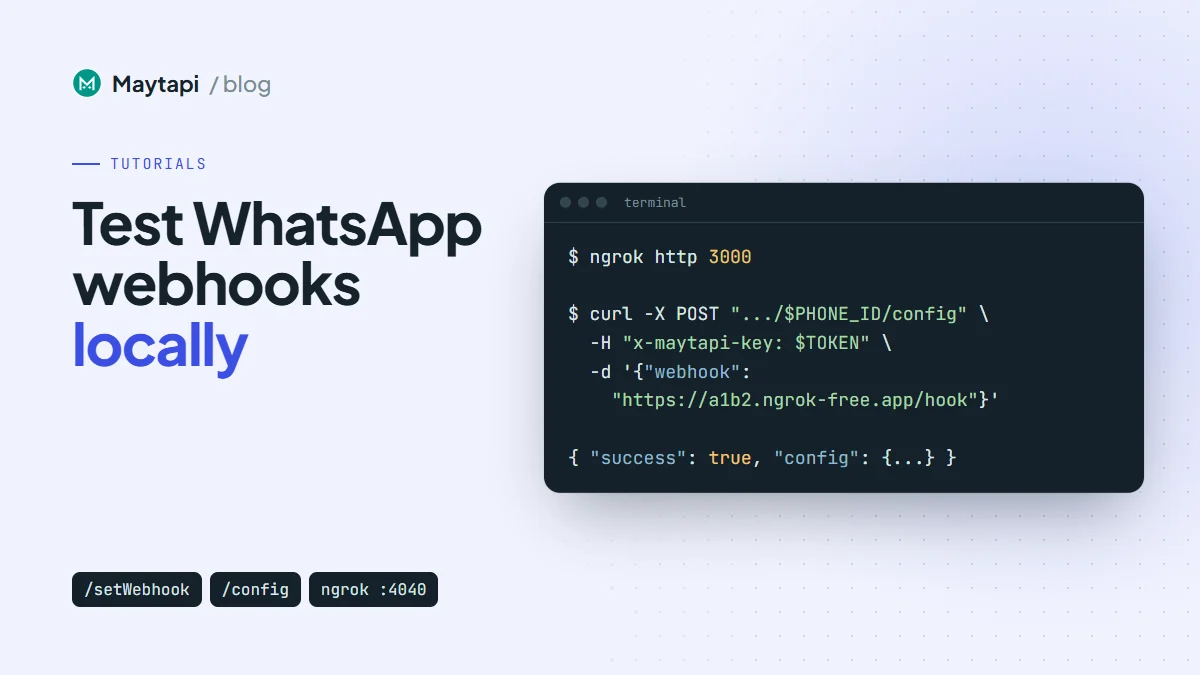
ngrok http 3000
ngrok prints a forwarding line with a public HTTPS address, something like https://a1b2-203-0-113-7.ngrok-free.app -> http://localhost:3000. Your webhook URL is that address plus your route: https://a1b2-203-0-113-7.ngrok-free.app/maytapi/webhook.
If you prefer Cloudflare's tool, a quick tunnel needs no account:
cloudflared tunnel --url http://localhost:3000
It prints a https://...trycloudflare.com address. It works the same way for Maytapi, but it has no request inspector, so the replay steps below are ngrok only.
Use the HTTPS address both tools give you. Deliveries are a plain JSON POST that follows redirects, so the path you register must be the exact route your app listens on.
Register the tunnel URL with Maytapi
There are two places a webhook can live, and for testing the difference matters.
POST /config |
POST /setWebhook |
|
|---|---|---|
| Scope | One phone | Every phone on the product |
| Path | /api/PRODUCT_ID/PHONE_ID/config |
/api/PRODUCT_ID/setWebhook |
| Sends a test request | No | Yes |
| Read it back | GET /config |
GET /product |
| Fallback | Empty phone config uses the product webhook |
Per phone: the safe choice
If the product already has a production webhook, don't move the whole product to your laptop. Point one test number at the tunnel instead:
curl -X POST "https://api.maytapi.com/api/$PRODUCT_ID/$PHONE_ID/config" \
  -H "x-maytapi-key: $TOKEN" \
  -H "Content-Type: application/json" \
  -d '{"webhook": "https://a1b2-203-0-113-7.ngrok-free.app/maytapi/webhook"}'
The response returns the phone's stored config:
{
  "success": true,
  "config": {
    "webhook": "https://a1b2-203-0-113-7.ngrok-free.app/maytapi/webhook"
  }
}
Only fields you send are changed, so this call leaves the phone's ack_delivery and other settings alone. From now on that phone's events go to your machine, and every other phone keeps using the product webhook.
Product level: setWebhook
On a development product with no live traffic, you can set the product webhook directly:
curl -X POST "https://api.maytapi.com/api/$PRODUCT_ID/setWebhook" \
  -H "x-maytapi-key: $TOKEN" \
  -H "Content-Type: application/json" \
  -d '{"webhook": "https://a1b2-203-0-113-7.ngrok-free.app/maytapi/webhook"}'
setWebhook posts a test request to the URL as part of the call, so start the receiver and the tunnel first. On success it returns the product record, including pid, webhook and ack_delivery. If it returns success: false with a message, fix the URL and call it again.
A successful response doesn't prove your handler works, though. Look for the test request in your terminal or in the ngrok inspector. It arrives with the sample event nested under a body key:
{
  "body": {
    "type": "message",
    "user": { "id": "905801234567@c.us", "name": "Test Number", "phone": "905801234567" },
    "message": {
      "id": "false_905801234567@c.us_2E44F8B915B6192020A4A4716A7B68EF",
      "text": "Test",
      "type": "text",
      "fromMe": false,
      "_serialized": "false_905801234567@c.us_2E44F8B915B6192020A4A4716A7B68EF"
    },
    "phone_id": 12345,
    "product_id": "PRODUCT_ID",
    "conversation": "905801234567@c.us",
    "conversation_name": "Test Number",
    "timestamp": 1761552000
  }
}
The actual request also carries phoneId, productId and receiver, but no reply URL, since it isn't a real chat. Because of the wrapper, a handler that reads req.body.type sees undefined for this one request. That's fine. Ignore events you don't recognise instead of throwing, and the test request does no harm.
Send a real message and read the payload
Now message the connected number from another phone. A real incoming text arrives without a wrapper, with type at the top level:
{
  "product_id": "PRODUCT_ID",
  "phone_id": 12345,
  "type": "message",
  "message": { "type": "text", "text": "Hi, is my order ready?", "fromMe": false, "id": "false_4072xxxxx67@c.us_3EB0..." },
  "user": { "id": "4072xxxxx67@c.us", "name": "Ayse", "phone": "4072xxxxx67" },
  "conversation": "4072xxxxx67@c.us",
  "conversation_name": "Ayse",
  "receiver": "4072xxxxx43",
  "timestamp": 1761552000,
  "reply": "https://api.maytapi.com/api/PRODUCT_ID/12345/sendMessage"
}
Use this stage to collect one real sample of each event you plan to handle: a text, an image, a group message, an ack for a message you sent. The webhook events guide lists every type. Save the samples as JSON files and they become test fixtures for your handler.
Inspect and replay requests in the ngrok inspector
While ngrok runs, open http://localhost:4040 in your browser. Every request that went through the tunnel is listed with its headers, the full JSON body and the response your app returned.
Replay is the most useful part. Pick a request and click Replay, and ngrok sends the exact same request to your local server again. You can fix a bug, restart your app and replay the message that broke it, with no need to ask anyone to send another WhatsApp message. You can also edit the body before replaying to try an edge case, such as a missing field or a group conversation id like 120363012345678901@g.us.
The saved JSON samples work the same way without the inspector:
curl -X POST http://localhost:3000/maytapi/webhook \
  -H "Content-Type: application/json" \
  -d @samples/text-message.json
Replies sent from replayed events are real. If your handler answers with POST /sendMessage, every replay sends another WhatsApp message to that person. Point those tests at your own second number, or log the reply instead of sending it while you debug.
Common pitfalls
Answer 200 before doing the work
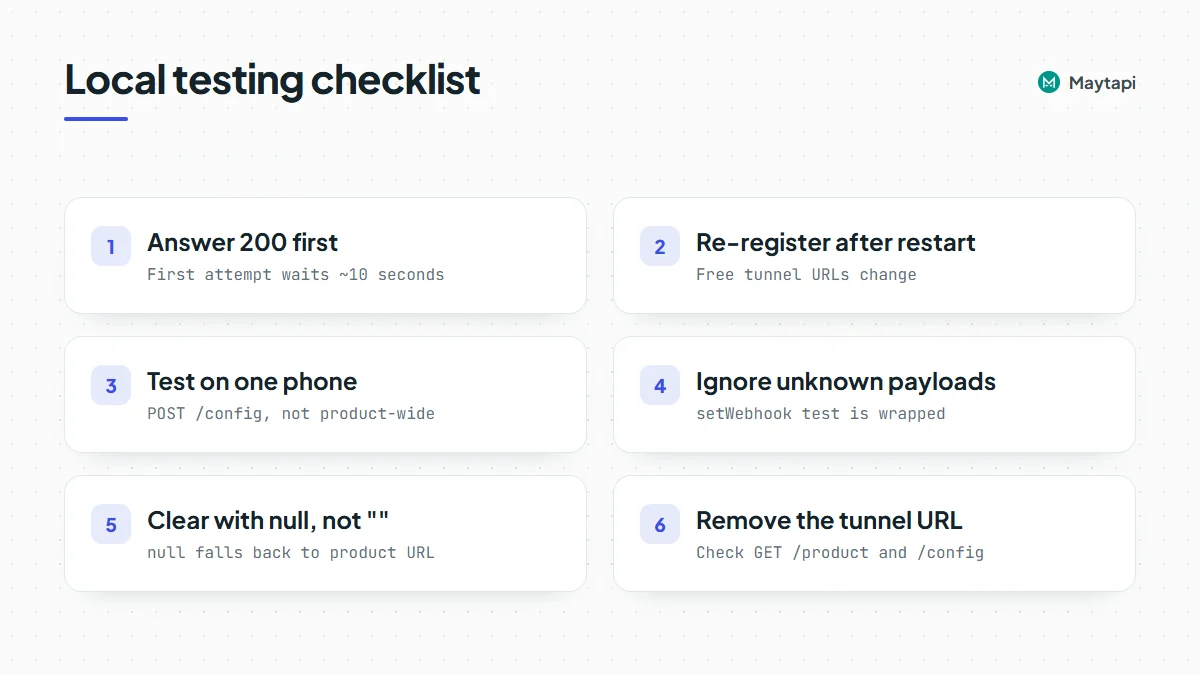
The first delivery attempt waits about 10 seconds for your answer. A slow handler, or a debugger paused on a breakpoint, makes that attempt fail. A failed delivery, whether it times out or gets a non-2xx status, is tried again: once more shortly after, and a final time about 30 minutes later. Answer first, then process, and deduplicate on message.id so a retry doesn't run your logic twice.
The tunnel URL changes on restart
On free plans, ngrok and cloudflared quick tunnels give you a new random address each time you start them. Maytapi keeps posting to the old one, which no longer exists. After every restart, register the new URL again with POST /config or POST /setWebhook. A reserved or static domain from your tunnel provider avoids this.
Your laptop isn't a server
When the lid closes, the tunnel drops. Events that arrive then fail, and the 30-minute retry won't help if the URL has changed. That's fine for testing, but never leave a production number pointed at a tunnel.
Empty string vs null
To clear a phone's webhook, send null, not an empty string. null removes the setting so the phone falls back to the product webhook. An empty string is stored as the phone's webhook, and that phone then delivers nowhere.
Switch back to production
Before you start testing, save what's there now. GET /product returns the product webhook, and GET /config returns the phone's own one, if it has one. When you're done:
If you tested on one phone, remove its override so it falls back to the product webhook:
curl -X POST "https://api.maytapi.com/api/$PRODUCT_ID/$PHONE_ID/config" \
  -H "x-maytapi-key: $TOKEN" \
  -H "Content-Type: application/json" \
  -d '{"webhook": null}'
If that phone had its own production URL before, send that URL instead of null.
If you changed the product webhook, put the production URL back with setWebhook. It sends the test request to your production server too, so make sure that server ignores unknown payloads the same way your local handler does:
curl -X POST "https://api.maytapi.com/api/$PRODUCT_ID/setWebhook" \
  -H "x-maytapi-key: $TOKEN" \
  -H "Content-Type: application/json" \
  -d '{"webhook": "https://example.com/maytapi/webhook"}'
Then read both settings again with GET /product and GET /config and check that no tunnel address is left anywhere. You can also see and edit all of these on the console's Developers > Webhook page.
Next steps
A receiver, a tunnel and one test phone pointed at it give you a fast loop: send a message, read the payload, fix the code, replay. Once the handler behaves, deploy it and point the webhook at the real server.
- See every event your handler can receive in the webhook events guide.
- Set up credentials, a phone and your first message with getting started.
- Turn the receiver into a bot with Build a WhatsApp Bot with Node.js or the Python version.
- Reply to the events you receive with the send message guide.
- Check every parameter in the API documentation.