Maytapi
A WhatsApp Community groups related chats under one roof: an announcement group that reaches every member, plus sub-groups for topics, locations or cohorts. Setting one up by hand is fine once; keeping members, admins and sub-groups in sync with your school, store network or customer program is not. This guide walks through the WhatsApp Community API in Maytapi: creating a community, linking sub-groups, posting announcements, managing members and admins, and reading comments under your announcements.
How WhatsApp Communities map to the API
A community is made of three kinds of chats, and each has a group ID ending in @g.us:
| Part | What it is | How you find it |
|---|---|---|
| Community | The parent container | getCommunities |
| Announcement group | Where admins post to all members | getGroups, item with isCommunityAnnounce: true |
| Sub-groups | Regular groups linked to the community | linked_subgroups in getCommunities, or communityId in getGroups |
The community endpoints manage the container (members, admins, linked groups, invite link). Messaging and per-group settings still go through the regular group API and sendMessage, so everything you know about groups applies to sub-groups.
All requests go to https://api.maytapi.com/api/PRODUCT_ID/PHONE_ID/... with your token in the x-maytapi-key header. The Node.js snippets below share this setup:
const base = `https://api.maytapi.com/api/${PRODUCT_ID}/${PHONE_ID}`;
const headers = { "x-maytapi-key": TOKEN, "Content-Type": "application/json" };

const post = (path, body) =>
  fetch(`${base}/${path}`, { method: "POST", headers, body: JSON.stringify(body) }).then(r => r.json());
const get = (path) => fetch(`${base}/${path}`, { headers }).then(r => r.json());
Plan the structure before you call the API
A few minutes of planning saves a lot of re-linking later. Decide what one community represents and what each sub-group is for:
- A school or academy: one community per school, a sub-group per class or course, and the announcement group for timetable changes and closures.
- A store network: one community for the brand, a sub-group per location for local questions, and announcements for openings and campaigns.
- A customer program: one community per product line, with sub-groups for beginners, power users and beta testers.
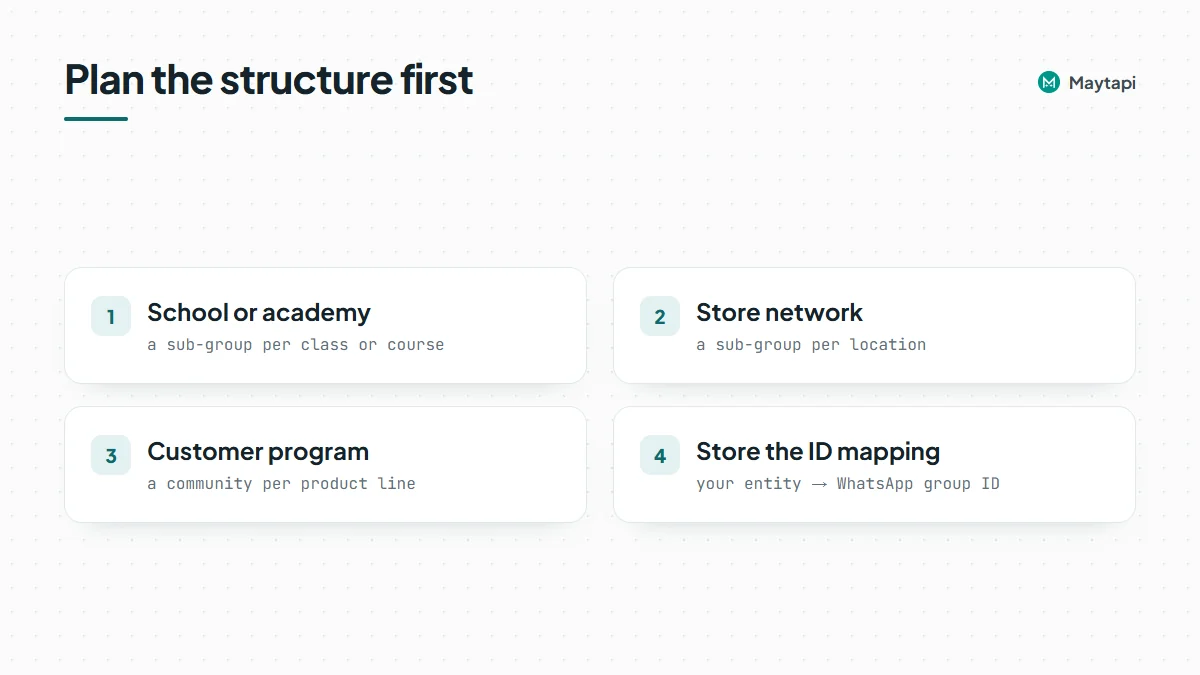
Keep the mapping in your own database: your internal entity (class, store, product) next to the WhatsApp group ID. Every call below takes IDs, and having them stored means your code never has to search by name.
Create a community with the WhatsApp Community API
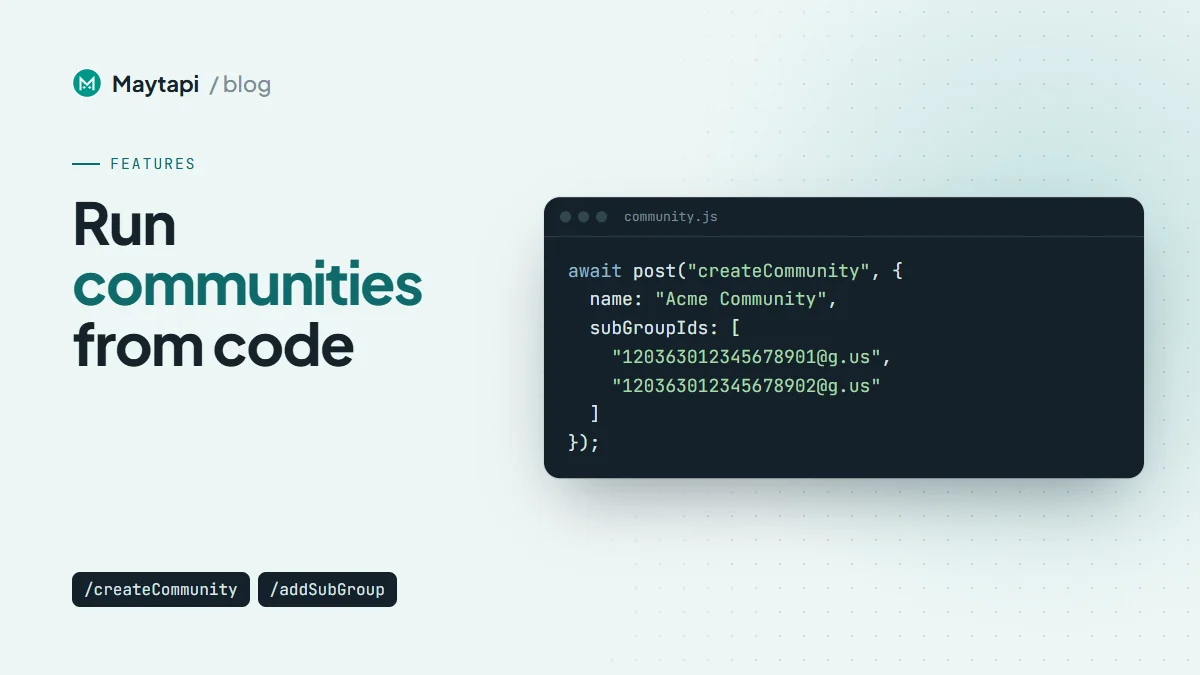
createCommunity takes a name, an optional description and an optional subGroupIds array of existing groups to link right away:
const created = await post("createCommunity", {
  name: "Acme Community",
  description: "News and support for Acme customers",
  subGroupIds: ["120363012345678901@g.us", "120363012345678902@g.us"]
});

const COMMUNITY = created.data.id;
console.log(COMMUNITY, created.data.linked_subgroups?.length ?? 0);
The response includes the community id, its participants and admins, the linked_subgroups with their own settings, and the community config. Your number is the creator and admin.
If you still need to create the sub-groups, do that first with createGroup (see how to create a WhatsApp group with the API) and pass their IDs here, or link them later.
Link and unlink sub-groups
To attach more groups to an existing community, call community/addSubGroup with the community ID and the group IDs:
await post("community/addSubGroup", {
  conversation_id: COMMUNITY,
  subGroupIds: ["120363012345678903@g.us"]
});
The response lists the linked IDs under linked_subgroupsIds. community/removeSubGroup takes the same body and detaches the groups; the groups themselves keep existing as normal groups.
To see the structure at any time:
GET /getCommunitieslists your communities. Addfull=trueto include sub-group details, andsort=truewithpageto paginate.GET /getCommunities/{conversation_id}returns a single community.GET /getGroupsnow returnscommunityIdon every group that belongs to a community andisCommunityAnnounce: trueon the announcement group. Communities themselves are not listed ingetGroups.
Post to the announcement group
The announcement group is the community's broadcast channel: every member is in it and, by default, only admins can post. Find its ID by filtering getGroups:
const groups = await get("getGroups?sort=true");
const announce = groups.data.find(
  g => g.communityId === COMMUNITY && g.isCommunityAnnounce
);
getGroups is paginated, so on a number with many groups, loop over page until you find it and store the ID once.
Posting is a normal sendMessage call with the announcement group as to_number. Any message type works: text, media, polls, locations, buttons.
const sent = await post("sendMessage", {
  to_number: announce.id,
  type: "media",
  message: "https://example.com/camden-store.jpg",
  text: "Our new Camden store opens this Saturday at 10:00. First 100 visitors get a gift!"
});
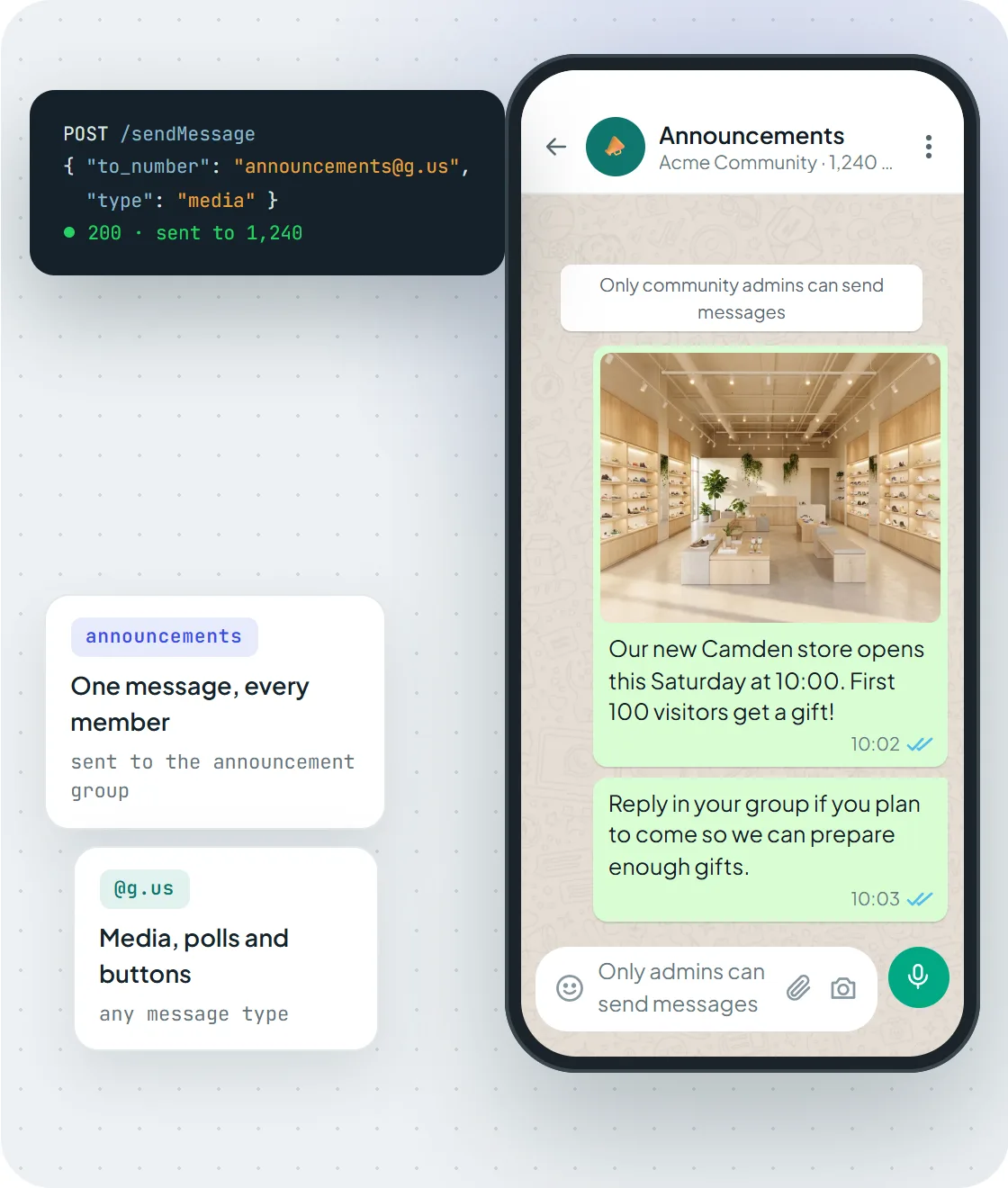
One sendMessage call to the announcement group reaches every member of the community.
For mentions, polls and other group message details, the group messaging guide applies unchanged.
Read and post comments under announcements
Members can comment under announcement-group messages, and since October 2026 the API handles both sides of that conversation.
Reading comments. GET /getMessage/{msgId} on an announcement message returns two extra fields when it has comments:
| Field | Contents |
|---|---|
replyCount |
Number of comments |
comments |
Array sorted by time, each with type: "comment", text, user (id, name, phone) and timestamp |
const msg = await get(`getMessage/${announcementMsgId}`);
const m = (Array.isArray(msg.data) ? msg.data[0] : msg.data).message;
console.log(`${m.replyCount ?? 0} comments`);
for (const c of m.comments ?? []) console.log(c.user.name, ":", c.text);
Posting a comment. Use the comment message type. to_number is the announcement group and reply_to is the ID of the announcement you are commenting on:
{
  "to_number": "120363012345678900@g.us",
  "type": "comment",
  "reply_to": "false_120363012345678900@g.us_3EB0A81ECEA6D47F2F13_7916xxxxx67@c.us",
  "message": "Doors open at 9:45 for early birds."
}
This is useful for follow-ups ("Update: parking is free on Saturday") that belong with the original post instead of a new announcement.
Manage community members and admins
Member operations take the community ID as conversation_id:
| Action | Endpoint | Body |
|---|---|---|
| Add members | community/add |
numbers array, optional sendInvite and message |
| Remove a member | community/remove |
number |
| Make admin | community/promote |
number |
| Remove admin rights | community/demote |
number |
await post("community/add", {
  conversation_id: COMMUNITY,
  numbers: ["7916xxxxx67", "7916xxxxx68"],
  sendInvite: true,
  message: "Welcome to the Acme community!"
});

await post("community/promote", {
  conversation_id: COMMUNITY,
  number: "7916xxxxx67@c.us"
});
sendInvite controls whether invitations are sent to the new members, and message is included in that invitation. community/add also accepts force: true, which works as in group/add: numbers that are not on WhatsApp are skipped instead of failing the whole request. Some connections ignore force, so check the response for numbers that were not added.
community/revokeInvite invalidates the current invite link and returns a fresh inviteCode and inviteLink. Use it when a link has been shared somewhere it shouldn't be.
Adding many people at once is exactly the kind of activity WhatsApp watches. Add members who expect it (customers who opted in, staff, students), in reasonable batches, and read the ban prevention guide before you automate it.
Keep members in sync with your own list
Most communities mirror a list that lives elsewhere: enrolled students, active customers, current staff. A scheduled job keeps them aligned:
- Read the community with
GET /getCommunities/{conversation_id}and collectparticipants. - Compare with your source list.
- Call
community/addfor the missing numbers andcommunity/removefor people who should no longer be there.
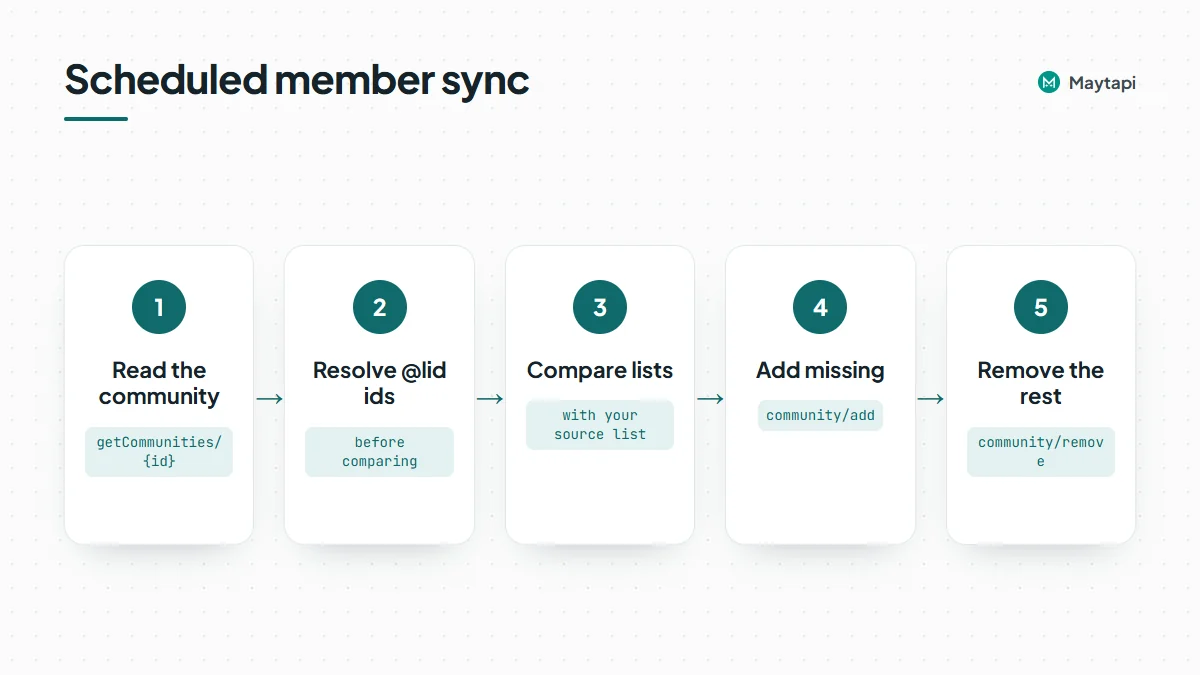
Some participants may come back as privacy IDs ending in @lid instead of @c.us numbers. Resolve them before comparing, as explained in the LID to phone number guide, or you will try to re-add people who are already members.
Join sub-groups and deactivate a community
As a member, your number does not automatically join every sub-group. Two endpoints handle that:
GET /community/unjoinedSubGroups/{conversation_id}lists the sub-groups you haven't joined. The ID can be the community or its announcement group.POST /community/joinSubGroupwithconversation_id(the community) andsubGroupIdjoins one of them.
const { data: open } = await get(`community/unjoinedSubGroups/${COMMUNITY}`);
for (const g of open) {
  await post("community/joinSubGroup", { conversation_id: COMMUNITY, subGroupId: g.id });
}
This is handy for a support or moderation number that needs to see every sub-group.
When a community has run its course, deactiveCommunity with conversation_id deactivates it. Treat it as irreversible and keep it out of anything that runs automatically.
Note: Communities run on your own WhatsApp number through an unofficial API, not Meta's Business Platform. That gives you full community features without templates or per-message fees, but the number's reputation is yours to protect.
Next steps
- See all endpoints and examples on the WhatsApp Community API page.
- Creating the sub-groups first? Follow Create a WhatsApp group with the API.
- Track joins, leaves and admin changes with the webhook events guide.
- Create a community with one sub-group on the 3-day free trial.