Maytapi
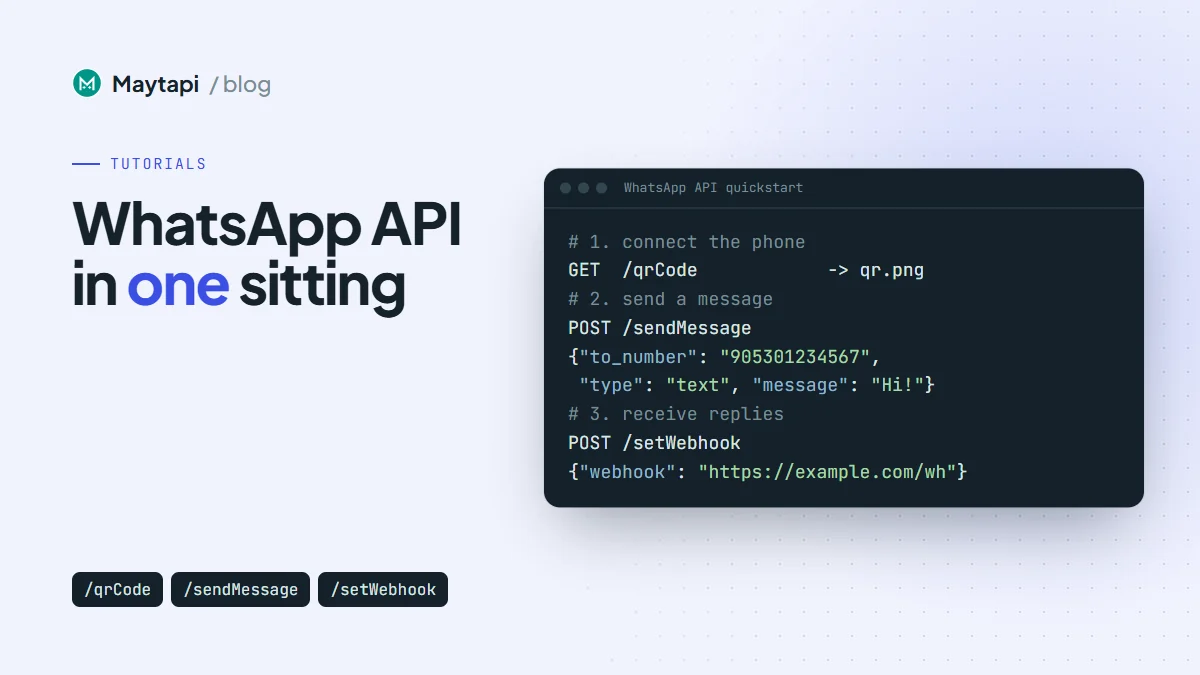
This guide takes you from an empty account to a working WhatsApp API integration in one sitting. You'll find your credentials, connect a phone with a QR code or a pairing code, send your first message with one curl call, receive replies on a webhook, and learn the few calls that keep the number connected. Every step is a plain HTTP request, so you can follow along in a terminal before you write any application code.
Maytapi is an unofficial WhatsApp API. You link your own WhatsApp number as a linked device, the same way WhatsApp Web works, and drive it over REST. There are no message templates, no Meta approval and no per-message fees. Because the number is a normal WhatsApp account, WhatsApp's usual spam rules apply to it, and the last part of this guide covers what that means in practice.
What you need before you start
- A Maytapi account. The free trial runs for three days and doesn't ask for a card. During the trial you can message up to 30 different numbers, so your first message can go to any number, including your own. The free Sandbox plan is limited to 5 recipient numbers.
- Your product ID and API token. Both are on the Product ID & Token page in the console (console.maytapi.com/settings/token). The product ID goes in the URL and the token goes in the
x-maytapi-keyheader of every request. - A phone with WhatsApp. Regular WhatsApp and WhatsApp Business both work. The phone needs the app installed and an internet connection while you link it.
- A terminal with
curl. Later steps use Node.js for the webhook receiver.
Keep the credentials in environment variables so they never end up in your code or shell history files:
export PRODUCT_ID="your-product-id"
export TOKEN="your-token"
All phone-level endpoints live under https://api.maytapi.com/api/PRODUCT_ID/PHONE_ID/. A few account-wide endpoints, such as listPhones and setWebhook, sit one level up at https://api.maytapi.com/api/PRODUCT_ID/. In this guide endpoints are written short, like GET /qrCode.
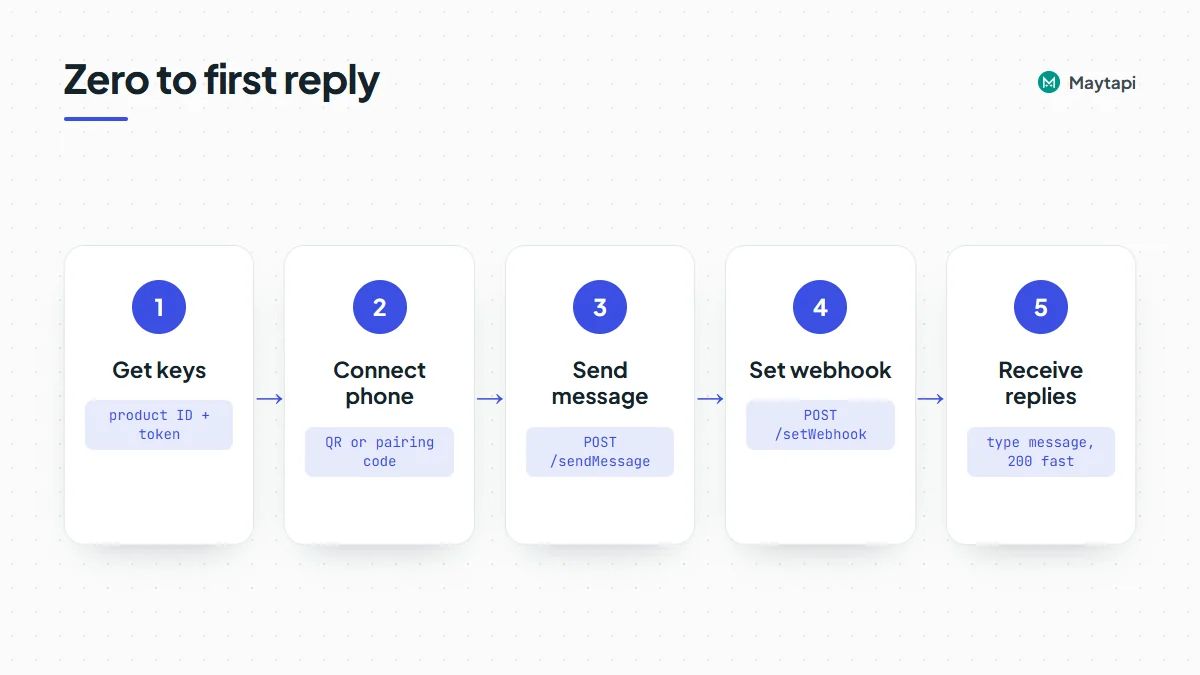
Step 1: Add a phone and find its phone ID
A "phone" in Maytapi is an instance that one WhatsApp number connects to. The simplest way to create one is the + Add New Phone button on the console's Phones page. Your trial or plan sets how many phones a product can have.
You can also add one from the API with POST /addPhone at product level. The body is optional. If you send a number, it's stored with the phone; otherwise the number is filled in when the phone connects:
curl -X POST "https://api.maytapi.com/api/$PRODUCT_ID/addPhone" \
  -H "x-maytapi-key: $TOKEN" \
  -H "Content-Type: application/json" \
  -d '{"number": "90532xxxxx67"}'
The response is the new phone record, and its id is your phone ID.
Note: If the product has already reached its phone limit,
addPhoneadds another paid phone to your subscription, which increases your bill. Check your plan's phone limit before you script it.
To see every phone on the product, call GET /listPhones:
curl "https://api.maytapi.com/api/$PRODUCT_ID/listPhones" \
  -H "x-maytapi-key: $TOKEN"
Each item has an id (the phone ID), the number, a status and the phone's data, which includes its own webhook if one is set. Save the ID:
export PHONE_ID="12345"
A new phone starts in qr-screen or idle. The status values you'll see are:
| Status | Meaning |
|---|---|
loading |
The instance is starting or restoring a session |
qr-screen |
Waiting for you to scan a QR code or enter a pairing code |
active |
Connected and able to send and receive |
idle |
Nobody linked a device in time, so the instance was parked. Requesting a QR code starts it again |
conn-retry |
The connection dropped and is reconnecting |
phone-error |
WhatsApp reports a problem on the phone side |
disabled |
Turned off, for example when a subscription ends |
logout |
The session was logged out, so the number has to be linked again |
banned |
WhatsApp banned the number |
Step 2: Connect the phone with a QR code
GET /qrCode returns the current QR code as a PNG image, not JSON. Save it to a file and open it:
curl "https://api.maytapi.com/api/$PRODUCT_ID/$PHONE_ID/qrCode" \
  -H "x-maytapi-key: $TOKEN" \
  -o qr.png
If there's no QR code to show, for example because the phone is already connected, you get JSON instead with success: false and a message. If the phone was idle, the first request starts the instance and waits for it, so it can take a little longer than usual.
GET /screen also returns a PNG. On some connections it's a screenshot of the whole session screen, and on others it returns the QR code while the phone is waiting to be linked. Use qrCode when you only need the code to show to a user, and screen when you want to see what the session is doing.
Now scan it on the phone:
- Open WhatsApp on the phone you're connecting.
- Go to Settings (on iPhone) or the ⋮ menu (on Android) and tap Linked devices.
- Tap Link a device and scan the QR code.
QR codes rotate after a short time. If the scan fails, request qrCode again and scan the fresh one. The console shows the same code on the phone's QR Code tab and refreshes it for you.
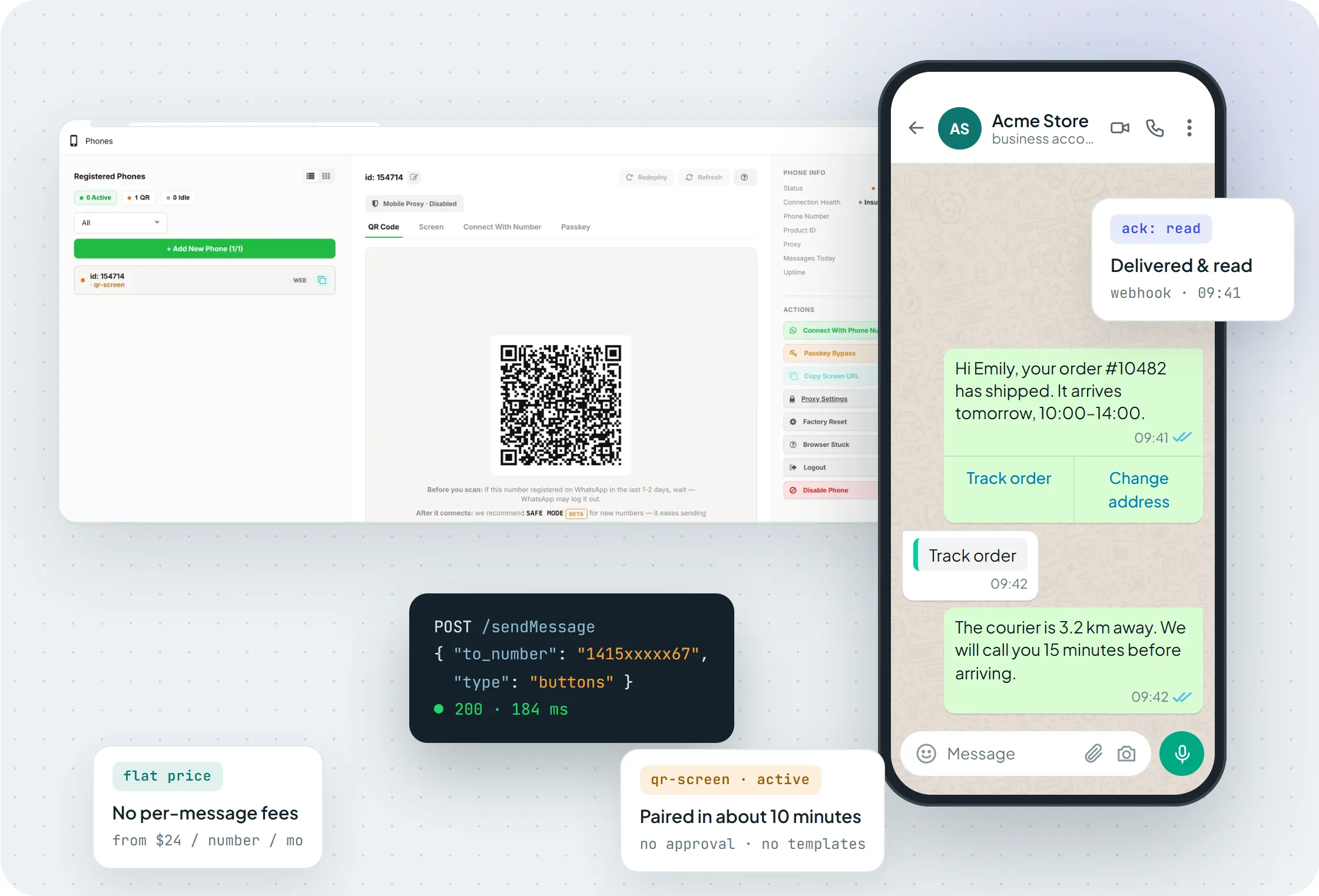 The Phones page: a new phone waits in qr-screen with its QR code, a pairing-code tab and the session actions.
Step 2 (alternative): Connect with a pairing code
If you can't show a QR code to the phone, for example when the user is setting it up remotely, link it with a pairing code instead. Send the WhatsApp number in international format, without + or spaces:
curl -X POST "https://api.maytapi.com/api/$PRODUCT_ID/$PHONE_ID/connectWithPhoneNumber" \
  -H "x-maytapi-key: $TOKEN" \
  -H "Content-Type: application/json" \
  -d '{"number": "90532xxxxx67"}'
The code comes back in connectionResult:
{ "success": true, "connectionResult": "A5GD36H" }
On the phone, open Linked devices, tap Link a device, choose Link with phone number instead and type the code. The phone has to be in qr-screen when you call this endpoint, and the number you send must be the one you're linking. The console offers the same flow on the Connect With Number tab.
| QR code | Pairing code | |
|---|---|---|
| Endpoint | GET /qrCode |
POST /connectWithPhoneNumber |
| Returns | PNG image | Code in connectionResult |
| On the phone | Scan with the camera | Type the code |
| Best for | You can see the phone | Remote or headless setup |
Step 3: Check that the phone is connected
GET /status asks the live session for its state:
curl "https://api.maytapi.com/api/$PRODUCT_ID/$PHONE_ID/status" \
  -H "x-maytapi-key: $TOKEN"
The response has success, the connected number, and a status object. The fields to check are loggedIn (true once the phone is linked), isQr (true while it waits for a scan) and loading:
{
  "success": true,
  "status": { "loggedIn": true, "isQr": false, "loading": false, "number": "90532xxxxx67" },
  "number": "90532xxxxx67"
}
The real response has more fields, but these three are enough for a "connected or not" check. On a phone that's idle, status answers with success: false and asks you to scan a phone first. For a quick check across all your numbers, the status field in listPhones should read active.
Step 4: Send your first message
With the phone active, send a text message. to_number is the recipient in international format with no +:
curl -X POST "https://api.maytapi.com/api/$PRODUCT_ID/$PHONE_ID/sendMessage" \
  -H "x-maytapi-key: $TOKEN" \
  -H "Content-Type: application/json" \
  -d '{"to_number": "90532xxxxx67", "type": "text", "message": "Hello from the Maytapi API!"}'
A successful call returns the chat it went to and an ID for the queued message:
{
  "success": true,
  "data": {
    "chatId": "90532xxxxx67@c.us",
    "msgId": "f3a9c2e0-4b7d-11ef-9a1c-0242ac120002"
  }
}
sendMessage puts the message in the phone's sending queue and answers right away. The message then leaves from your phone, and its delivery and read receipts arrive on your webhook as ack events. If nothing arrives, check the phone's status and the message logs in the console.
Images, documents, locations, polls, buttons and the other types use the same endpoint with a different type. They're all covered in how to send WhatsApp messages with the API.
Step 5: Receive messages on a webhook
Incoming messages, receipts and phone status changes are posted as JSON to a webhook URL. Set it once for the whole product with POST /setWebhook:
curl -X POST "https://api.maytapi.com/api/$PRODUCT_ID/setWebhook" \
  -H "x-maytapi-key: $TOKEN" \
  -H "Content-Type: application/json" \
  -d '{"webhook": "https://example.com/maytapi/webhook"}'
setWebhook posts a test text message to the URL to check it. If your server doesn't accept it, the call answers success: false with an error message, so start your receiver first. You can also paste the URL on the console's Developers > Webhook page. If one number should report to a different server, give that phone its own URL with POST /config. Phones without their own URL use the product webhook:
curl -X POST "https://api.maytapi.com/api/$PRODUCT_ID/$PHONE_ID/config" \
  -H "x-maytapi-key: $TOKEN" \
  -H "Content-Type: application/json" \
  -d '{"webhook": "https://client-a.example.com/webhook"}'
An incoming text message looks like this:
{
  "type": "message",
  "product_id": "your-product-id",
  "phone_id": "12345",
  "user": { "id": "90532xxxxx67@c.us", "name": "Customer", "phone": "90532xxxxx67" },
  "message": { "id": "3EB081AF26FADE6416D8", "type": "text", "text": "Hi!", "fromMe": false },
  "conversation": "90532xxxxx67@c.us",
  "receiver": "90532xxxxx21",
  "timestamp": 1574081887,
  "reply": "https://api.maytapi.com/api/your-product-id/12345/sendMessage"
}
conversation is the chat to answer in, and reply is the sendMessage URL for the phone that received the message. A minimal Express receiver answers 200 first and only then looks at the event. It also skips messages with fromMe: true, which are messages sent from your own number:
import express from "express";

const app = express();

app.post("/maytapi/webhook", express.json(), (req, res) => {
  res.sendStatus(200); // acknowledge first

  const event = req.body;
  if (event.type === "status") console.log("phone", event.phone_id, event.status);
  if (event.type !== "message" || event.message.fromMe) return;

  console.log(`${event.user.phone}: ${event.message.text}`);
});

app.listen(3000);
Anything slow, like a database write or an AI call, belongs after the response or on a job queue. While you develop locally, expose port 3000 with a tunnel such as cloudflared or ngrok and register the HTTPS URL it prints. Every event type, including acks, group events and calls, is described in the webhook events guide.
Step 6: Keep the phone connected
A linked device can be logged out from the phone, lose its connection or need a restart. Your webhook tells you when that happens with a status event:
{ "type": "status", "product_id": "your-product-id", "phone_id": 12345, "status": "qr-screen" }
The event is sent when the phone's status changes, and status is one of the values from the table in step 1, or logout when the session was logged out. Alert someone on qr-screen, idle, logout or phone-error, because the number can't send until it's linked again. A switch back to active means it's healthy.
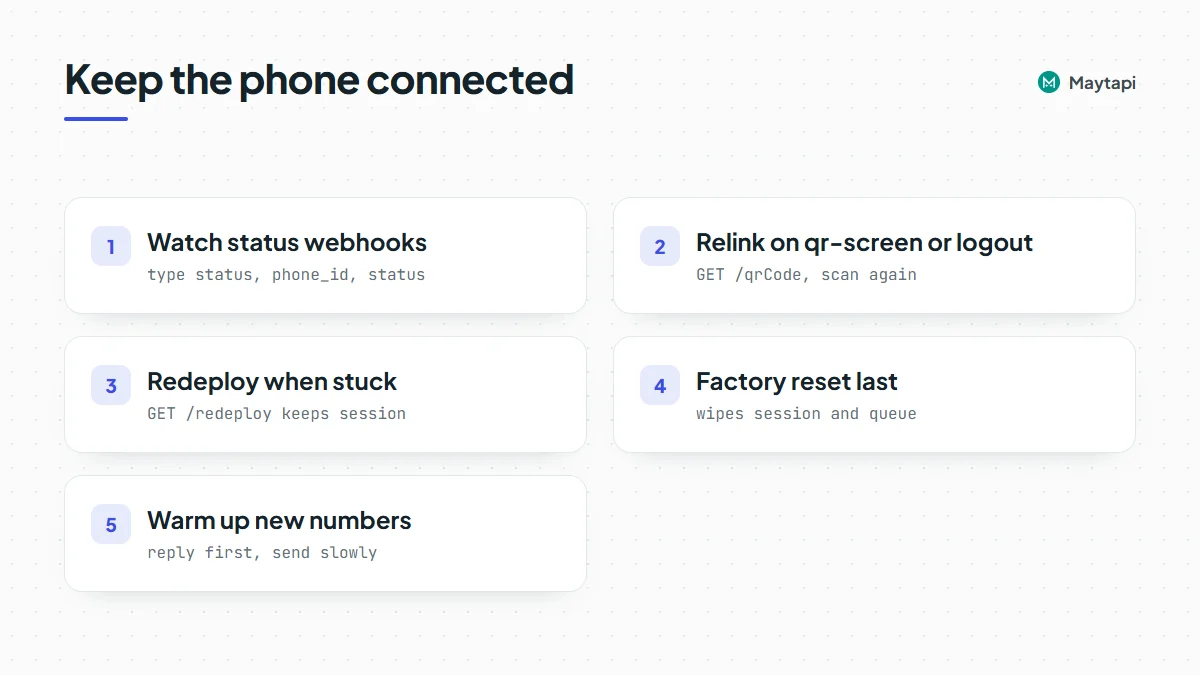
Three session calls cover most problems. All three are phone-level GET requests that return success and a short message:
| Call | What it does | When to use it |
|---|---|---|
GET /redeploy |
Restarts the phone's instance and keeps the session | The phone seems stuck or stops responding |
GET /logout |
Logs the number out and returns the phone to the QR screen | You want to link a different number, or unlink this one |
GET /factoryreset |
Recreates the instance, clears the stored session and number, and empties the phone's sending queue | Nothing else helps |
curl "https://api.maytapi.com/api/$PRODUCT_ID/$PHONE_ID/redeploy" \
  -H "x-maytapi-key: $TOKEN"
Note:
factoryresetwipes the WhatsApp session and drops messages still waiting in the queue. You'll have to scan a new QR code afterwards. Tryredeployfirst.
After a logout or a factory reset, connect again with step 2. The phone ID stays the same, so your code and webhook settings don't change.
Avoid bans. The number is a real WhatsApp account, and WhatsApp restricts accounts that look like spam. Replying to people who wrote to you first carries little risk. Sending to many new contacts in a burst carries a lot. Let a new number warm up for a few days before it sends anything proactive, and read how Safe Mode prevents WhatsApp bans. Before a campaign, check which numbers are on WhatsApp so you don't send to numbers that don't exist.
Next steps
You now have a connected number that sends messages and receives replies on your server. From here you can:
- Send media, locations, polls and buttons with the sendMessage guide.
- Build a command bot in Node.js or Python.
- Connect WhatsApp to your tools without code using n8n, or let Claude use your number through the Maytapi MCP server.
- Work with groups: create a group and send messages to a group.
- Sync conversations to a CRM with the labels API.
- Try every endpoint from the Postman collection, or look up bodies and responses in the API documentation.