Maytapi
If you run an agency, a SaaS product or a chatbot platform, your customers probably want WhatsApp inside the tool they already pay you for. Building that on top of a regular Maytapi account works for a handful of numbers, but it gets awkward fast: every new customer means a manual "add phone" in the console, and you pay for numbers that are still in a sales demo. The Maytapi partner program is built for that situation. You sell WhatsApp API under your own brand, give every prospect a free trial phone from your own signup flow, and switch numbers to live or closed with one API call. This guide explains who the program is for, how partner phones work, and how to automate client onboarding with the partner API.
Who the partner program is for
The partner program is for companies that offer WhatsApp messaging to their own customers rather than only using it themselves:
- Agencies that set up WhatsApp automations, bots or campaigns for clients.
- SaaS products (CRMs, help desks, booking tools, e-commerce apps) that want a "Connect WhatsApp" button.
- Chatbot and automation platforms that need a WhatsApp backend per customer.
- Resellers and startups that want to offer a white-label WhatsApp API under their own brand.
Maytapi runs the infrastructure, and you keep the customer relationship. Your customers sign up in your product and see your brand, while your backend talks to Maytapi. A partner account is set up by Maytapi, so you start by getting in touch through the partner program page. Conditions, agreements and prices are discussed directly with the team.
What to tell your clients. Maytapi is an unofficial API: each client's number connects as a linked device, the same way WhatsApp Web does, and is not approved by Meta. WhatsApp can restrict or ban a number that sends spam-like traffic, and no provider can reverse that. Ask each client to use a dedicated number, to message only people who expect it, and to warm new numbers up with Safe Mode before real traffic starts.
How partner phones work
A "phone" in Maytapi is one instance that a WhatsApp number connects to. On a partner account every phone has a mode on top of its connection status:
| Mode | What it means | How you get there |
|---|---|---|
trial |
A new phone, free while it's in trial | Every phone created with the partner addPhone starts here, for three days |
live |
A paid, running phone | POST /changeMod with "mod": "live" |
closed |
Switched off; the phone is stopped | POST /changeMod with "mod": "closed" |
The billing rule on the partner page is short: you don't pay anything for trial phones, you only pay for the phones you make live. So the intended flow is to create a trial phone the moment a prospect signs up, let them connect their number and try your product, then make it live when they buy or close it when they don't. You never pay for a demo that didn't convert.
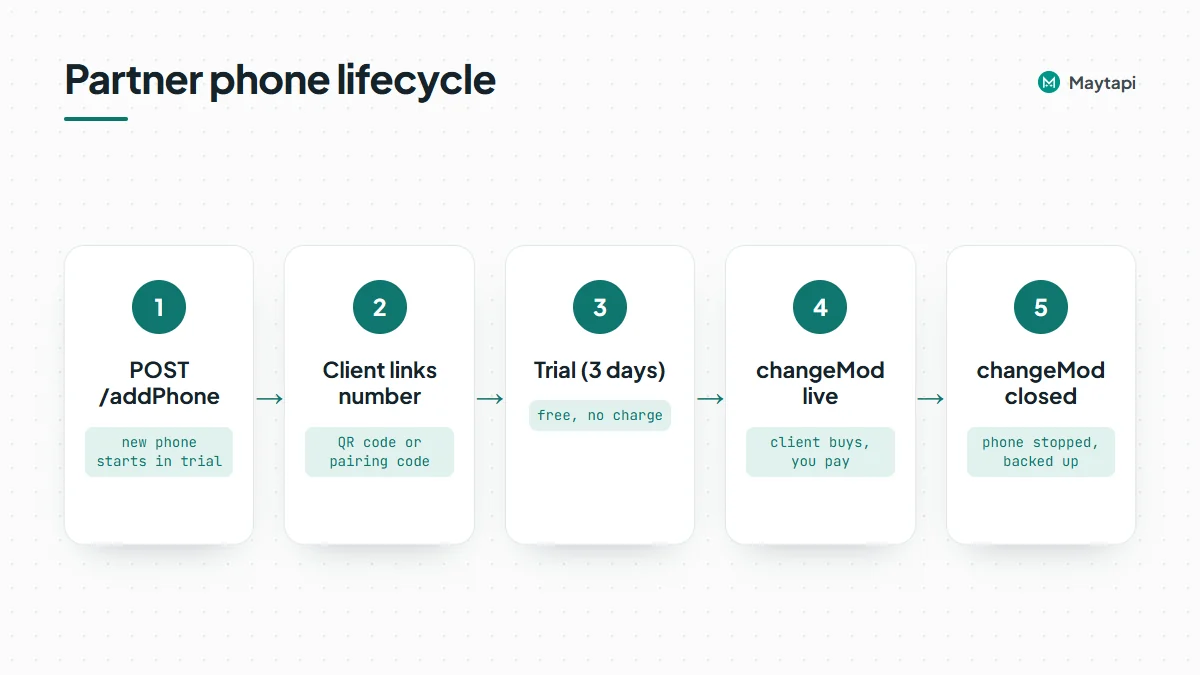
Mode is separate from connection status. A phone can be trial and active (connected and sending), or live and qr-screen (paid, waiting for the client to scan). The status values are the same as on any Maytapi phone and are listed in the getting started guide.
The partner API
The partner API is deliberately small. It has two endpoints, and both live under a different base URL from the rest of the API:
https://api.maytapi.com/partner/PRODUCT_ID/
| Task | Endpoint | Body |
|---|---|---|
| Create a trial phone | POST /addPhone |
optional number |
| Switch a phone to live or closed | POST /PHONE_ID/changeMod |
mod: "live" or "closed" |
Everything else (connecting the number, setting a webhook, sending messages, reading groups) uses the standard API at https://api.maytapi.com/api/PRODUCT_ID/PHONE_ID/ with the same product ID and the same token. Authentication is identical too: send your token in the x-maytapi-key header. You find both on the console's token settings page.
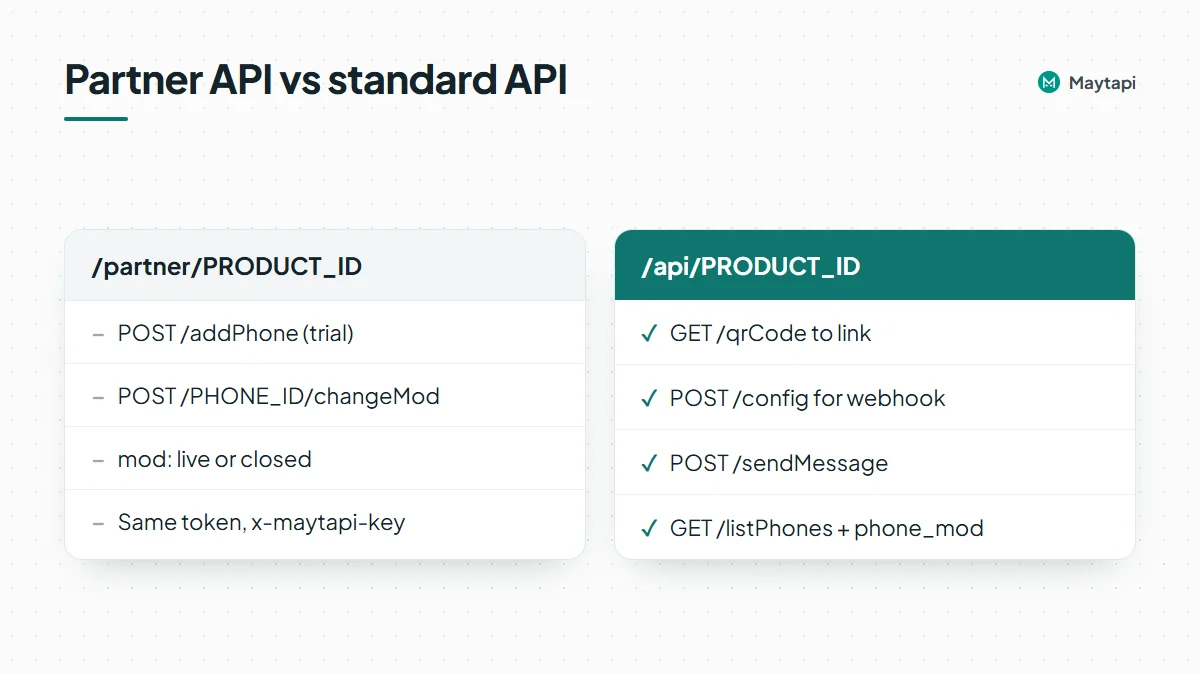
On a partner product, three standard endpoints redirect you to the partner API instead of running:
POST /addPhoneon the/api/base answersPlease use /partner/addPhone for adding new phone./deleteanswersPlease use /partner/changeMod for disabled.GET /enableanswersPlease use /partner/changeMod for enable.
If you're moving existing code over to a partner account, those messages tell you which calls to switch.
Add a phone for a client
curl -X POST "https://api.maytapi.com/partner/$PRODUCT_ID/addPhone" \
  -H "x-maytapi-key: $TOKEN" \
  -H "Content-Type: application/json" \
  -d '{"number": "3461xxxxx67"}'
The body is optional. If you send a number, it's stored with the phone; otherwise the number is filled in when the client connects. The response is the new phone record:
{
  "id": 12345,
  "pid": "1a2b3c4d-...",
  "number": "3461xxxxx67",
  "type": "whatsapp"
}
The record has a few more fields, such as status and data, but they're empty or still changing at this point. id is the phone ID you use in every later call, and pid is your product ID. Store the id against the client in your own database straight away. That mapping is what lets you route webhooks and bill the right customer later.
The call fails with success: false and Maximum number of phones are created, no more allowed! when the product has reached its phone limit. Unlike the standard addPhone, the partner version doesn't extend your subscription automatically, so handle that message in your signup flow and contact Maytapi if you need a higher limit.
Onboard a client in Node.js
Here is a complete onboarding step for a new customer: create the trial phone, point its webhook at your platform, and fetch the QR code to show in your UI. The webhook is set per phone with POST /config, so every client's events arrive at a URL that identifies them.
const PARTNER = `https://api.maytapi.com/partner/${PRODUCT_ID}`;
const API = `https://api.maytapi.com/api/${PRODUCT_ID}`;
const headers = { "x-maytapi-key": TOKEN, "Content-Type": "application/json" };

async function onboardClient(clientId) {
  // 1. Create a trial phone
  const phone = await fetch(`${PARTNER}/addPhone`, {
    method: "POST",
    headers,
    body: JSON.stringify({})
  }).then((r) => r.json());
  if (!phone.id) throw new Error(phone.message || "addPhone failed");

  await db.clients.update(clientId, { phoneId: phone.id, mode: "trial" });

  // 2. Send this phone's events to the client's webhook on your platform
  await fetch(`${API}/${phone.id}/config`, {
    method: "POST",
    headers,
    body: JSON.stringify({
      webhook: `https://app.example.com/webhooks/whatsapp/${clientId}`
    })
  });

  // 3. Get the QR code (a PNG image) for the client to scan
  const qr = await fetch(`${API}/${phone.id}/qrCode`, { headers });
  if (qr.headers.get("content-type")?.includes("image")) {
    const png = Buffer.from(await qr.arrayBuffer()).toString("base64");
    return { phoneId: phone.id, qr: `data:image/png;base64,${png}` };
  }
  return { phoneId: phone.id, qr: null }; // not ready yet, retry shortly
}
A new phone needs a few seconds to start. If qrCode returns JSON with success: false instead of an image, wait and try again. QR codes also rotate, so refresh the image in your UI every so often rather than showing one code forever. If your client can't scan a code, for example because they set things up from the same phone, use the pairing code flow: POST /connectWithPhoneNumber with their number, and show them the code from connectionResult. Both flows are covered in the getting started guide.
Once the client is connected, their phone works exactly like any other Maytapi phone. Messages go out with POST /sendMessage (see the send message guide), and incoming messages and delivery updates reach the webhook you configured (see the webhook guide).
Move a phone to live or closed
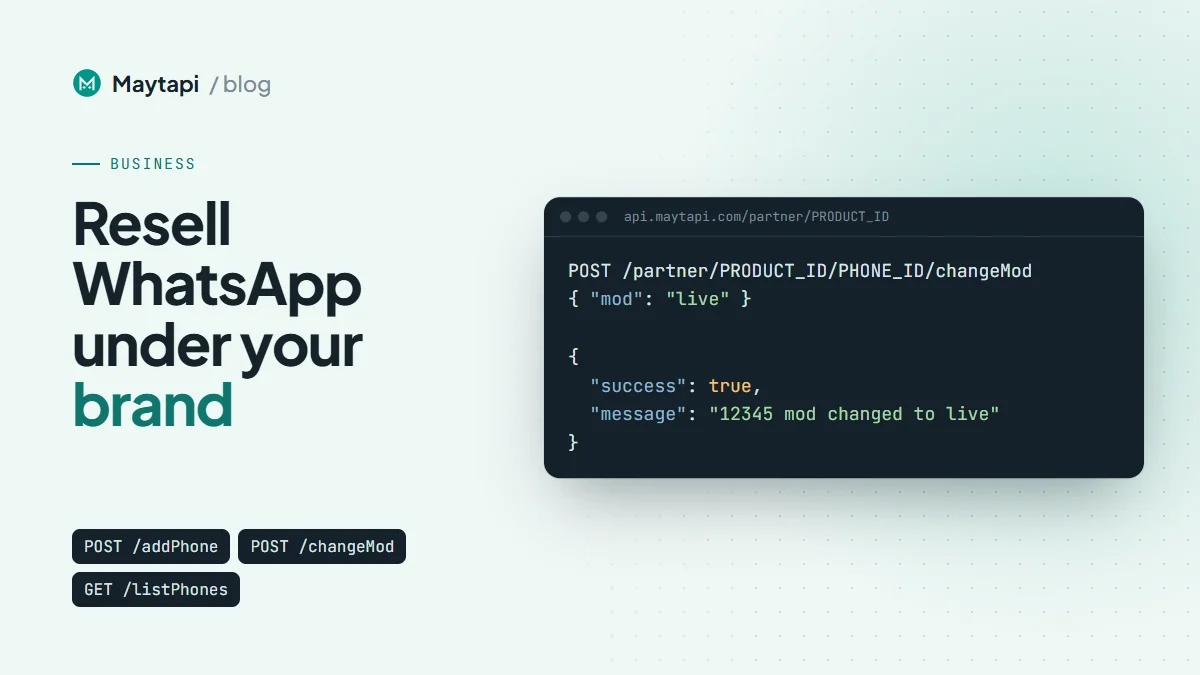
When the client pays, make the phone live:
curl -X POST "https://api.maytapi.com/partner/$PRODUCT_ID/$PHONE_ID/changeMod" \
  -H "x-maytapi-key: $TOKEN" \
  -H "Content-Type: application/json" \
  -d '{"mod": "live"}'
{ "success": true, "message": "12345 mod changed to live" }
When they cancel or the trial ends without a purchase, send "mod": "closed" instead. Here is what each value does:
closedstops the phone. Its session is backed up and the instance is shut down, so the phone ends updisabled. If a close is already in progress, a second request returnschangeMod rejected: phone is already in dispatch state, backup task is already running.liveon a running trial phone just marks it as paid. On a phone you closed earlier, it also starts the instance again, but only if your product has room: the active phone count must be below your phone limit, otherwise you getYour active phone count is greater than your phone limit.- Anything else, including
trial, returnsmod must be live or closed. You can't put a phone back into trial from the API.
A typical integration calls changeMod from your billing system: live from the "payment succeeded" handler, closed from "subscription cancelled" or from a nightly job that closes trials older than three days. Always check success in the response before you update your own records.
Track modes and connection health
GET /listPhones on the standard base returns every phone on the product. On a partner account, each item also has a phone_mod field with trial, live or closed, next to the usual id, number and status:
curl "https://api.maytapi.com/api/$PRODUCT_ID/listPhones" \
  -H "x-maytapi-key: $TOKEN"
Use it to reconcile your billing records with Maytapi once a day: a phone that's live in phone_mod but cancelled in your system should be closed, and a paying customer whose phone shows closed needs attention.
For connection health, don't poll. Your webhook receives type: "status" events when a phone's state changes, and they carry the phone_id, so you know which client to notify:
{ "type": "status", "product_id": "1a2b3c4d-...", "phone_id": 12345, "status": "qr-screen" }
When a client's phone drops to qr-screen or phone-error, show a "reconnect WhatsApp" prompt in your product or email them. That's the most common support ticket you'll get as a partner, and catching it early saves you most of them.
White-label resale or referral
The partner page offers two ways to work with Maytapi.
Sell under your own brand. With the partner API, your clients sign up, connect and message inside your product. They see your brand, not Maytapi's. The partner program also includes premium technical support through a dedicated channel, and Maytapi works with partners on feature requests and custom development.
Refer customers instead. If you'd rather send customers to Maytapi than resell, the referral program gives you a personalised panel with your logo and name and a unique referral link. You earn a share of the first-year revenue from the customers you refer, growing with the number of referrals:
| Referred clients | Your share of first-year revenue |
|---|---|
| 20 | 30% |
| 50 | 40% |
| 100 or more | 50% |
You track referrals and earnings in the panel, and payouts go directly to your account. Exact conditions for either option are agreed with Maytapi, so use the contact on the partner program page to start.
Next steps
The partner model comes down to two calls: addPhone for every new prospect, and changeMod when they buy or leave. Everything in between is the standard Maytapi API you may already be using.
- Learn the phone basics, QR codes and pairing codes in the getting started guide.
- Handle every event your clients' phones send in the webhook events guide.
- Keep new client numbers safe while they warm up with Safe Mode.
- Ideas to package for your clients are in WhatsApp API business use cases.
- Compare a flat per-number price with Meta's per-message billing in WhatsApp API pricing after October 2026.
- Check the standard endpoints in the API documentation.
Ready to set up a partner account? Contact the team on the partner program page.