Maytapi
Many shops already sell through WhatsApp chats, but keep the WhatsApp catalog up to date by hand and copy orders out of the app one by one. A WhatsApp catalog API removes both chores: your store pushes products into the catalog, your agents or bot send product cards in chat, and orders arrive on your server as webhook events. This post walks through the catalog endpoints, the two message types for sharing products, and how to receive and store orders.
Before you start: a WhatsApp Business number
The catalog is a WhatsApp Business feature, so the connected number must be a WhatsApp Business number. A personal WhatsApp account has no catalog to manage. If your number runs on the regular WhatsApp app, move it to the WhatsApp Business app first, then pair it with Maytapi as usual with a QR code or pairing code.
Everything below uses the same base URL, https://api.maytapi.com/api/PRODUCT_ID/PHONE_ID/, and your API token in the x-maytapi-key header. Here product_id is your Maytapi product id, not a catalog product, which matters because the catalog endpoints also talk about product ids.
Manage products with the WhatsApp catalog API
Add a product
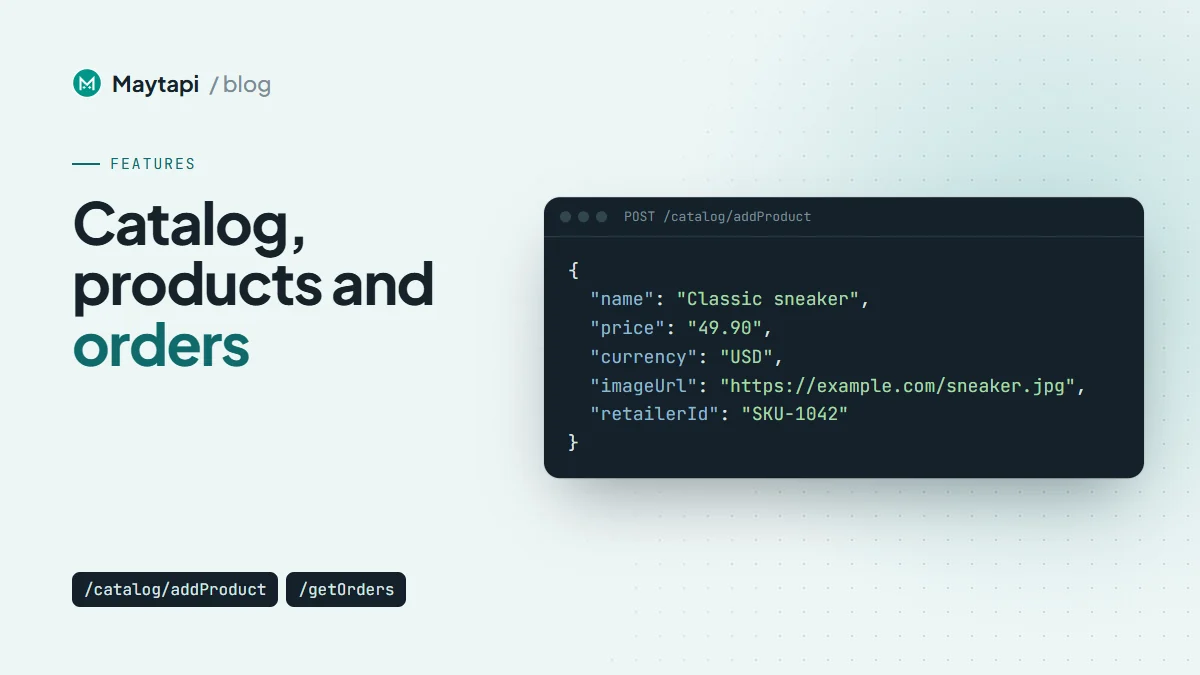
catalog/addProduct creates a product. The request takes a name, description, price (sent as a string), currency, imageUrl, an optional product url, your own retailerId (your SKU, for example) and isHidden.
curl -X POST "https://api.maytapi.com/api/$PRODUCT_ID/$PHONE_ID/catalog/addProduct" \
  -H "x-maytapi-key: $TOKEN" \
  -H "Content-Type: application/json" \
  -d '{
    "name": "Classic sneaker",
    "description": "Canvas sneaker, sizes 38-45",
    "price": "49.90",
    "currency": "USD",
    "imageUrl": "https://example.com/sneaker.jpg",
    "url": "https://example.com/sneaker",
    "retailerId": "SKU-1042",
    "isHidden": false
  }'
The response contains the new product's id. Save it next to your own SKU, because every other product call uses it. The response also includes a reviewStatus field (for example NO_REVIEW), which reflects WhatsApp's review state for the item.
List, edit, hide and remove products
GET catalog/getProductslists every product in your catalog, andGET catalog/getProduct/{productId}returns one. Each item hasproductId,title,description,price,currency,image,url,retailerIdand astatus.POST catalog/editProducttakes aproductIdand adataobject with the fields to change (the same fields asaddProduct). SetisHidden: trueto hide a sold-out item without deleting it.POST catalog/removeProductwith{ "productId": "..." }deletes a product.
curl -X POST "https://api.maytapi.com/api/$PRODUCT_ID/$PHONE_ID/catalog/editProduct" \
  -H "x-maytapi-key: $TOKEN" \
  -H "Content-Type: application/json" \
  -d '{"productId": "8269823289766677", "data": {"price": "39.90", "isHidden": false}}'
Product images
catalog/addProductImage adds an extra image to a product from a URL:
{ "productId": "8269823289766677", "imageUrl": "https://example.com/sneaker-side.jpg" }
catalog/removeProductImage removes one. Pass the image's index in the product's additionalImageCdnUrl array. The older imageUrl parameter is deprecated.
There is also GET catalog/getProducts/{conversation_id}, which lists the catalog of another WhatsApp Business account, for example a supplier, by its chat id.
Group products into collections
Collections are the sections customers see when they browse your catalog, such as "New arrivals" or "Sale". The API covers the full cycle:
| Endpoint | Body | Purpose |
|---|---|---|
GET catalog/getCollections |
none | List collections with their products |
GET catalog/getCollection/{collection_id} |
none | One collection |
POST catalog/addCollection |
name, productIds |
Create a collection |
POST catalog/editCollection |
collection_id, name |
Rename it |
POST catalog/removeCollection |
collection_id |
Delete it |
POST catalog/addCollectionProducts |
collection_id, productIds |
Add products |
POST catalog/removeCollectionProduct |
collection_id, productIds |
Remove products |
curl -X POST "https://api.maytapi.com/api/$PRODUCT_ID/$PHONE_ID/catalog/addCollection" \
  -H "x-maytapi-key: $TOKEN" \
  -H "Content-Type: application/json" \
  -d '{"name": "New arrivals", "productIds": ["8269823289766677", "8269823289766678"]}'
Like products, collection responses include a reviewStatus.
Keeping the catalog in sync with your store
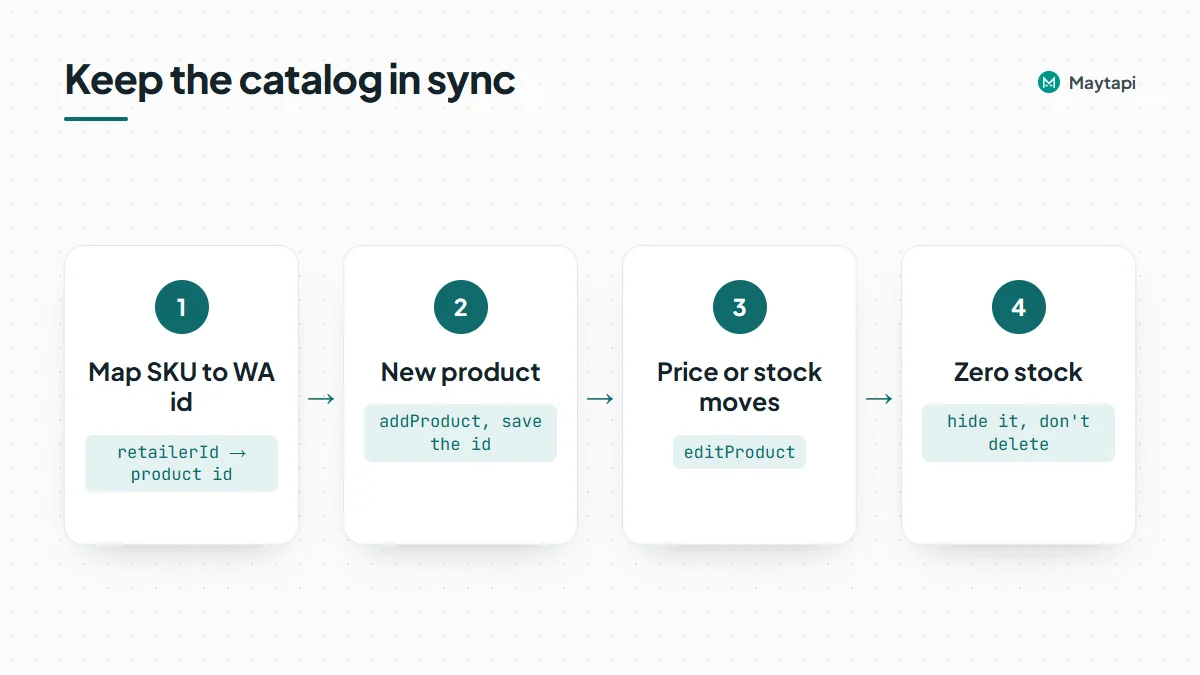
The simplest sync job keeps a mapping of your SKU (retailerId) to the WhatsApp product id. When a product is created in your store, call addProduct and save the id. When the price or stock changes, call editProduct, and hide items at zero stock instead of deleting them, so the id stays valid. Run bulk syncs at a steady pace rather than firing hundreds of calls at once. Every change is an action your number performs on WhatsApp.
Send products and your catalog in chat
Two sendMessage types put your catalog in front of a customer.
Product message. Send a single product card with type: "product" and the product id. The customer sees the native product card and can view and order it.
curl -X POST "https://api.maytapi.com/api/$PRODUCT_ID/$PHONE_ID/sendMessage" \
  -H "x-maytapi-key: $TOKEN" \
  -H "Content-Type: application/json" \
  -d '{"to_number": "90532xxxxx67@c.us", "type": "product", "productId": "3121315354601301"}'
Take the id from catalog/getProducts or from your SKU mapping. The API reference's example sends nothing but the productId.
Catalog message. Since 20.02.2026 you can share the whole catalog with type: "catalog". title and description are optional:
{
  "to_number": "90532xxxxx67@c.us",
  "type": "catalog",
  "message": "Check out our products!",
  "title": "Our catalog",
  "description": "New arrivals every week"
}
Use the product card when a customer asks about one item, and the catalog message when they ask "what do you have?". Both work well inside a support flow: an agent, or a bot reading the webhook, can match a question like "do you have the sneaker in 42?" to a retailerId, look up the WhatsApp product id from your mapping and answer with the card instead of a paragraph of text and a link. Because the card comes from your catalog, the price and image the customer sees are the ones you last synced. If you want a custom layout with your own buttons instead of the native card, a carousel is an alternative. See Send WhatsApp Buttons, Lists and Carousels via API.
Receive WhatsApp orders on your webhook
When a customer sends an order from your catalog, it is delivered to your webhook as a message event whose message.type is order. Order delivery was added on 20.02.2026. The order part of the payload looks like this:
{
  "type": "order",
  "id": "3EB08D542BF8D2092951EE",
  "business": "90532xxxxx67@c.us",
  "title": "Shop Name",
  "products": [
    {
      "productId": "8269823289766677",
      "title": "Classic sneaker",
      "retailerId": "",
      "currency": "USD",
      "price": 12,
      "price1000": 12000,
      "quantity": 1
    }
  ],
  "subtotal": 12,
  "total": 12,
  "currency": "USD",
  "createdAt": 1768802838,
  "fromMe": false
}
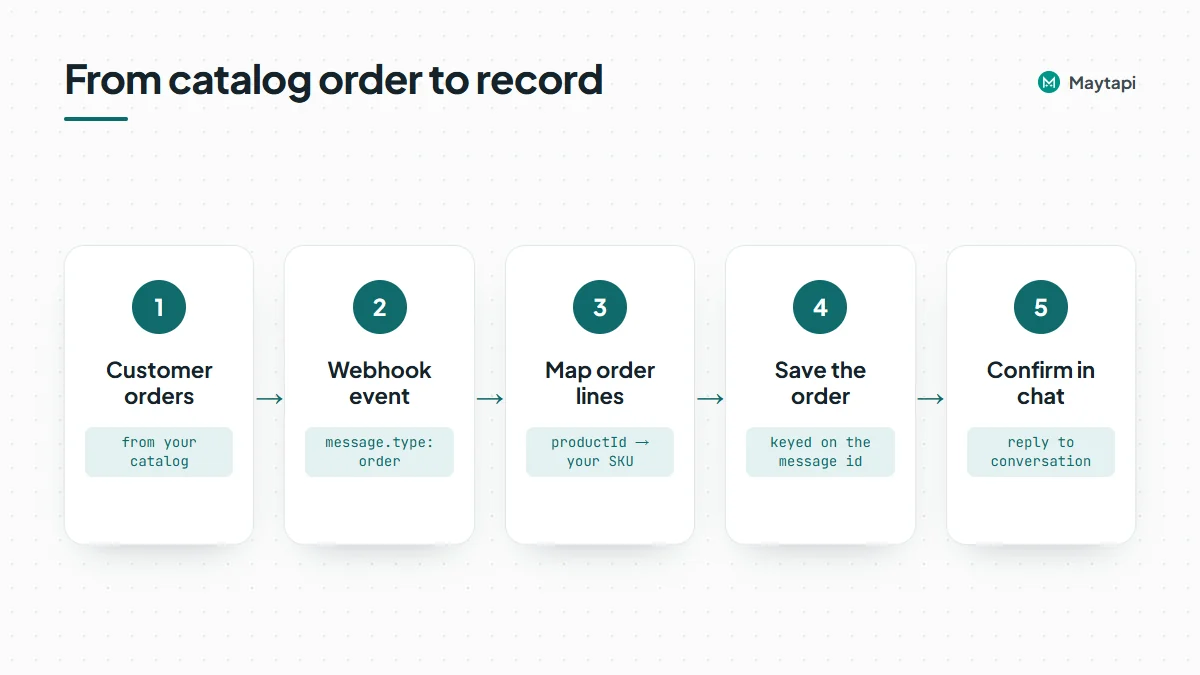
Order lines carry the WhatsApp productId, while retailerId currently comes back empty, so map each line to your own products through the SKU-to-product-id mapping from your sync job. Prices come both as price and as price1000 (the amount multiplied by 1000). The event's user and conversation fields tell you who ordered and where to reply.
An Express handler that saves orders and confirms them:
import express from "express";

const BASE = `https://api.maytapi.com/api/${PRODUCT_ID}/${PHONE_ID}`;
const app = express();

app.post("/maytapi/webhook", express.json(), async (req, res) => {
  res.sendStatus(200); // acknowledge first

  const { type, conversation, message: msg = {} } = req.body;
  if (type !== "message" || msg.type !== "order" || msg.fromMe) return;

  await saveOrder(conversation, msg); // your database, keyed by msg.id
  await fetch(`${BASE}/sendMessage`, {
    method: "POST",
    headers: { "x-maytapi-key": TOKEN, "Content-Type": "application/json" },
    body: JSON.stringify({
      to_number: conversation,
      type: "text",
      message: `Thanks! We received your order of ${msg.total} ${msg.currency}.`
    })
  });
});

app.listen(3000);
An order event is a cart the customer sent you, not a payment. Taking the payment, shipping and updating the customer on the order status all happen in your own system, usually with a payment link and follow-up messages in the same chat. Catalog content must also follow WhatsApp's Commerce Policy.
Key the stored order on the message id, so a repeated delivery of the same event does not create a second order. The webhook events guide covers that pattern for every event type.
Listing recent orders with getOrders
GET catalog/getOrders returns the ids of recent orders. It accepts page, sort (newest first) and a conversation_id filter. GET catalog/getOrders/{orderId} returns the full details: products, quantities and prices.
curl "https://api.maytapi.com/api/$PRODUCT_ID/$PHONE_ID/catalog/getOrders?sort=true&conversation_id=90532xxxxx67@c.us" \
  -H "x-maytapi-key: $TOKEN"
Note:
getOrdersreads from memory and only returns orders received while the instance is running. It is not an order history. Save every order to your own database when the webhook delivers it.
Order ids embed the chat id, and that part can be in the @lid privacy format, for example false_90532xxxxx67@lid_3EB08D542BF8D2092951EE. Use the event's conversation field to identify the customer, and see WhatsApp @lid Explained if you need to resolve a LID to a number.
Next steps
Selling on WhatsApp through the API comes down to three loops: keep the catalog in sync with your store, answer questions with product and catalog messages, and turn order webhooks into records in your own system.
- Read the product catalog API feature page.
- Try every catalog endpoint in the API documentation.
- Run a Shopify or WooCommerce store? Add cart recovery and order updates with WhatsApp for Shopify & WooCommerce.
- See where catalogs fit among other automations in WhatsApp API for Business: 8 Use Cases.