Maytapi
Google Dialogflow is still one of the quickest ways to build a rules-based chatbot: you define intents and training phrases, Dialogflow matches what people type, and it hands back the answer you wrote. What it doesn't do is talk to WhatsApp. Maytapi fills that gap. Your own WhatsApp number receives the message, Dialogflow decides what it means, and the reply goes back from the same number. This guide builds a small webhook bridge on your own server: it keeps a Dialogflow session per conversation, ignores your own messages and group chats, and can hand a chat over to a person.
This guide uses Dialogflow ES. Google steers new projects toward Dialogflow CX (Conversational Agents), which uses the separate @google-cloud/dialogflow-cx client and a session path that includes a location and an agent ID. The webhook side below stays the same; only the ask function changes for CX.
Create the Dialogflow agent and a service account key
You need three things from Google Cloud:
- An agent in the Dialogflow ES console, with your intents and training phrases. The agent lives in a Google Cloud project, and the bridge needs that project's ID.
- The Dialogflow API enabled in that project.
- A service account with a JSON key. In Google Cloud, open IAM & Admin, create a service account, give it the Dialogflow API Client role, and create a key in JSON format.
Give the service account only that role. The JSON key is a password for your Google project, so don't commit it to a repository and don't paste it into chat tools.
Build your own bridge with the webhook
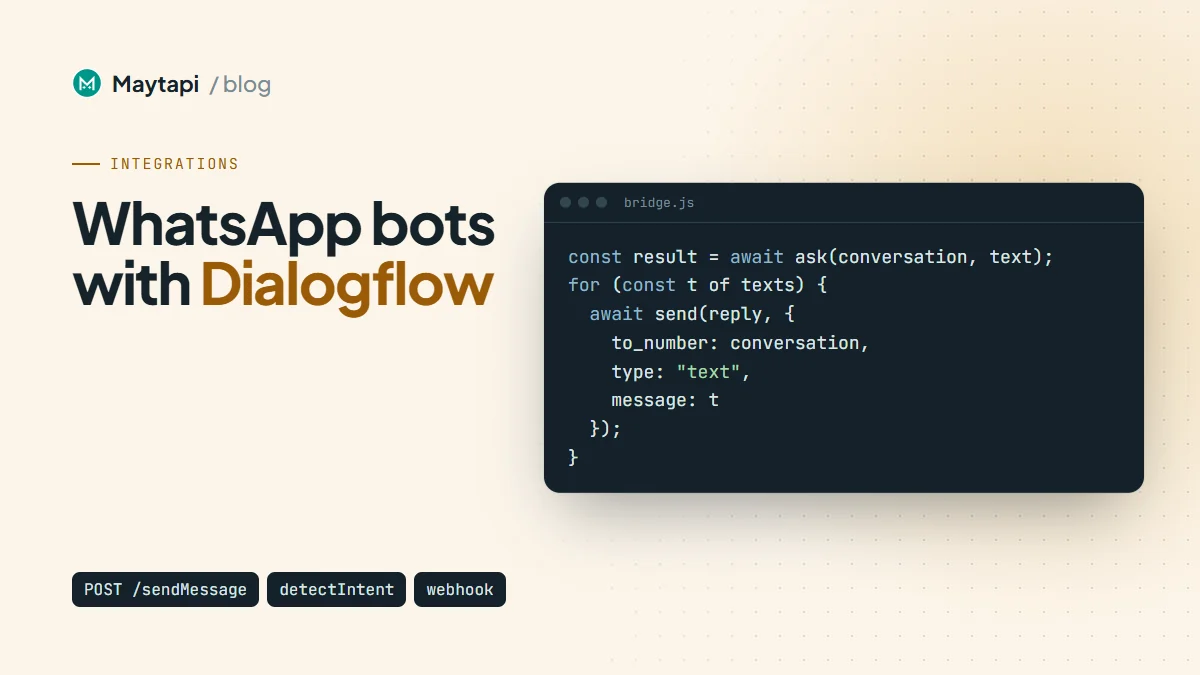
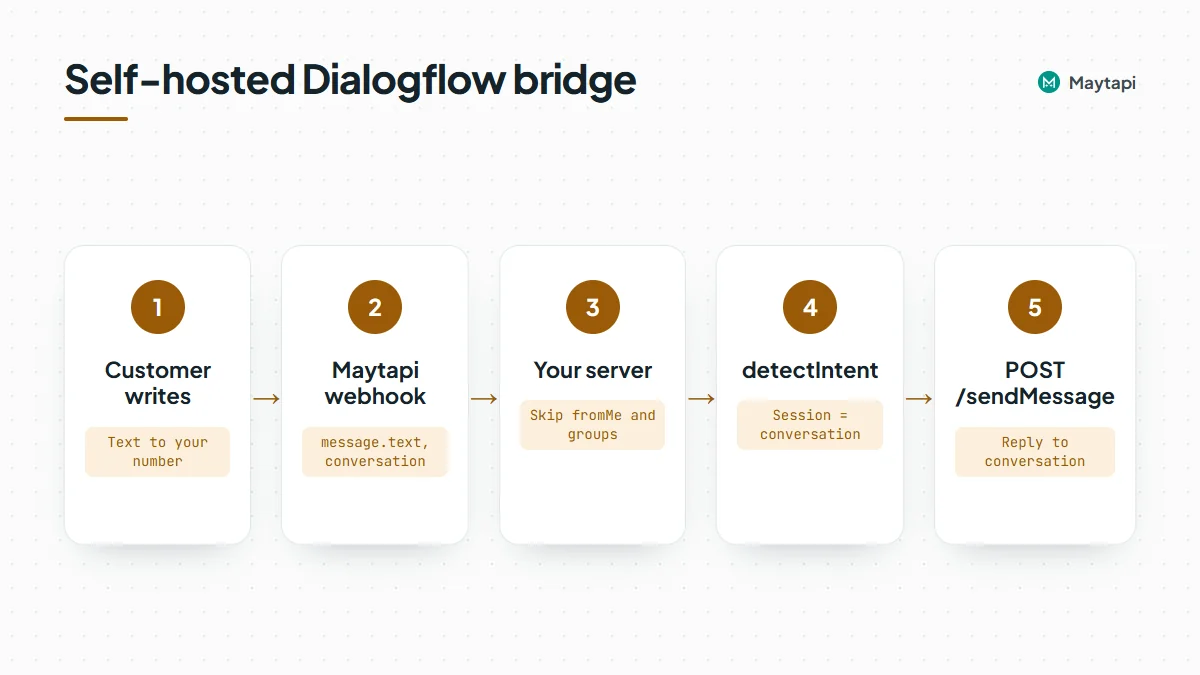
The bridge has your code in the middle: Maytapi posts the message to your webhook, your server asks Dialogflow, and the answer goes out through POST /sendMessage.
Set up the project
mkdir dialogflow-bridge && cd dialogflow-bridge
npm init -y
npm pkg set type=module
npm install express @google-cloud/dialogflow
Pass the credentials as environment variables. GOOGLE_APPLICATION_CREDENTIALS is the standard way to point Google's client library at your key file:
export PRODUCT_ID="your-product-id"
export PHONE_ID="your-phone-id"
export TOKEN="your-token"
export WEBHOOK_SECRET="a-long-random-string"
export DF_PROJECT_ID="your-gcp-project"
export GOOGLE_APPLICATION_CREDENTIALS="/secure/path/dialogflow-key.json"
Then point the product's webhook at your server with POST /setWebhook (product level, no phone ID in the path), or paste the URL on the console's webhook page:
curl -X POST "https://api.maytapi.com/api/$PRODUCT_ID/setWebhook" \
  -H "x-maytapi-key: $TOKEN" \
  -H "Content-Type: application/json" \
  -d '{ "webhook": "https://example.com/maytapi/webhook/a-long-random-string" }'
What arrives at your webhook
An incoming text message looks like this:
{
  "type": "message",
  "product_id": "your-product-id",
  "phone_id": "12345",
  "user": { "id": "90532xxxxx67@c.us", "name": "Ayse", "phone": "90532xxxxx67" },
  "message": { "id": "3EB081AF26FADE6416D8", "type": "text", "text": "What time do you open?", "fromMe": false },
  "conversation": "90532xxxxx67@c.us",
  "conversation_name": "Ayse",
  "receiver": "90532xxxxx43",
  "timestamp": 1761552000,
  "reply": "https://api.maytapi.com/api/your-product-id/12345/sendMessage"
}
Three fields do most of the work. message.text goes to Dialogflow. conversation is the chat to answer in and doubles as the session key. reply is the sendMessage URL for the phone that received the message; the bridge below builds that URL from your own IDs instead, because anyone can post a fake event to a public webhook. The webhook events guide lists every other event type.
Call detectIntent with one session per conversation
Dialogflow keeps contexts per session ID, so the session ID decides whether a follow-up answer is understood. Use one session per WhatsApp conversation. Dialogflow ES limits session IDs to 36 characters and recommends hashing user identifiers, so hash conversation instead of passing the raw number:
import express from "express";
import crypto from "node:crypto";
import dialogflow from "@google-cloud/dialogflow";

const { PRODUCT_ID, PHONE_ID, TOKEN, WEBHOOK_SECRET, DF_PROJECT_ID } = process.env;
const sessions = new dialogflow.SessionsClient();
const app = express();

function sessionPath(conversation) {
  const id = crypto.createHash("sha256").update(conversation).digest("hex").slice(0, 32);
  return sessions.projectAgentSessionPath(DF_PROJECT_ID, id);
}

async function ask(conversation, text) {
  const [response] = await sessions.detectIntent({
    session: sessionPath(conversation),
    queryInput: { text: { text, languageCode: "en" } }
  });
  return response.queryResult;
}
Send the answer with POST /sendMessage
An agent can return several text messages for one intent. They're in fulfillmentMessages, and fulfillmentText holds the first one, so loop over the messages to send them all:
// Build the URL from your own IDs; never send your token to a URL taken from the request body.
const SEND_URL = `https://api.maytapi.com/api/${PRODUCT_ID}/${PHONE_ID}/sendMessage`;
const paused = new Set(); // conversations a person has taken over

async function send(body) {
  const r = await fetch(SEND_URL, {
    method: "POST",
    headers: { "x-maytapi-key": TOKEN, "Content-Type": "application/json" },
    body: JSON.stringify(body)
  });
  return r.json();
}

app.post("/maytapi/webhook/:secret", express.json(), async (req, res) => {
  if (req.params.secret !== WEBHOOK_SECRET) return res.sendStatus(404);
  res.sendStatus(200); // answer Maytapi first, then work

  const { type, message, conversation } = req.body || {};
  if (type !== "message" || !message || message.fromMe) return;
  if (typeof conversation !== "string" || conversation.endsWith("@g.us")) return; // 1:1 chats only
  if (message.type !== "text" || !message.text) return;
  if (paused.has(conversation)) return; // a person is answering this chat

  try {
    const result = await ask(conversation, message.text);
    if (await handleAction(conversation, result)) return; // menu or handoff, see below

    const texts = (result.fulfillmentMessages || [])
      .flatMap((m) => (m.text ? m.text.text : []))
      .filter(Boolean);
    if (!texts.length && result.fulfillmentText) texts.push(result.fulfillmentText);

    for (const text of texts) {
      await send({ to_number: conversation, type: "text", message: text });
    }
  } catch (err) {
    console.error("bridge failed", err);
  }
});

app.listen(3000);
Skipping fromMe keeps the bot from answering its own messages, and skipping @g.us keeps it out of groups. Remove that line if you do want the agent to answer in a group. Everything sendMessage can do is available here, as described in the send message guide.
Menus, actions and a human handoff
The Dialogflow queryResult tells you more than the text. Use result.action or result.intent.displayName to decide what to send next, instead of putting WhatsApp formatting into the agent.
Menus. For a menu intent, send a list message instead of plain text. When the customer picks a row, it arrives as a normal text message whose message.text is the row title, so name your rows like the agent's training phrases and Dialogflow matches them without extra code:
const fallbacks = new Map(); // conversation -> fallbacks in a row

async function handleAction(conversation, result) {
  if (result.action === "show.menu") {
    await send({
      to_number: conversation,
      type: "list",
      message: "What can we help you with?",
      button_text: "See options",
      sections: [{
        title: "Topics",
        rows: [
          { rowId: "hours", title: "Opening hours" },
          { rowId: "order", title: "Order status" },
          { rowId: "agent", title: "Talk to a person" }
        ]
      }]
    });
    return true;
  }

  const unknown = result.action === "input.unknown";
  const count = unknown ? (fallbacks.get(conversation) || 0) + 1 : 0;
  fallbacks.set(conversation, count);
  // "Talk to a person" is an intent in your agent with that display name
  if (count >= 2 || result.intent?.displayName === "Talk to a person") {
    paused.add(conversation);
    fallbacks.delete(conversation);
    await send({ to_number: conversation, type: "text", message: "Thanks, a colleague will answer here shortly." });
    // notify your team here: email, Slack or a CRM task
    return true;
  }
  return false; // let the agent's own answer go out
}
message.payload carries the rowId if you prefer to route on ids yourself. Lists are a safer choice than reply buttons here, because button taps don't arrive as webhook events on every connection. The interactive messages guide has the details. Always write the menu so a typed answer works too.
Handoff. When the Default Fallback Intent fires (action is input.unknown) twice in a row, or the customer picks "Talk to a person", stop calling Dialogflow for that conversation and notify your team. handleAction above adds the conversation to the paused set, which the handler checks first. In production, keep that set in Redis or your database so it survives restarts. A person then answers from the phone or the console's shared inbox, and you remove the conversation from the set when they're done.
Fulfillment. If an intent needs live data, such as an order status, use Dialogflow's own fulfillment webhook or look the data up in your bridge after detectIntent returns the action and parameters (result.parameters). Doing it in the bridge keeps all your WhatsApp logic in one place.
Production checklist
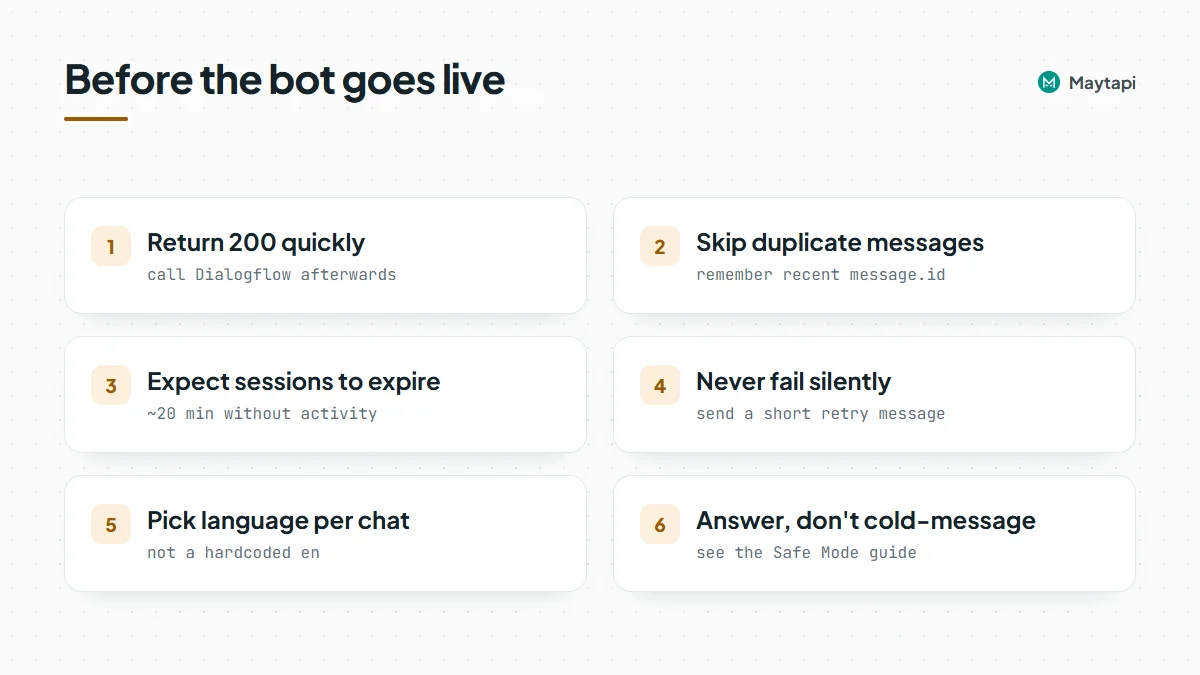
- Return 200 quickly. Acknowledge the webhook first and call Dialogflow afterwards. A slow agent shouldn't hold up delivery.
- Ignore duplicates. Keep recent
message.idvalues for a few minutes and skip any you've already answered. - Expect sessions to expire. Dialogflow ES contexts expire after about 20 minutes without activity, so a customer who returns later starts fresh. Design follow-up intents with that in mind.
- Handle errors without silence. If
detectIntentfails, send a short "Sorry, please try again" instead of nothing, and log the error. - Pick the language per conversation if you serve several markets, rather than hardcoding
en. - Keep it conversational. The bot runs on a regular WhatsApp number, so it should answer people who wrote to you, not start conversations with cold lists. The Safe Mode guide explains how Maytapi helps protect the number.
Dialogflow or an LLM agent?
Dialogflow is predictable: an answer is only what you wrote for that intent, and that's often exactly what a support FAQ needs. The cost is maintenance. Every new question means new intents and training phrases. If you'd rather have the bot answer from your documents in its own words, the same webhook can feed a large language model instead. The AI agent with n8n and Claude guide builds that version, and a mixed setup works too: Dialogflow for the fixed flows, an LLM for the fallback intent.
Next steps
A small bridge on your own server gives a Dialogflow agent memory, menus and a path to a person, using nothing more than the webhook and POST /sendMessage.
- Build a general-purpose bot step by step with the Node.js WhatsApp bot tutorial, or in Python.
- Use lists and buttons in your flows with the interactive messages guide.
- See every event your bridge can receive in the webhook events guide.
- Try an LLM instead of intents with the AI agent with n8n and Claude.
- Check every parameter in the API documentation.