Maytapi
WhatsApp Status (the Stories feature) is one of the few places where a business shows up for its contacts without sending them a message. Posting a status by hand every morning is easy to forget, though, and impossible to schedule. This guide shows how to use the WhatsApp Status API in Maytapi to publish image, video, text and audio stories, control exactly who sees them, check who viewed them, and read and reply to your contacts' stories.
What the WhatsApp Status API covers
Stories live on the number you pair with Maytapi, and the API exposes six endpoints plus two message types:
| Task | Endpoint |
|---|---|
| Post a story | POST /createStory |
| List your stories and their viewers | GET /getStories |
| Read your contacts' stories | GET /contactsStories, GET /contactsStories/{conversation_id} |
| Read or change who can see your stories | GET /getStoryPrivacy, POST /setStoryPrivacy |
| Reply to a contact's story | sendMessage with story_text or story_media |
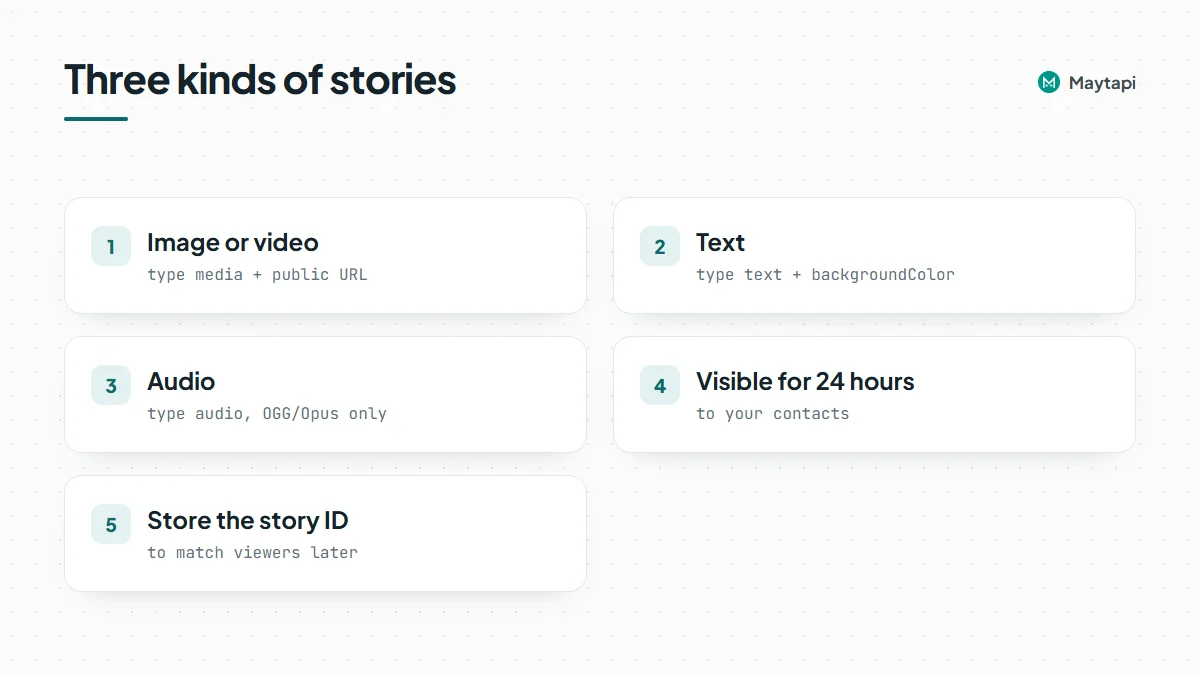
All endpoints are under https://api.maytapi.com/api/PRODUCT_ID/PHONE_ID/ and authenticate with the x-maytapi-key header. The examples use Node.js 18+ with the built-in fetch:
const PRODUCT_ID = "your-product-id";
const PHONE_ID = "your-phone-id";
const TOKEN = "your-api-token";

const BASE = `https://api.maytapi.com/api/${PRODUCT_ID}/${PHONE_ID}`;
const HEADERS = { "x-maytapi-key": TOKEN, "Content-Type": "application/json" };

const post = (path, body) =>
  fetch(`${BASE}/${path}`, { method: "POST", headers: HEADERS, body: JSON.stringify(body) }).then((r) => r.json());
As in the app, a status is visible to your contacts for 24 hours. As in WhatsApp itself, a contact usually sees your status only when their number is in your phone's address book and they have saved your number too. Within that group, your privacy setting decides who sees it, which we'll get to below.
Post image and video stories
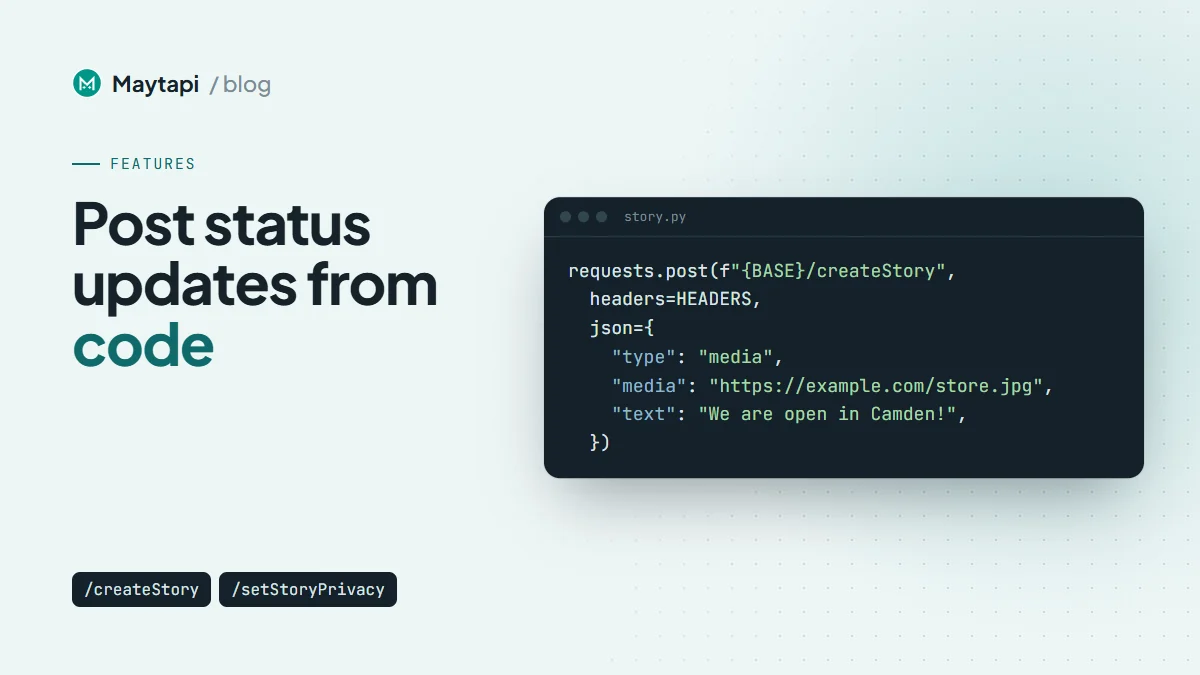
A media story needs type: "media" and a public media URL. text is an optional caption:
const story = await post("createStory", {
  type: "media",
  media: "https://example.com/camden-store.jpg",
  text: "We are open! Visit our new store in Camden"
});
console.log(story);
The response's data is the new story's ID, for example true_status@broadcast_3EB00968DB76C3F4593410_90532xxxxx67@c.us. Store it if you want to match viewers to a specific story later.
Note: If you add
contactsorexcludeContactstocreateStory, it changes the number's account-wide story privacy setting, not just this story's audience. Read Choose who sees your WhatsApp status before you send a targeted story.
The same call posts a video: point media at an MP4 instead of an image. Use reasonably sized, good-quality files. Story publishing is still marked beta in the API documentation, and very low-quality media may not be shared.
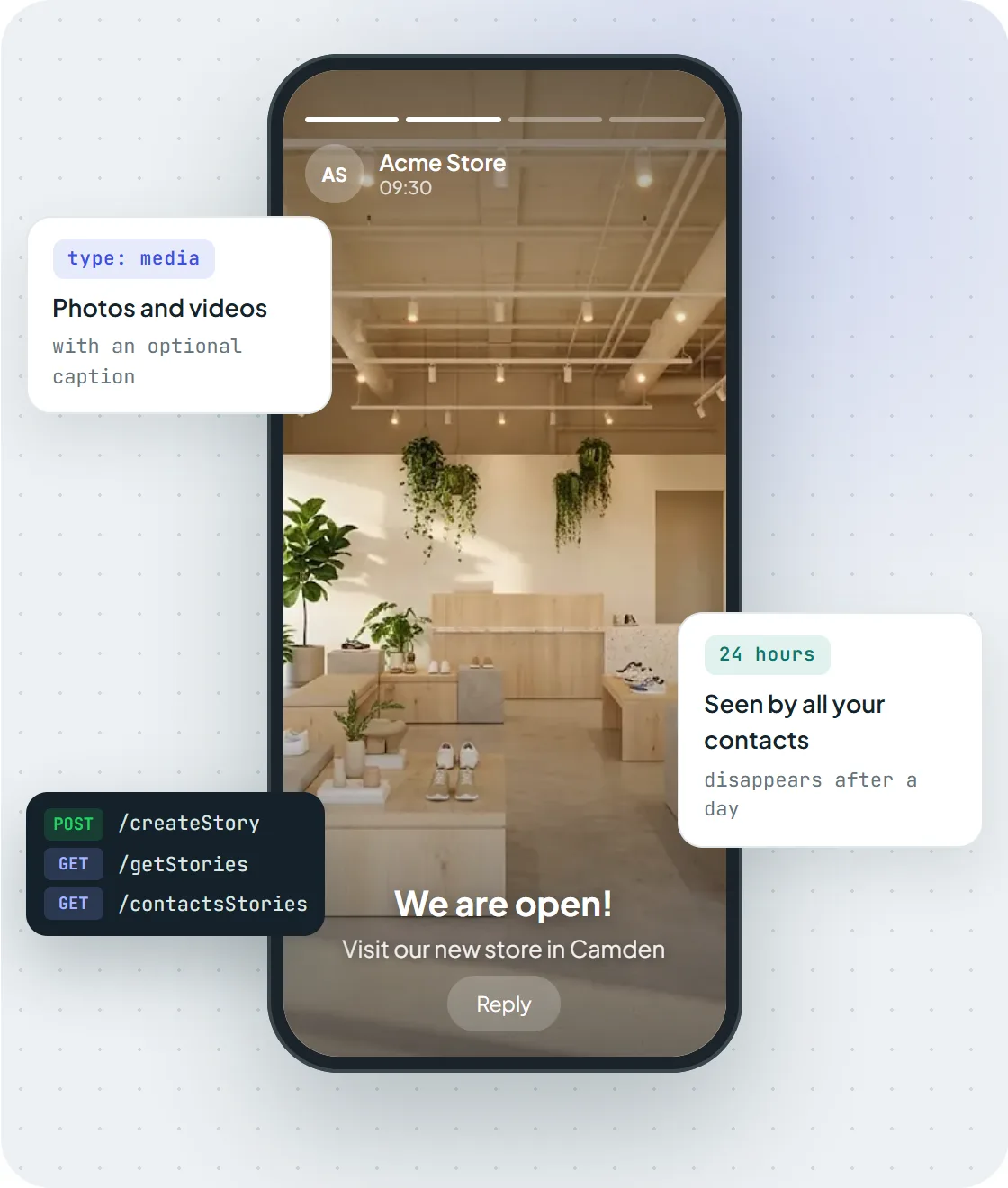
A photo story posted with createStory and type media, visible to contacts for 24 hours.
Text stories with a background color
For a text-only status, use type: "text" and set backgroundColor to a hex color:
await post("createStory", {
  type: "text",
  text: "Weekend sale: 20% off everything until Sunday",
  backgroundColor: "#1E90FF"
});
Text stories are a good fit for automated content that changes daily: opening hours on holidays, today's menu, a stock alert, or an "order cut-off in 2 hours" reminder.
Audio stories
Audio stories were added in October 2026. Use type: "audio" with the file in media, and optionally a backgroundColor:
await post("createStory", {
  type: "audio",
  media: "https://example.com/weekly-update.oga",
  backgroundColor: "#1E90FF"
});
Note: Audio stories currently accept OGG/Opus files only (
.oga). Convert MP3 or WAV first, for example withffmpeg -i update.mp3 -c:a libopus update.oga.
Schedule stories
The API has no scheduling field, so timing is up to your code. A cron entry or any job scheduler is enough: keep a table of upcoming stories (type, media URL or text, color, audience, publish time), and have a job that runs every few minutes post the ones that are due and record the returned story ID. Recording the ID lets you avoid double-posting if the job runs twice, and lets you look up viewers for that exact story later. Keep the media on a stable public URL; the API fetches it when the story is created.
Choose who sees your WhatsApp status
There are two ways to control the audience, and they interact, so it's worth understanding both.
The account-wide privacy setting
GET /getStoryPrivacy returns the current setting of the number:
setting |
Who sees your stories |
|---|---|
contacts |
All your contacts |
allowList |
Only the numbers in allowList |
denyList |
All contacts except the numbers in denyList |
Both lists are always returned; only the one that matches setting is in effect. To change it, call setStoryPrivacy with the setting and, for the list modes, a contacts array:
await post("setStoryPrivacy", {
  setting: "denyList",
  contacts: ["90532xxxxx67"]
});
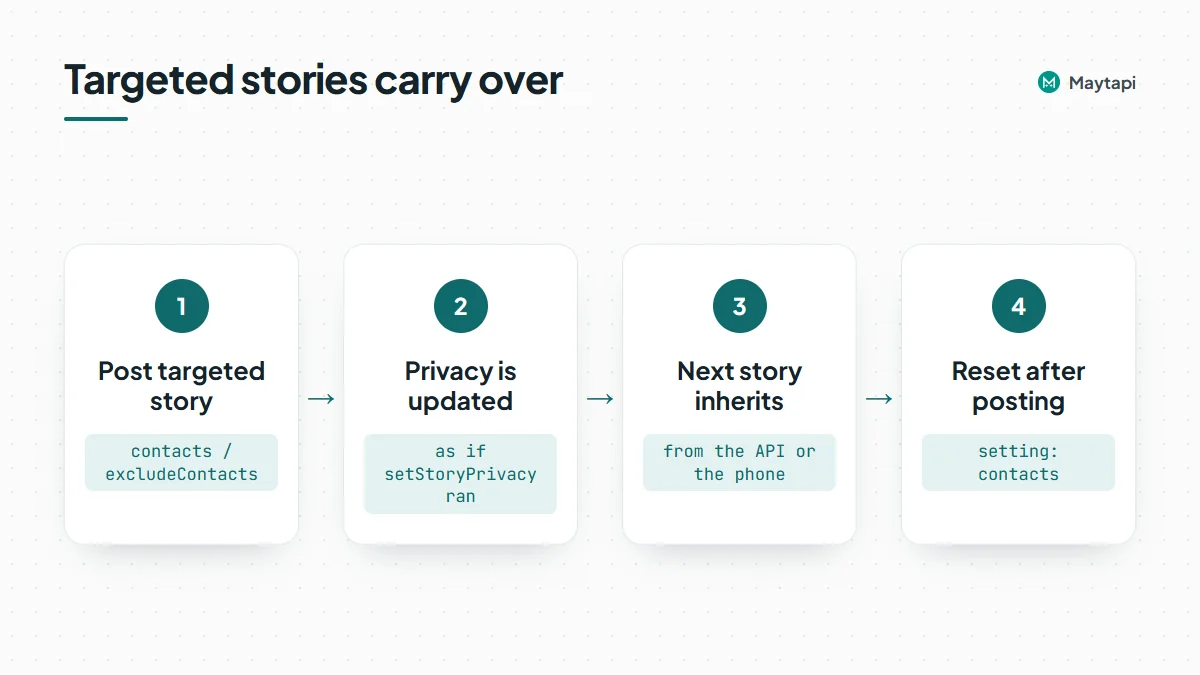
This setting is permanent and synced to the phone, so it affects stories you post from the app as well.
Per-story audience
createStory also accepts contacts (only these numbers see the story) or excludeContacts (everyone except these):
await post("createStory", {
  type: "text",
  text: "VIP early access starts now",
  backgroundColor: "#792138",
  contacts: ["90532xxxxx67", "90532xxxxx68"]
});
Here is the part to remember: either field updates the account's story privacy setting before the story is shared, exactly as if you had called setStoryPrivacy. Your next story, from the API or the phone, inherits that audience unless you change it. If you mix targeted and public stories, call setStoryPrivacy with setting: "contacts" (or your usual list) after posting a targeted one, or pass the audience explicitly on every createStory call.
See who viewed your stories
GET /getStories lists the stories you have posted. Each item has the story id, a storyContent object (type, and url for media stories) and, once someone has seen it, a viewers array of those contacts:
const list = await fetch(`${BASE}/getStories?full=true`, { headers: HEADERS }).then((r) => r.json());
for (const s of list.data || []) {
  console.log(s.id, s.storyContent.type, (s.viewers || []).length, "views");
}
Results are paginated with page; full=true returns everything in one response. Viewer lists are useful for follow-ups, for example tagging contacts who viewed a promotion story or checking how many customers saw a service notice.
Read and reply to contacts' stories
The other direction is just as useful for relationship-driven businesses: seeing what your customers or partners post and responding.
GET /contactsStories returns the contacts that currently have stories, each with a chatId and a storyContent array (id, type and, for image and video, a url). To check one person, use GET /contactsStories/{conversation_id}, for example /contactsStories/90532xxxxx67@c.us. Both support page and full.
To reply, send a regular sendMessage to that contact with the story's id as storyId. Use story_text for a text reply:
await post("sendMessage", {
  to_number: "90532xxxxx67@c.us",
  type: "story_text",
  message: "Congratulations on the new office!",
  storyId: "false_status@broadcast_3AE1AC34B021C0E2D835_90532xxxxx67@c.us"
});
Use story_media to reply with an image or other media: put the media URL in message and an optional caption in text. The contact receives it in your chat as a reply to that story.
Replies that contacts send to your stories come in through your webhook; the message carries a storyId that tells you which story they answered. The webhook events guide shows how to route them.
Use cases and good practice
Some patterns that work well with the Status API:
- Daily or scheduled content. A cron job posts the day's offer, menu or opening hours every morning.
- Catalog highlights. When a product is restocked, post its photo as a story with a short caption.
- Segmented announcements. Use
allowListfor VIP or wholesale customers and the public setting for everyone else. - Engagement follow-up. Combine
viewerswith your CRM to see which customers keep up with your updates. - Event countdowns. Post a short text story each day before a launch or event, then a photo story on the day itself.
Stories only reach contacts who are in your address book and have saved your number, so they're less intrusive than direct messages. Still, the account is your own number on an unofficial API, so keep posting at a natural rhythm (a few stories a day, not dozens) and follow the ban prevention guide.
Next steps
- See all story endpoints on the WhatsApp Status API page.
- Sending images and videos in chats as well? See the media messages API.
- Check every request field in the API documentation.
- Post your first story on the 3-day free trial.