Maytapi
Most agencies and B2B teams end up running client communication in WhatsApp groups, whether they planned to or not. The first week of every new account looks the same: someone creates a group, forgets to add the designer, gives the client admin rights by accident, posts a welcome message that scrolls away by Wednesday, and the group lives on long after the contract ends. This guide shows how to automate the whole lifecycle with the Maytapi API: create a client onboarding group when a deal is won in your CRM, add the account team, set admins and permissions, post and pin a welcome message, store the invite link, and close the group cleanly when the project ends.
The onboarding group lifecycle
Every step is a plain API call on the WhatsApp number you connected to Maytapi. That number creates the groups, so it becomes their admin and can manage them from code.
| Step | Endpoint | Body or parameter |
|---|---|---|
| Create the group | POST /createGroup |
name, numbers, sendInvite, message, image, config |
| Make a teammate admin | POST /group/promote |
conversation_id, number |
| Take admin rights away | POST /group/demote |
conversation_id, number |
| Add or remove people | POST /group/add, POST /group/remove |
conversation_id, numbers / number |
| Settings, name, description | POST /group/config |
conversation_id, config |
| Welcome message | POST /sendMessage |
to_number, type: "text", message |
| Pin it | POST /sendMessage |
type: "pinMessage", reply_to, action, duration |
| Invite link | GET /getGroups/{conversation_id}?invite=true |
|
| Archive the chat | POST /archiveConversations/{conversation_id} |
action: "add" |
| Leave the group | POST /leaveGroup |
conversation_id |
All of them live under https://api.maytapi.com/api/PRODUCT_ID/PHONE_ID/ and use your token in the x-maytapi-key header. If you haven't connected a number yet, start with the getting started guide.
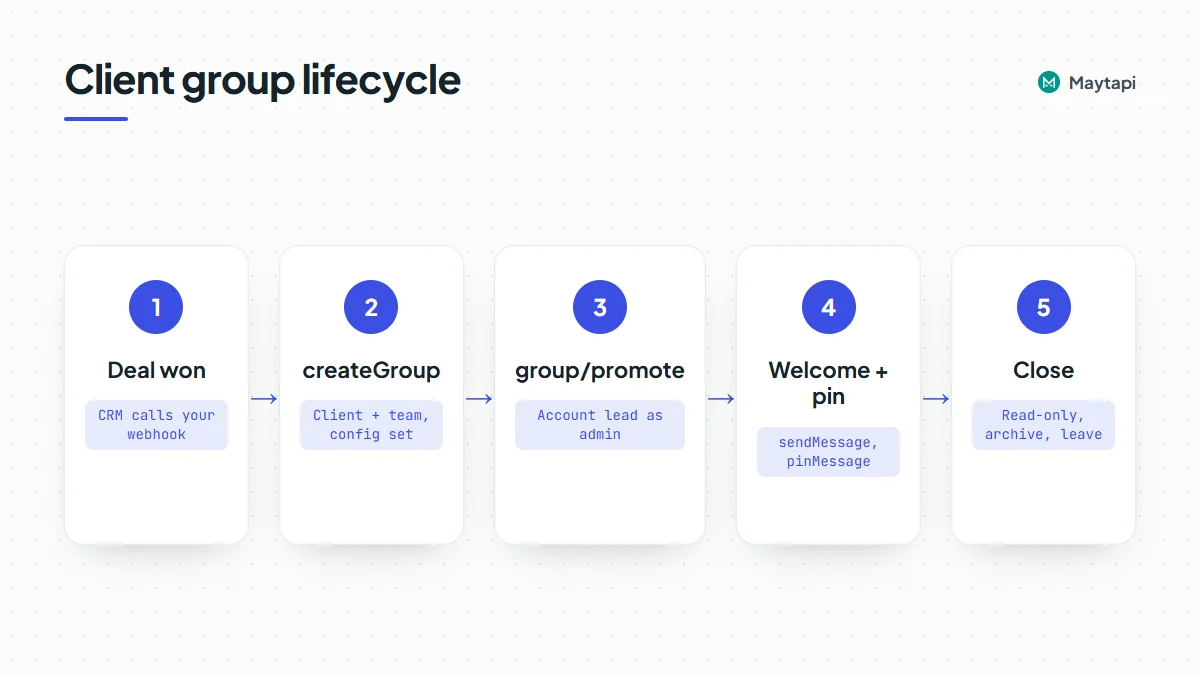
Create the group when the deal is won
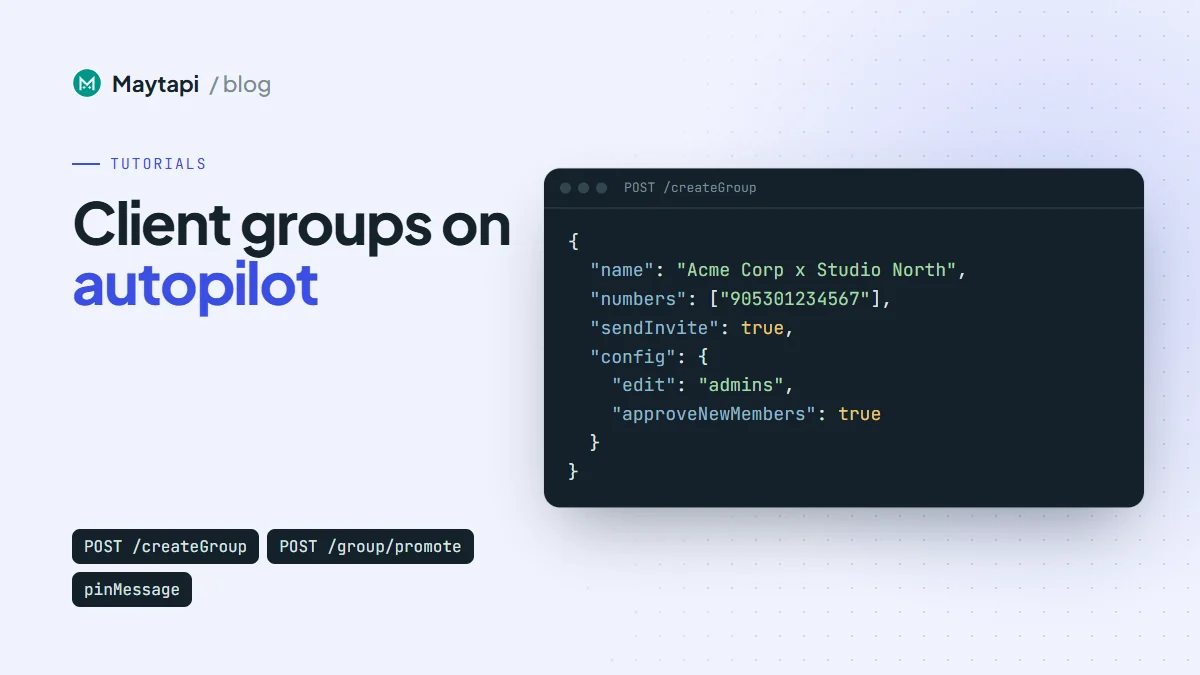
createGroup takes the group name and the numbers to add, and it can set the photo and the settings in the same call. For a client group, put the client's contacts and your account team in numbers:
curl -X POST "https://api.maytapi.com/api/$PRODUCT_ID/$PHONE_ID/createGroup" \
  -H "x-maytapi-key: $TOKEN" \
  -H "Content-Type: application/json" \
  -d '{
    "name": "Acme Corp x Studio North",
    "numbers": ["90532xxxxx67", "90532xxxxx68", "905301234569"],
    "sendInvite": true,
    "message": "Hi! This is the project group for Acme Corp and Studio North.",
    "image": "https://example.com/logos/acme-studio-north.png",
    "config": {
      "edit": "admins",
      "send": "all",
      "membersCanAddMembers": false,
      "approveNewMembers": true
    }
  }'
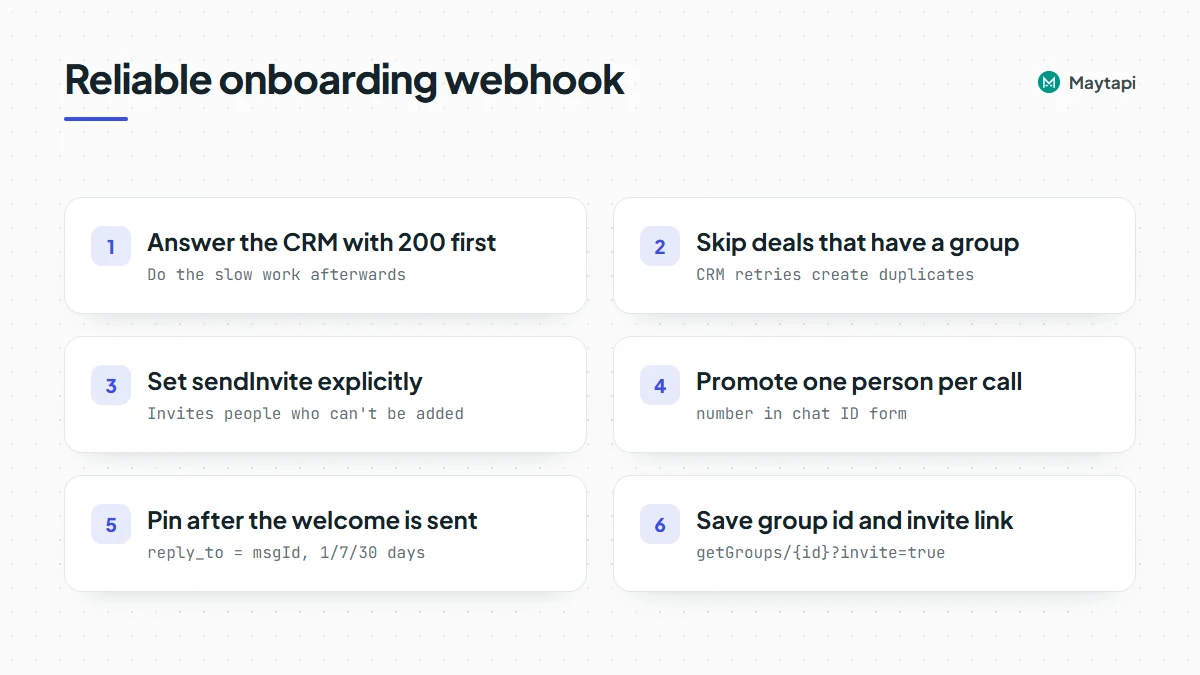
Numbers go in with the country code and no +. Maytapi tries to add each person directly. When someone's privacy settings don't allow being added to groups, sendInvite: true sends them a private invitation with your message instead. Set sendInvite explicitly rather than relying on a default. When some numbers couldn't be added, the response includes a cannotAdd object listing them, which is worth writing back to the CRM so the account manager knows who still has to accept.
Tell the client at kickoff or in the contract that a WhatsApp group will be created, and that every member will see the others' numbers and your number. Adding people to a group they didn't expect is a common reason for reports, which put the number at risk. If you need to check numbers before the call, run them through the bulk WhatsApp number check first.
The response's data is the new group, with its id (ending in @g.us), name, participants, admins and config. Store data.id on the deal record. Every later call uses it, and it's what stops you from creating a second group when the CRM sends the same event twice.
The config above is a sensible default for client work:
| Key | Value | Why |
|---|---|---|
edit |
admins |
Only your team changes the group name, photo and description |
send |
all |
The client and the team can both talk |
membersCanAddMembers |
false |
The client can't add a cousin from procurement on their own |
approveNewMembers |
true |
Anyone joining through the link waits for approval |
The image should be a public URL. A square image works best for group photos.
Promote the account lead, demote when roles change
Your connected number is the group's first admin. Promote the account lead too, so a person can still manage the group if your integration is down:
curl -X POST "https://api.maytapi.com/api/$PRODUCT_ID/$PHONE_ID/group/promote" \
  -H "x-maytapi-key: $TOKEN" \
  -H "Content-Type: application/json" \
  -d '{"conversation_id": "120363012345678901@g.us", "number": "905301234569@c.us"}'
group/promote works on one participant per call, given in number in chat ID form. The response is just success. When an account manager moves to another client, reverse it with group/demote and the same body, then group/remove if they should leave the group entirely. New teammates come in with group/add, which takes a numbers array and the same sendInvite fallback as createGroup.
Keep clients out of the admin list unless you have a reason. With edit set to admins and membersCanAddMembers off, the admins decide who joins and what the group is called.
Set the description and lock down settings
group/config changes any combination of settings. Send only the keys you want to change. The same call sets the description, which is a good place for the things people search for later:
curl -X POST "https://api.maytapi.com/api/$PRODUCT_ID/$PHONE_ID/group/config" \
  -H "x-maytapi-key: $TOKEN" \
  -H "Content-Type: application/json" \
  -d '{
    "conversation_id": "120363012345678901@g.us",
    "config": {
      "description": "Account lead: Selin. Support hours 09:00-18:00. Urgent issues: reply URGENT."
    }
  }'
edit and send take admins or all. disappear, membersCanAddMembers and approveNewMembers take true or false, and name and description take text. The response returns the settings that were applied.
Send and pin the welcome message
The welcome message is an ordinary sendMessage call with the group ID in to_number:
curl -X POST "https://api.maytapi.com/api/$PRODUCT_ID/$PHONE_ID/sendMessage" \
  -H "x-maytapi-key: $TOKEN" \
  -H "Content-Type: application/json" \
  -d '{
    "to_number": "120363012345678901@g.us",
    "type": "text",
    "message": "Welcome to the team! Your account lead is Selin.\n\nKickoff call: Monday 10:00\nShared folder: https://example.com/acme\n\nReply URGENT for anything blocking."
  }'
The response gives you data.msgId. Pinning uses sendMessage again, with type: "pinMessage", action: 1 and the message ID in reply_to:
{
  "to_number": "120363012345678901@g.us",
  "type": "pinMessage",
  "action": 1,
  "duration": 2592000,
  "reply_to": "msgId-from-the-welcome-message"
}
duration is in seconds and takes WhatsApp's three pin lengths: 86400 (1 day), 604800 (7 days) or 2592000 (30 days). action: 2 unpins. Messages go through your phone's sending queue, so pin after the welcome has actually been sent. A delay of a few seconds is usually enough. If the pin call fails, wait and try once more before you log it. Pins expire, so a long project needs a re-pin every 30 days, or a fresh welcome message for each phase. The send message guide covers the other message actions.
Get the invite link
Clients add colleagues over time. Instead of giving them admin rights, give them the invite link and keep approval mode on:
curl "https://api.maytapi.com/api/$PRODUCT_ID/$PHONE_ID/getGroups/120363012345678901@g.us?invite=true" \
  -H "x-maytapi-key: $TOKEN"
The group in data now carries an invite field with the link. It's false when your number isn't an admin of the group and can't read the link. Save the link on the deal or account record, so the account manager can paste it into an email. Because approveNewMembers is on, people who open it become join requests. The join requests guide shows how to approve them against your contact list automatically. If a link ends up in the wrong place, group/revokeInvite resets it.
A Node.js handler for the CRM webhook
Most CRMs can call a URL when a deal changes stage, through a workflow action or an outgoing webhook. Point it at a small Express endpoint. The payload shape below is a simplified example, so map the field names to whatever your CRM sends.
import express from "express";

const BASE = `https://api.maytapi.com/api/${PRODUCT_ID}/${PHONE_ID}`;
const headers = { "x-maytapi-key": TOKEN, "Content-Type": "application/json" };
const post = (path, body) =>
  fetch(`${BASE}/${path}`, { method: "POST", headers, body: JSON.stringify(body) }).then((r) => r.json());
const sleep = (ms) => new Promise((r) => setTimeout(r, ms));

const app = express();

app.post("/crm/deal-won", express.json(), async (req, res) => {
  res.sendStatus(200); // answer the CRM first, then do the work
  const deal = req.body; // { id, company, clientPhones: [...], team: [{ phone, name, role }] }

  if (await db.groupIdForDeal(deal.id)) return; // CRM retries must not create a second group

  const team = deal.team.map((m) => m.phone);
  const created = await post("createGroup", {
    name: `${deal.company} x Studio North`,
    numbers: [...deal.clientPhones, ...team],
    sendInvite: true,
    message: `You're invited to the ${deal.company} project group.`,
    config: { edit: "admins", send: "all", membersCanAddMembers: false, approveNewMembers: true }
  });
  if (!created.success) return console.warn("createGroup failed:", created.message);

  const groupId = created.data.id;
  await db.saveGroupId(deal.id, groupId);

  const lead = deal.team.find((m) => m.role === "lead");
  if (lead) await post("group/promote", { conversation_id: groupId, number: `${lead.phone}@c.us` });

  const welcome = await post("sendMessage", {
    to_number: groupId,
    type: "text",
    message: `Welcome, ${deal.company}! Your account lead is ${lead ? lead.name : "our team"}.\nReply URGENT for anything blocking.`
  });

  await sleep(10000); // let the welcome leave the queue before pinning
  if (welcome.success) {
    await post("sendMessage", {
      to_number: groupId,
      type: "pinMessage",
      action: 1,
      duration: 2592000,
      reply_to: welcome.data.msgId
    });
  }

  const info = await fetch(`${BASE}/getGroups/${groupId}?invite=true`, { headers }).then((r) => r.json());
  if (info.success && info.data.invite) await crm.updateDeal(deal.id, { whatsappGroupLink: info.data.invite });

  if (created.data.cannotAdd) await crm.addNote(deal.id, "Some contacts were invited instead of added.");
});

app.listen(3000);
db and crm stand for your own storage and CRM client. Two things matter more than the rest. The handler answers 200 before doing anything slow, because CRMs retry webhooks that time out. And it checks for an existing group first, since a retry or a deal moved back and forth between stages would otherwise create duplicates. Check success on every response: createGroup, group/promote and group/config change the group, and on numbers in the stricter Safe Mode tiers they can be blocked while sending and reading still work.
If you'd rather not run a server, the same steps fit an n8n workflow with a webhook trigger and HTTP request nodes.
Watch the group on your webhook
Group changes arrive on your Maytapi webhook as message events with message.type: "info", a subtype and usually a participant. A few are worth acting on for client groups:
| Subtype | What to do |
|---|---|
group/remove, group/leave |
Alert the account lead when a client contact leaves |
group/add, group/invite |
Add the new person to the CRM contact list |
group/promote, group/demote |
Log admin changes made from a phone |
Match conversation (the group ID) against the IDs you stored on deals to find the account. Participants who hide their number can appear as @lid IDs. The LID to phone number guide explains how to resolve them.
Close the group when the project ends
When the deal moves to "Closed" or the contract ends, run the same steps in reverse. Post a closing message with the support contact, then make the group read-only so it stays as a record:
curl -X POST "https://api.maytapi.com/api/$PRODUCT_ID/$PHONE_ID/group/config" \
  -H "x-maytapi-key: $TOKEN" \
  -H "Content-Type: application/json" \
  -d '{"conversation_id": "120363012345678901@g.us", "config": {"send": "admins"}}'
If you want to keep the group but get it out of the way, archive the chat on your number:
curl -X POST "https://api.maytapi.com/api/$PRODUCT_ID/$PHONE_ID/archiveConversations/120363012345678901@g.us" \
  -H "x-maytapi-key: $TOKEN" \
  -H "Content-Type: application/json" \
  -d '{"action": "add"}'
action: "remove" brings it back. Archiving only changes your number's chat list; members still see the group as before. When you're done with the group for good, leave it:
curl -X POST "https://api.maytapi.com/api/$PRODUCT_ID/$PHONE_ID/leaveGroup" \
  -H "x-maytapi-key: $TOKEN" \
  -H "Content-Type: application/json" \
  -d '{"conversation_id": "120363012345678901@g.us"}'
Leave after a grace period, not on the same day, and only once the account lead is an admin, so a person can still answer a late question. The history stays on members' phones. A number that stays in every old client group keeps receiving their messages and webhook traffic, so regular cleanup keeps both quieter.
Adding many people to new groups is one of the patterns WhatsApp watches for spam. Client onboarding is low volume and the people expect the group, which helps, but grow a new number slowly and use invitations when direct adds fail.
Next steps
A won deal can now produce a ready-to-use client group in seconds: the right people, the right admins, locked settings, a pinned welcome and an invite link on the CRM record.
- Learn every group endpoint in more depth with the group API guide.
- Approve colleagues who join through the invite link with the group join requests guide.
- Post updates, mentions and polls to client groups with send messages to WhatsApp groups.
- Track account stages on chats with the Labels API and CRM sync.
- Check every parameter in the API documentation.