Maytapi
Make.com (formerly Integromat) is a visual automation tool that connects hundreds of apps without code. There is no native Maytapi app in Make, but you don't need one: Maytapi is a plain REST API with a webhook, and Make has two generic modules that cover both directions. HTTP > Make a request sends WhatsApp messages, and Webhooks > Custom webhook starts a scenario whenever a message arrives on your number. This guide builds two scenarios with them: sending WhatsApp messages from Google Sheets or Typeform, and receiving WhatsApp replies to answer them or update a CRM.
What you need
- A Maytapi account with a connected phone. If you haven't linked a number yet, the getting started guide is the place to start. The phone's status must be
activebefore anything will send. - Your product ID, phone ID and token. They're on the Product ID & Token page in the console. The product ID and phone ID go in the URL, and the token goes in the
x-maytapi-keyheader. - A Make account. Any plan works for these scenarios. Keep an eye on its operation allowance, which is covered at the end of this guide.
Every phone-level call goes to https://api.maytapi.com/api/PRODUCT_ID/PHONE_ID/, and endpoints are written short below, like POST /sendMessage. The webhook is set at product level, one step up, at https://api.maytapi.com/api/PRODUCT_ID/setWebhook.
How Make talks to the WhatsApp API
| Direction | Make module | Maytapi side |
|---|---|---|
| Send a message | HTTP > Make a request | POST /sendMessage with x-maytapi-key |
| Receive messages | Webhooks > Custom webhook | POST /setWebhook pointing at the Make hook URL |
| Check the session | HTTP > Make a request | GET /status before a scheduled run |
Because both modules are generic, every Maytapi endpoint is available to you, not just the ones a prebuilt app happens to expose. The trade-off is that you write the request yourself, so it's worth getting the first one right.
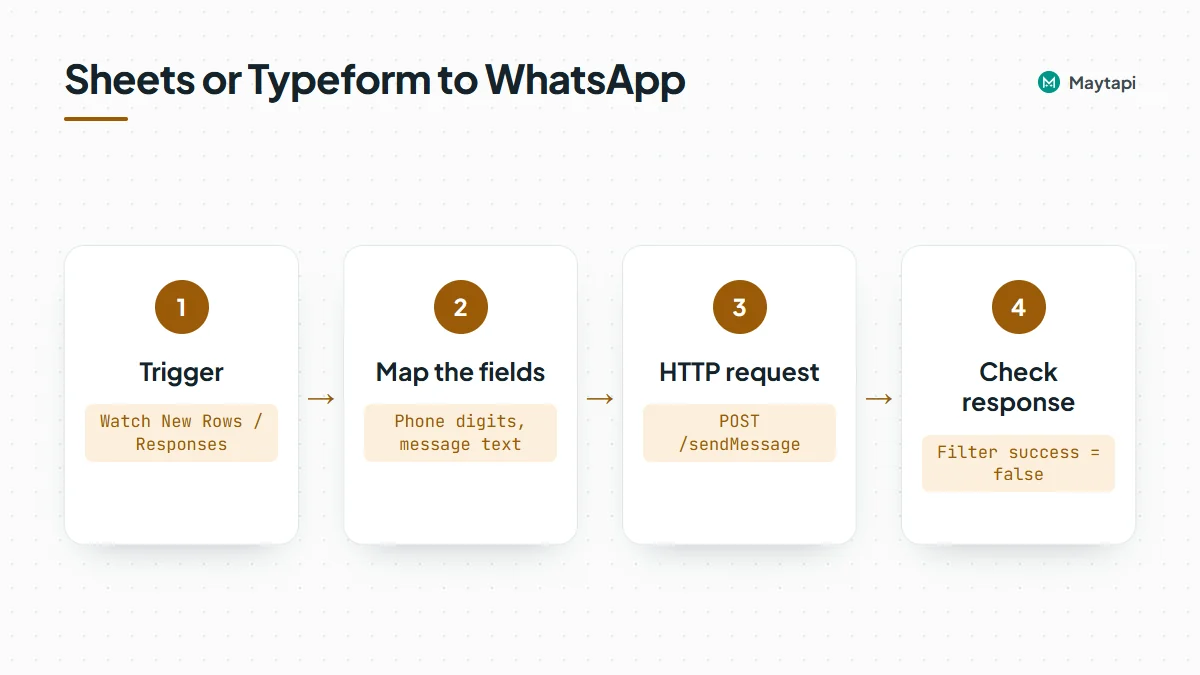
Scenario 1: Send WhatsApp messages from Google Sheets or Typeform
The trigger can be anything that produces a phone number and some text. Two common ones:
- Google Sheets > Watch New Rows for a sheet your team fills in, such as appointments or order updates. (To do the same without Make, see WhatsApp from Google Sheets.)
- Typeform > Watch Responses for a lead or booking form.
Configure the HTTP module
Add HTTP > Make a request after the trigger and fill it in:
| Field | Value |
|---|---|
| URL | https://api.maytapi.com/api/PRODUCT_ID/PHONE_ID/sendMessage |
| Method | POST |
| Headers | x-maytapi-key: your token, and Content-Type: application/json |
| Body | Raw, content type JSON (application/json) |
| Parse response | Yes |
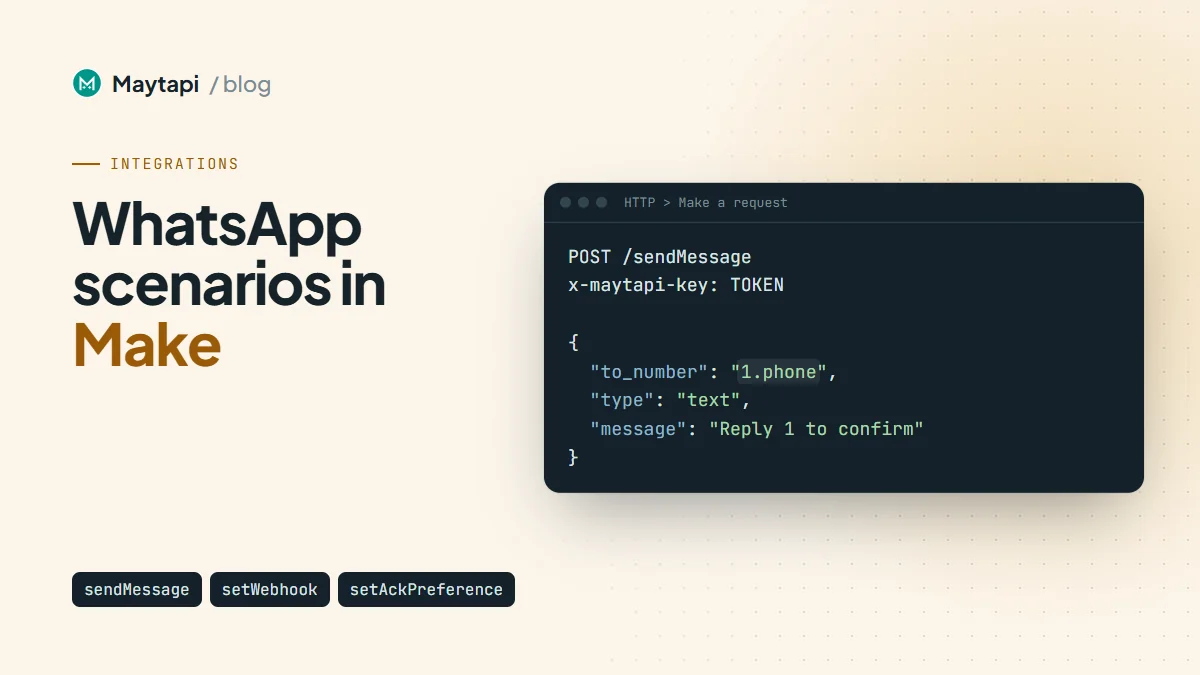
The request body is the same JSON you would send with curl. In Make you map the trigger's fields into it instead of typing values:
{
  "to_number": "{{1.phone}}",
  "type": "text",
  "message": "Hi {{1.name}}, your appointment is on {{1.date}}. Reply 1 to confirm or 2 to reschedule."
}
{{1.phone}} stands for whatever field you pick from module 1 in Make's mapping panel. To check the request outside Make first, here is the equivalent call:
curl -X POST "https://api.maytapi.com/api/$PRODUCT_ID/$PHONE_ID/sendMessage" \
  -H "x-maytapi-key: $TOKEN" \
  -H "Content-Type: application/json" \
  -d '{"to_number": "90532xxxxx67", "type": "text", "message": "Hello from Make"}'
A successful response looks like this:
{
  "success": true,
  "data": {
    "chatId": "90532xxxxx67@c.us",
    "msgId": "50d8b950-a67f-11eb-91cc-d97af631df95"
  }
}
success: true means the message was accepted into your phone's sending queue. Store msgId in the sheet if you want to match delivery receipts later. The send message guide covers images, documents and the other message types you can put in the same body.
Get the phone number format right
Most failed sends in Make come from the phone column, not the API:
- Use the full international number, digits only.
90532xxxxx67works. Send it without+; a leading+is tolerated, but spaces, brackets and a national trunk0are not. A number shorter than 10 digits is rejected withInvalid phone number. - Watch spreadsheet formatting. Sheets may turn a long number into scientific notation or drop characters. Format the column as plain text, or clean it in Make with a text function such as
replacebefore it reaches the body. - Group ids work too. To post into a group, map an id like
120363012345678901@g.usintoto_number.
To check numbers before you send, bulk number check shows how POST /checkPhones tells you which ones are on WhatsApp.
Keep the JSON valid
When you map free text into a raw JSON body, a quote mark or line break in the value (a Typeform "comments" answer, for example) breaks the JSON and the request fails. If a mapped field can contain user-typed text, build the body with Make's JSON > Create JSON module and map its output into the HTTP body, so Make escapes the values for you.
Handle errors from the response
Many API errors come back with HTTP status 200 and success: false plus a message, so Make won't always flag them as failed runs. With Parse response turned on, add a filter after the HTTP module on data.success equal to false and route those bundles to a logging step, a sheet column or an email. Typical messages are Invalid phone number and Found Message Dupe..
That last one comes from the duplicate filter on sendMessage, which drops the same content sent to the same chat several times in a short window. It protects you from loops in a scenario. If a repeat is intentional, add "skip_filter": true to that request's body.
Sending to a whole sheet
Watch New Rows can return many rows in one run, and Make runs the HTTP module once per row. The API queues every message and your number sends them in order, but a long list of first-contact messages still looks like spam to WhatsApp. Add a Tools > Sleep module between rows for large batches, keep lists to people who expect to hear from you, and read ban prevention and safe mode before you send in bulk.
Scenario 2: Receive WhatsApp messages in Make
The second direction starts with a webhook. Maytapi posts every event on your number to one URL as JSON, and Make gives you that URL.
Create the Custom webhook
- Start a new scenario and add Webhooks > Custom webhook as the trigger.
- Click Add, name the hook and copy the URL Make generates, something like
https://hook.eu1.make.com/.... - Leave the module listening for data while you do the next step.
Point Maytapi at the hook
Set the URL as your product webhook:
curl -X POST "https://api.maytapi.com/api/$PRODUCT_ID/setWebhook" \
  -H "x-maytapi-key: $TOKEN" \
  -H "Content-Type: application/json" \
  -d '{"webhook": "https://hook.eu1.make.com/your-hook-id"}'
Maytapi checks that the URL responds before saving it and returns success: false with a message if it doesn't. You can also paste the URL on the Developers > Webhook page in the console. If only one number should feed this scenario, give that phone its own URL with POST /config and {"webhook": "..."} instead, and the other phones keep using the product webhook.
Now send a real WhatsApp message to your connected number from another phone. Make receives it and determines the data structure, so the fields appear in the mapping panel. An incoming text looks like this:
{
  "type": "message",
  "product_id": "1a2b3c4d-...",
  "phone_id": 12345,
  "user": { "id": "90532xxxxx67@c.us", "name": "Customer", "phone": "90532xxxxx67" },
  "message": { "id": "3EB081AF26FADE6416D8", "type": "text", "text": "1", "fromMe": false },
  "conversation": "90532xxxxx67@c.us",
  "receiver": "90532xxxxx21",
  "timestamp": 1574081887,
  "reply": "https://api.maytapi.com/api/1a2b3c4d-.../12345/sendMessage"
}
If a field you need is missing from the panel, send another message and use Redetermine data structure on the webhook module.
Filter before you act
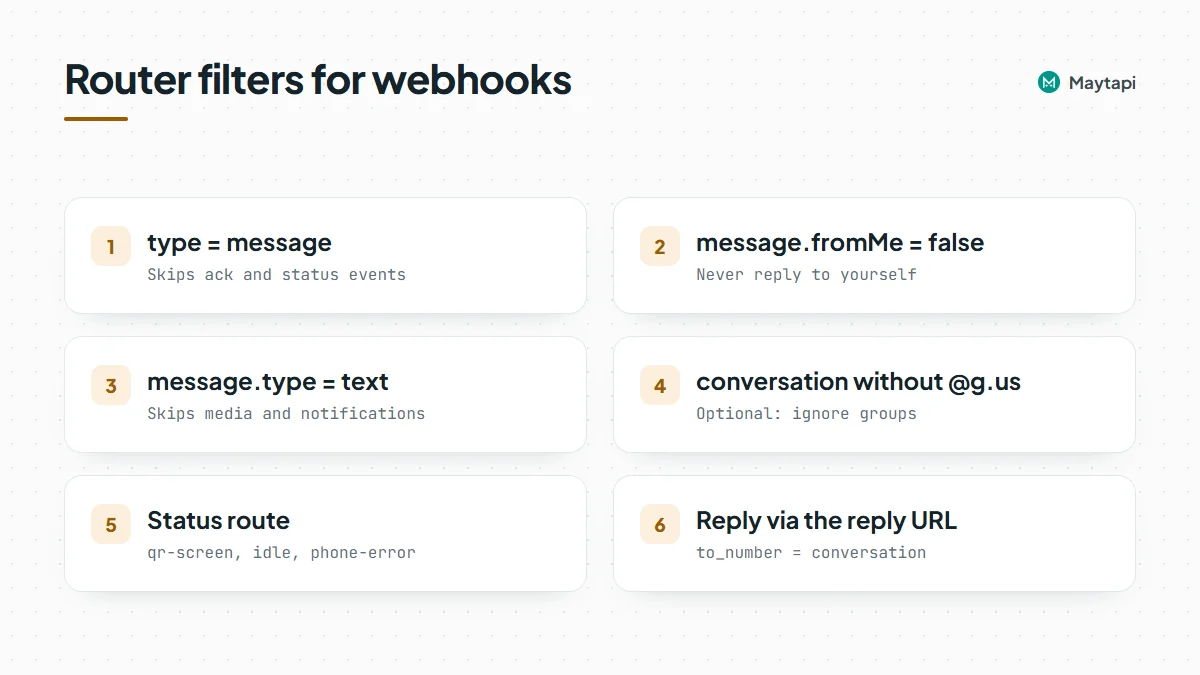
The same URL receives more than chat messages: delivery receipts (type: "ack"), session changes (type: "status"), your own outgoing messages and group notifications. Add a Router after the webhook and put a filter on each route.
For a route that answers customers, require all of these:
| Condition | Why |
|---|---|
type equal to message |
Skips receipts and status events |
message.fromMe equal to false |
Skips messages sent from your own number, so the scenario never replies to itself |
message.type equal to text |
Skips media, reactions, edits and notifications |
conversation does not contain @g.us |
Optional: ignore group chats |
A second route with type equal to status and status equal to qr-screen, idle or phone-error can email or message someone, because the number needs attention before it can send again. The webhook events guide lists every event type and field if you want more routes.
Reply to the sender
Each message event carries reply, a ready-made sendMessage URL for the phone that received it. Don't map that field into the URL, though: the module sends your token to whatever URL it gets, and the webhook body is not authenticated. Use a fixed URL in an HTTP > Make a request module, https://api.maytapi.com/api/PRODUCT_ID/PHONE_ID/sendMessage with your own IDs, add the same x-maytapi-key header as before, and answer into the same chat. Keep the Make hook URL private, since anyone who has it can post events to your scenario:
{
  "to_number": "{{1.conversation}}",
  "type": "text",
  "message": "Thanks, your appointment is confirmed."
}
Put the routes in a sensible order: a route with an extra filter such as message.text equal to 1 sends the confirmation, and a fallback route answers anything else with the options again. Typed replies like this work reliably on every connection. If you want a tappable menu, a list message is the better choice; see interactive messages for the body format.
Update a CRM or a sheet instead
Replying is optional. The same filtered route can search for the contact in your CRM's Make module (or in the original Google Sheet) by user.phone, then update a status column, add a note with message.text or create a task for an agent. When WhatsApp hides a sender's number, mostly in groups, the ids end in @lid instead of @c.us; LID to phone number explains how to match those.
For a confirmation flow, combine both scenarios: Scenario 1 sends "Reply 1 to confirm" from the sheet, and Scenario 2 marks the row as confirmed when the 1 arrives.
Keep operations under control
Make bills by operations, and every module that runs in a scenario uses some. A webhook scenario runs once per incoming event, so on a busy number the count adds up fast, and receipts are often the biggest share. If no Make scenario uses delivery receipts, turn them off for the product:
curl -X POST "https://api.maytapi.com/api/$PRODUCT_ID/setAckPreference" \
  -H "x-maytapi-key: $TOKEN" \
  -H "Content-Type: application/json" \
  -d '{"ack_delivery": false}'
The per-phone ack_delivery flag in POST /config does the same for a single number. A few more habits help:
- Filter right after the webhook. Bundles that fail the first filter stop there instead of running every module.
- Check the session on schedules. For a daily send, a
GET /statuscall at the start tells you whether the phone is connected before you spend operations on messages. - Expect repeats. A webhook delivery can arrive more than once. If a duplicate would cause harm, such as two CRM tasks, store
message.idand skip ones you've already seen.
If your volume outgrows your Make plan, or you'd like ready-made actions instead of hand-written requests, n8n has a community Maytapi node and can be self-hosted. The API calls are the same, so moving a scenario over is mostly a matter of rebuilding the steps.
Next steps
Two generic Make modules are all it takes: HTTP > Make a request for sendMessage and Webhooks > Custom webhook for incoming events. Start with one send scenario, add a filtered receive scenario, and switch off what you don't need to keep operations low.
- Learn every field your Custom webhook receives in the webhook events guide.
- Send images, documents and replies with the send message guide.
- Compare with the community node in the n8n WhatsApp automation guide.
- Turn form submissions into WhatsApp alerts with WhatsApp form submissions.
- Check every endpoint and parameter in the API documentation.