Maytapi
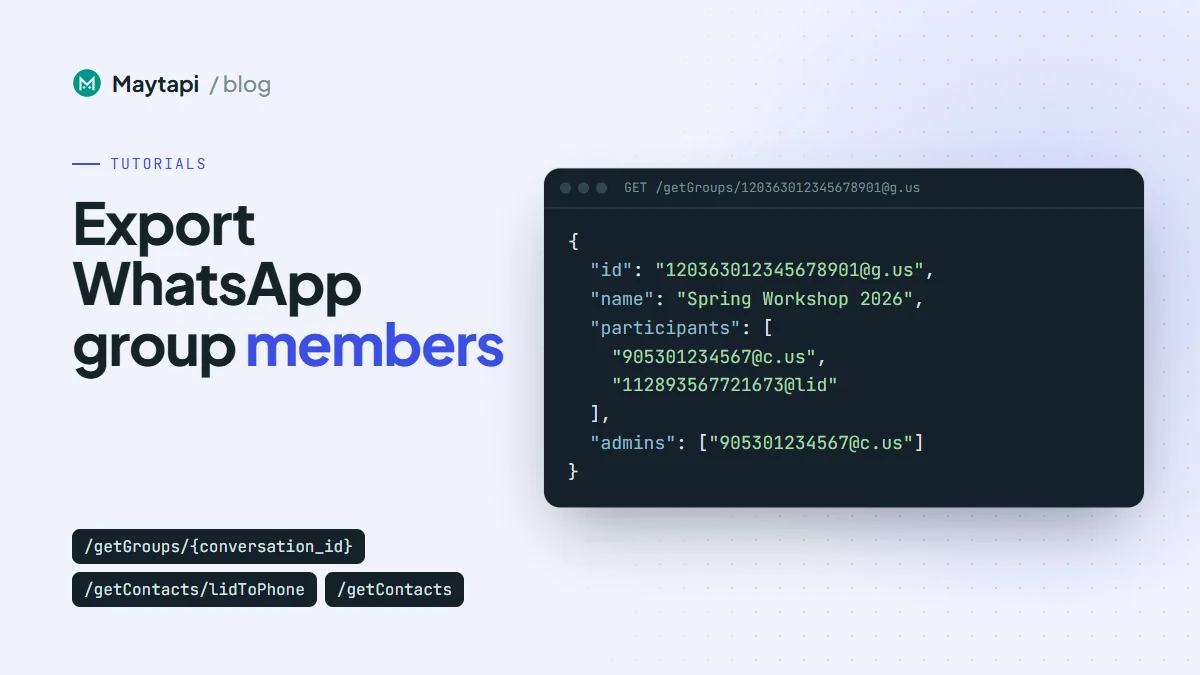
A WhatsApp group you run is often your warmest audience: workshop attendees, a customer community, a beta-tester circle. Sooner or later someone asks for that list in the CRM. This guide shows how to export WhatsApp group members with the Maytapi API: list your groups, read each group's participants and admins, turn @lid privacy ids into phone numbers where WhatsApp allows it, add contact names, and write everything to a CSV you can import anywhere. It also covers the part that matters most: which members you may actually treat as leads.
What you can read about a group
Everything here is read-only. Nothing is sent and the group doesn't change, so you can run an export as often as you need.
| Task | Endpoint | Useful parameters |
|---|---|---|
| Your own number | GET /status |
|
| List your groups | GET /getGroups |
page, sort, full, refresh |
| One group with participants | GET /getGroups/{conversation_id} |
refresh |
| Contact names | GET /getContacts |
type=contact |
| Resolve a privacy id | GET /getContacts/lidToPhone/{lid} |
All of them live under https://api.maytapi.com/api/PRODUCT_ID/PHONE_ID/ and use your token in the x-maytapi-key header. The export only sees groups that your connected number belongs to. It can't read a group you aren't in.
List your groups with getGroups
curl "https://api.maytapi.com/api/$PRODUCT_ID/$PHONE_ID/getGroups?sort=true&page=1" \
  -H "x-maytapi-key: $TOKEN"
The response is paged:
{
  "success": true,
  "limit": 500,
  "count": 1,
  "total": 1,
  "page": 1,
  "data": [
    {
      "id": "120363012345678901@g.us",
      "name": "Spring Workshop 2026",
      "participants": ["1415xxxxx67@c.us", "1415xxxxx68@c.us", "112893567721673@lid"],
      "admins": ["1415xxxxx67@c.us"],
      "config": { "edit": "admins", "send": "all", "disappear": false, "membersCanAddMembers": false, "approveNewMembers": true }
    }
  ]
}
A few parameters shape the list:
pagestarts at 1. A page holds up to 500 groups, 100 withfull=trueand 50 withinvite=true; thelimitfield in each response tells you the page size actually used. Keep requesting pages until you've collectedtotalgroups or a page comes back withcount: 0.sort=trueis what the docs suggest pairing withpage, so the order stays stable between pages. Deduplicate byidanyway.full=trueasks the API to load participants for older groups whose member list isn't loaded yet. Use it if some groups come back with an emptyparticipantsarray.refresh=truerefreshes groups on the page whose participants are still@lidwithout a phone number. More on that below.
Communities themselves are not listed here (use getCommunities for those), but a group that belongs to a community carries a communityId, and the community's announcement group also has isCommunityAnnounce: true. Announcement groups tend to be large and full of people who never spoke to you, so most exports should skip them.
Read one group's participants
When you already know the group, read it directly:
curl "https://api.maytapi.com/api/$PRODUCT_ID/$PHONE_ID/getGroups/120363012345678901@g.us" \
  -H "x-maytapi-key: $TOKEN"
data has the same shape as one item of the list. The member fields are simpler than many people expect:
| Field | Type | Meaning |
|---|---|---|
participants |
array of strings | Every member's id, @c.us or @lid |
admins |
array of strings | The ids of the admins, a subset of participants |
pendingParticipants |
array of strings | Only present when there are pending members |
There is no per-member object with isAdmin or phone fields. A member is an admin when their id is in admins, and the phone number is the part of a @c.us id before the @. For 1415xxxxx67@c.us that's 1415xxxxx67, country code first, no +.
If the group doesn't exist or your number can't access it, the response has success: false with a message and code. Log it and move on rather than stopping the whole export.
Resolve @lid participants to phone numbers
In larger and newer groups WhatsApp hides members' numbers from linked devices and shows a privacy id like 112893567721673@lid instead. A CSV row with a LID is useless for a CRM, so resolve it:
curl "https://api.maytapi.com/api/$PRODUCT_ID/$PHONE_ID/getContacts/lidToPhone/112893567721673@lid" \
  -H "x-maytapi-key: $TOKEN"
{
  "success": true,
  "data": {
    "id": "905301234569@c.us",
    "name": "Deniz",
    "phone": "905301234569",
    "lid": "112893567721673@lid"
  }
}
When the number can't be resolved, you get { "success": false } with no data. That usually means the member hides their number. Treat it as a normal result: keep the LID in its own column and leave the phone empty. name can be an empty string when the name isn't known.
Before resolving one by one, try refresh=true on GET /getGroups/{conversation_id} (or on the list). On some connections it re-reads the group from WhatsApp and returns members as @c.us wherever the number is available. Each refreshed group is one query to WhatsApp, so use it when you actually see @lid members, not on every run. The LID to phone number guide explains the background and a storage pattern for keeping both ids.
Add contact names with getContacts
Group participants come back as ids only. For names, load your contact list once and use it as a lookup table:
curl "https://api.maytapi.com/api/$PRODUCT_ID/$PHONE_ID/getContacts?type=contact" \
  -H "x-maytapi-key: $TOKEN"
Each item has id, name and type (chat for people, group for groups), plus isAddressBook and isBusiness. Keep the chat items and map id to name. On some connections name falls back to the phone number when no name is known, so treat a name that equals the number as empty. For a resolved LID, the name from lidToPhone is a second source.
Export script: groups you admin to CSV
The script below runs on Node.js 18+ (ESM) with the built-in fetch. It exports only groups where your number is an admin, and only the group ids you list in GROUP_IDS. That explicit list is deliberate: you decide group by group which audiences you're allowed to export, instead of sweeping up every group the number has ever joined.
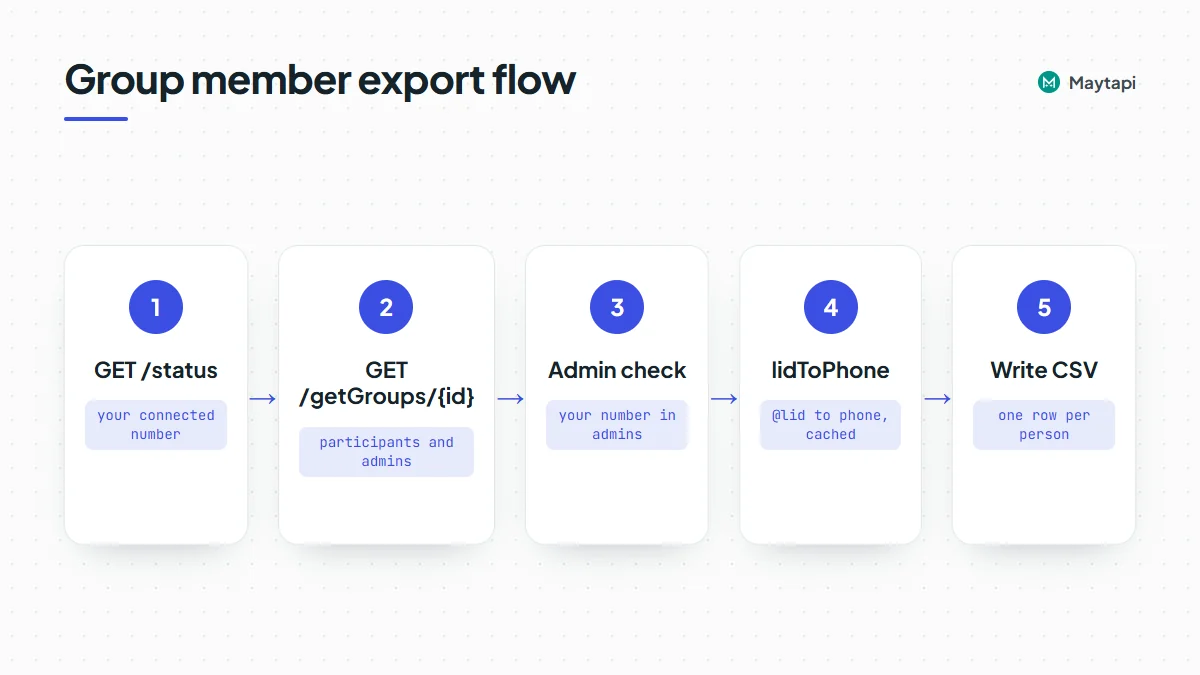
import { writeFileSync } from "node:fs";

const { PRODUCT_ID, PHONE_ID, TOKEN } = process.env;
const BASE = `https://api.maytapi.com/api/${PRODUCT_ID}/${PHONE_ID}`;
const HEADERS = { "x-maytapi-key": TOKEN };
const sleep = (ms) => new Promise((r) => setTimeout(r, ms));

// Groups whose members agreed to be contacted (see the compliance section)
const GROUP_IDS = ["120363012345678901@g.us"];

async function get(path, params = {}) {
  const qs = new URLSearchParams(params).toString();
  const r = await fetch(`${BASE}/${path}${qs ? "?" + qs : ""}`, { headers: HEADERS, signal: AbortSignal.timeout(60000) });
  return r.json();
}

const lidCache = new Map();
// Return { phone, lid, name } for a participant id
async function resolve(memberId) {
  if (!memberId.endsWith("@lid")) return { phone: memberId.split("@")[0], lid: "", name: "" };
  if (!lidCache.has(memberId)) {
    const res = await get(`getContacts/lidToPhone/${memberId}`);
    const data = res.success ? res.data : null;
    lidCache.set(memberId, { phone: data ? data.phone : "", lid: memberId, name: (data && data.name) || "" });
    await sleep(500); // resolve slowly, not in a burst
  }
  return lidCache.get(memberId);
}

const me = (await get("status")).number;
const names = {};
for (const c of (await get("getContacts", { type: "contact" })).data || []) {
  const phone = c.id.split("@")[0];
  if (c.type === "chat" && c.name && c.name !== phone) names[c.id] = c.name;
}

const rows = new Map();
for (const gid of GROUP_IDS) {
  const res = await get(`getGroups/${gid}`, { refresh: "true" });
  const group = res.success ? res.data : null;
  if (!group || !group.participants) {
    console.log("skip", gid, res.message);
    continue;
  }
  const admins = new Set();
  for (const a of group.admins || []) admins.add((await resolve(a)).phone);
  if (!admins.has(me)) {
    console.log("skip, not an admin:", group.name);
    continue;
  }
  for (const member of group.participants) {
    const { phone, lid, name: lidName } = await resolve(member);
    if (phone === me) continue;
    const key = phone || lid;
    if (!rows.has(key)) {
      rows.set(key, { phone, lid, name: names[`${phone}@c.us`] || lidName, isAdmin: false, groups: [] });
    }
    const row = rows.get(key);
    row.isAdmin = row.isAdmin || admins.has(phone);
    row.groups.push(group.name || gid);
  }
}

const cell = (v) => `"${String(v).replace(/"/g, '""')}"`;
const lines = ["phone,lid,name,is_admin,groups,source"];
for (const r of rows.values()) {
  lines.push([r.phone, r.lid, r.name, r.isAdmin, r.groups.join("; "), "whatsapp_group"].map(cell).join(","));
}
writeFileSync("group_members.csv", lines.join("\n") + "\n", "utf8");

console.log(rows.size, "members exported");
Some details that keep the output clean:
- One row per person. Someone in three of your groups appears once, with all three group names in
groups. The key is the phone number, or the LID when the number stays hidden. - Your own number is left out.
GET /statusreturns the connectednumber, which is also how the script checks that you're an admin. - LIDs are cached. The same person can be a LID in several groups. Each one is resolved once, with a pause between lookups.
- Unresolved members stay in the file with an empty
phone. Drop them on import if your CRM requires a number.
To export every group you admin instead, page through GET /getGroups as shown earlier, skip announcement groups, and keep the ones where your number is in admins. Read the compliance section below before you do that.
Importing into a CRM
Most CRMs import a CSV directly, so phone maps to the mobile field, name to the contact name, and groups to a tag or list. If you'd rather push the rows through your CRM's API, upsert by phone number so a second export updates existing contacts instead of duplicating them. Store the lid column too: if the same person later reaches you in a group as a LID, you can still match them. Add source and the export date, so anyone looking at the contact later knows where it came from.
Compliance: who counts as a lead
Being in the same WhatsApp group as someone doesn't mean they agreed to hear from your business. Before an exported number becomes a lead, check where it came from and what the member agreed to.
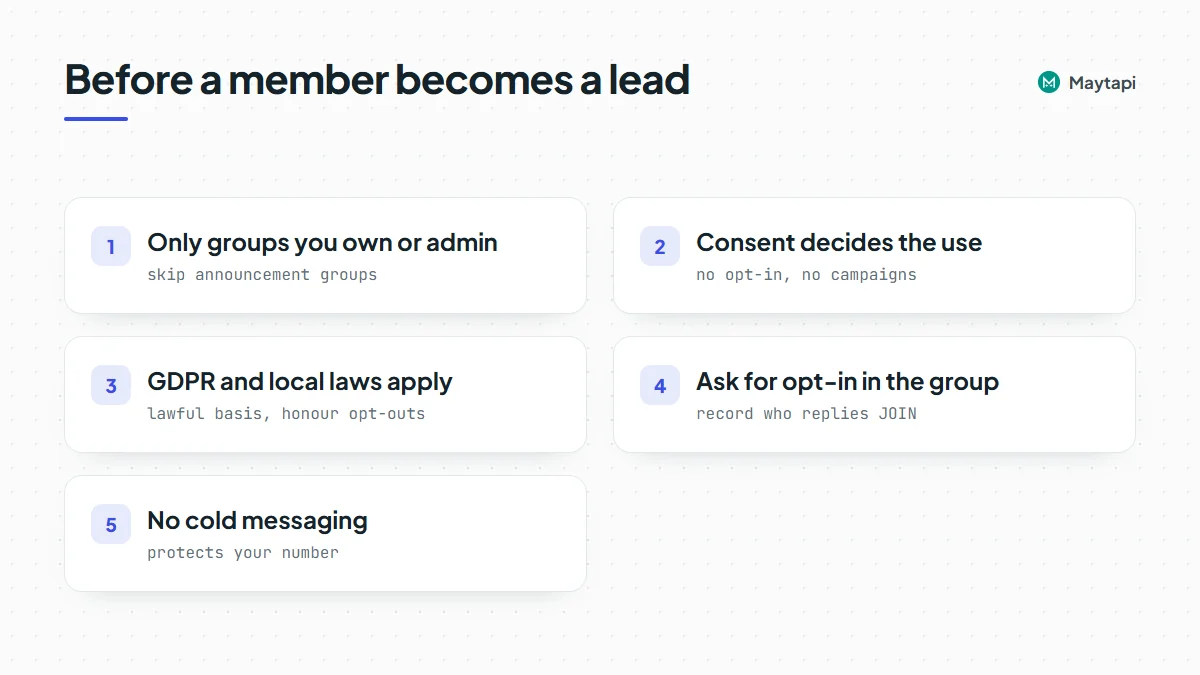
- Only groups you own or admin. Export from groups your business created and runs, where members joined to interact with you. Don't export other people's groups, groups you joined through public invite links, or community announcement groups.
- Consent decides what you can do with the list. A workshop group whose members signed up with your terms is different from a neighbourhood chat. If members never agreed to marketing, the export is useful for moderation, attendance or support, not for campaigns.
- GDPR and similar laws apply. A phone number tied to a name is personal data. Under GDPR you need a lawful basis for processing it, you must tell people what you do with their data, and you have to honour deletion and opt-out requests. Other regions have their own rules. Keep the export minimal and the file access-controlled.
- Ask for opt-in in the group. The cleanest route is to ask. Post a message in the group, for example "Reply JOIN to get our product updates on WhatsApp", and record only the people who answer. Group messages arrive on your webhook with
conversationset to the group id and the sender inuser. Senders can show up as@lidtoo, so resolve them the same way. Mark these contacts as opted in, with the date. - No cold messaging scraped numbers. Sending one-to-one messages to hundreds of people who never wrote to you is spam to WhatsApp as much as to the recipients. Reports and blocks put your number at risk, and the new-chat limits described in the ban prevention and Safe Mode guide are there to stop exactly that pattern. Message exported members only if they opted in, and keep the pace of a person, not a script.
A simple rule of thumb: if a member would be surprised to get a message from you, they aren't a lead yet.
Next steps
You now have a repeatable WhatsApp group member export: list groups with getGroups, read participants and admins, resolve @lid ids with lidToPhone, add names from getContacts, and write one row per person to CSV, limited to groups where members expect to hear from you.
- Understand privacy ids in depth with LID to phone number.
- Manage members, admins and settings with the group API guide.
- Control who gets into your groups with group join requests.
- Clean a number list before importing it with the bulk WhatsApp number check.
- Capture opt-in replies with the webhook events guide.
- Check every parameter in the API documentation.
- List your own groups with
getGroupson the 3-day free trial.