Maytapi
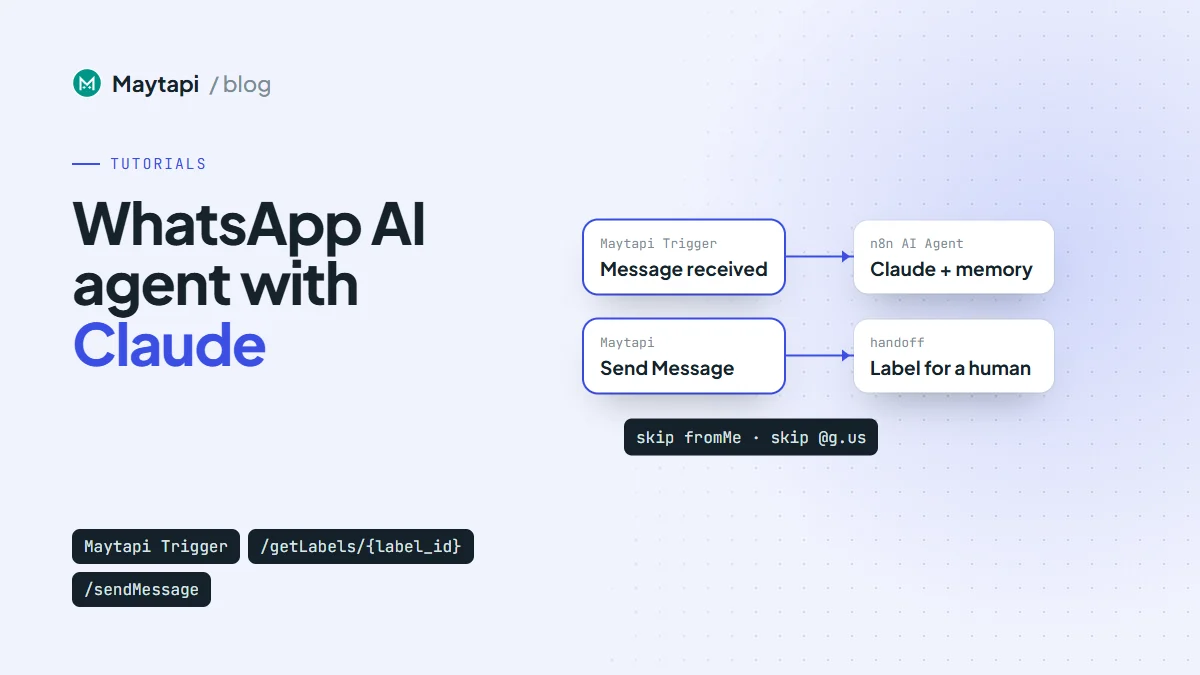
A WhatsApp AI agent that answers customers in natural language used to mean writing a webhook server, a prompt pipeline and a memory store. With n8n you can wire the same thing together visually: the Maytapi community node receives the message, n8n's AI Agent node asks a Claude model for a reply, and the Maytapi node sends it back. This guide builds that workflow step by step and adds the guardrails a real number needs: no reply loops, no answers in groups, a clean human handoff using WhatsApp labels, and per-chat rate limits.
How the WhatsApp AI agent workflow fits together
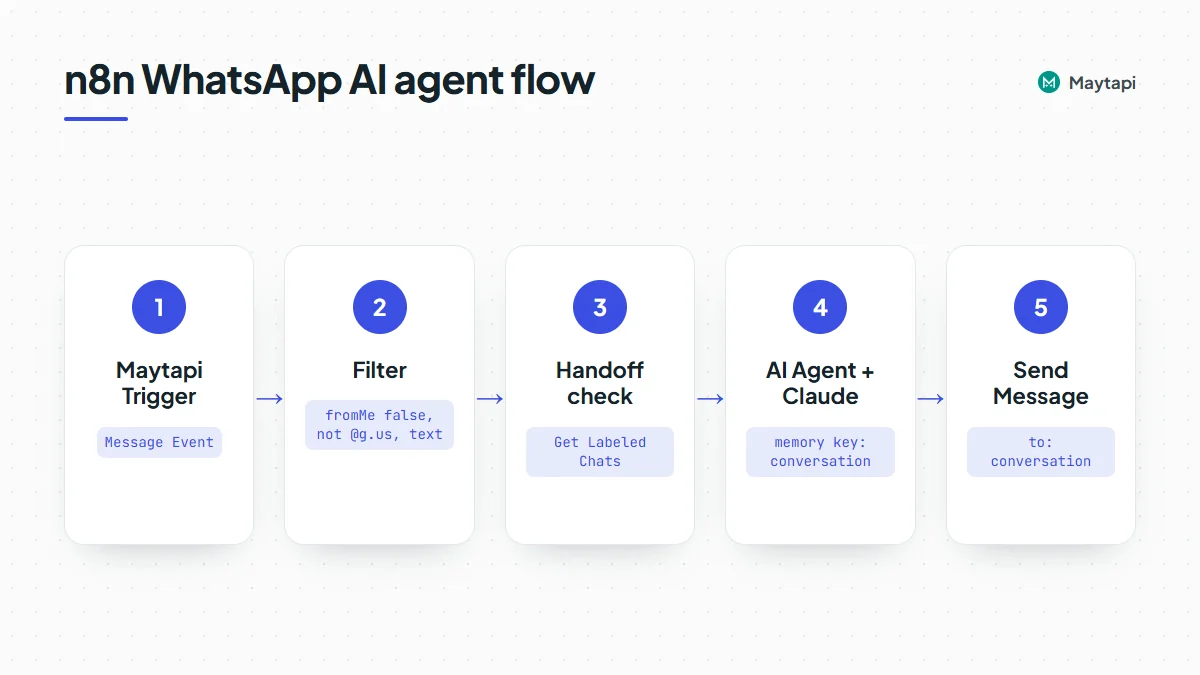
The finished workflow has seven nodes in a straight line, with one branch at the end:
| # | Node | Job |
|---|---|---|
| 1 | Maytapi Trigger (Message Event) | Starts the workflow for every message on your number |
| 2 | Filter | Drops your own messages, group messages and non-text messages |
| 3 | Maytapi (Label > Get Labeled Chats) | Reads which chats a human has taken over |
| 4 | IF | Stops if this chat is handed off |
| 5 | Code | Per-chat rate limit |
| 6 | AI Agent + Anthropic Chat Model + memory | Writes the reply |
| 7 | Maytapi (Message > Send Message) | Sends the reply, or labels the chat for a human |
You need a self-hosted n8n instance with the @maytapi/n8n-nodes-maytapi community node installed, a Maytapi product with a paired number, and an Anthropic API key. If you haven't installed the node yet, the n8n automation guide covers installation and credentials. The handoff step uses labels, which only exist on WhatsApp Business accounts; on a regular WhatsApp account, skip steps 3 and 4.
Step 1: Receive messages with the Maytapi Trigger
Add a Maytapi Trigger node, pick your Maytapi API credential and leave Events on Message Event only. ACK, group, call and story events would only create executions you then have to filter out.
When the workflow is activated, the trigger calls setWebhook and registers its n8n URL as your product's webhook. For a message event it outputs these fields next to the raw payload in body:
| Field | Source in the webhook | Example |
|---|---|---|
conversation |
conversation |
1415xxxxx67@c.us |
fromNumber, fromName |
user.phone, user.name |
1415xxxxx67, Ayse |
messageType |
message.type |
text |
messageText |
message.text |
Do you ship to Izmir? |
fromMe |
message.fromMe |
false |
messageId, timestamp |
message.id, timestamp |
|
receiver |
receiver |
your own number |
The raw body also carries phone_id and product_id, which you will need if the product has more than one phone. The full payload is documented in the webhook events guide.
Note: The trigger sets the product-level webhook. If another system already receives this product's webhooks, activating the workflow replaces that URL, and deactivating it does not restore the old one.
Step 2: Filter out your own messages and groups
This is the most important node in the workflow. Message events fire for messages your number sends, too, with fromMe: true. That includes the replies this workflow sends. Without a filter, the agent reads its own answer as a new message, answers it, reads that answer, and keeps going.
Add a Filter node (or an IF node with only the true branch connected) with three conditions joined by AND:
| Value | Condition | Compare to |
|---|---|---|
{{ $json.fromMe }} |
Boolean is false | |
{{ $json.conversation }} |
String does not end with | @g.us |
{{ $json.messageType }} |
String equals | text |
The group check keeps the bot from replying to every message in every group the number belongs to; group chat IDs end in @g.us. The type check matters because messageText is filled from message.text, which text messages have. Images, videos and documents carry their caption in message.caption instead, so messageText is empty for them and the model would receive nothing. If you want media handled, add a second branch that sends a fixed reply such as "I can only read text, a colleague will look at your file."
The fromMe filter has a useful side effect: when a staff member answers from the WhatsApp app on the phone, those messages are also fromMe: true, so the bot never mistakes a human reply for a customer message.
Step 3: Check for a human handoff with labels
Sooner or later a customer needs a person. Labels are a simple way to mark that: when a chat carries a label such as "Human", the bot stays quiet; when the agent removes the label in the WhatsApp Business app, the bot takes over again.
Create the label once, in the app or with the Maytapi node's Label > Create Label operation, and note its ID from Label > Get Labels. Then add a Maytapi node after the filter:
- Resource: Label
- Operation: Get Labeled Chats
- Label ID: the ID of your "Human" label
This calls GET /getLabels/{label_id} and returns one item with a data array of chats that carry the label, each with id, name and phone.
Follow it with an IF node that continues only when the chat is not in that list:
{{ !$json.data.some(c =>
  c.id === $('Maytapi Trigger').first().json.conversation ||
  c.phone === $('Maytapi Trigger').first().json.fromNumber) }}
Comparing the phone as well as the chat ID covers the case where the incoming conversation is a privacy ID ending in @lid while the label list shows the phone-number form. The LID guide explains when that happens.
Because the Get Labeled Chats node replaces the item, later nodes read message fields from the trigger with $('Maytapi Trigger').first().json..., as in the expression above. Each execution handles one webhook, so .first() always points at the incoming message, and it keeps working after Code nodes that don't carry n8n's paired-item links.
Step 4: Add a per-chat rate limit
An AI agent replies to everything it receives, so a customer who sends ten short messages in a row gets ten answers, and ten model calls on your bill. A small Code node (mode Run Once for All Items) caps that with a cooldown per conversation:
const data = $getWorkflowStaticData('global');
data.lastReply = data.lastReply || {};

const trig = $('Maytapi Trigger').first().json;
const now = Date.now();
const last = data.lastReply[trig.conversation] || 0;

// at most one AI reply per chat every 5 seconds
if (now - last < 5000) return [];

data.lastReply[trig.conversation] = now;
return [{ json: trig }];
Returning an empty array ends the execution for that message. Workflow static data is saved only for active (production) executions, not when you test in the editor, so test the cooldown with the workflow activated.
Know the trade-off: a message that arrives inside the 5-second window is skipped, not answered later, and it doesn't reach the agent's memory either. Keep the window short so a customer who adds a detail can simply write again. Static data is also not a lock: two messages that arrive within milliseconds can both pass the check. On a busy number, keep the cooldown in Redis instead (for example a key per conversation set only if it doesn't exist, with a 5-second expiry).
Rate limiting the bot is also about how WhatsApp sees your number. Maytapi is an unofficial API that runs on your own WhatsApp number, and a bot that answers instantly and at high volume looks automated. Replying only to people who wrote first, as this workflow does, is the safe pattern; the ban prevention guide covers the rest.
Step 5: Configure the AI Agent with Claude
Add n8n's AI Agent node and connect two sub-nodes to it.
Anthropic Chat Model
Attach an Anthropic Chat Model sub-node, create an Anthropic credential with your API key, and pick a Claude model from the list. A smaller, faster model is usually enough for customer support replies; move up to a larger one if your answers need more reasoning. Keep the maximum tokens modest: WhatsApp replies should be a few sentences.
Memory keyed by conversation
Without memory, every message starts a fresh conversation and the agent forgets what the customer said a minute ago. Attach a Simple Memory sub-node and set:
- Session ID: Define below
- Key:
{{ $('Maytapi Trigger').first().json.conversation }} - Context Window Length: around 10 messages
Keying the memory on conversation gives each WhatsApp chat its own history, so two customers never see each other's context. Simple Memory lives in the n8n process; for history that survives restarts or runs in queue mode, use a Postgres or Redis chat memory sub-node with the same key.
Prompt and system message
In the AI Agent node, set the prompt source to Define below and the prompt to:
{{ $('Maytapi Trigger').first().json.messageText }}
Then add a system message under Options. Keep it specific to your business and include an explicit escalation rule:
You are the WhatsApp assistant for Example Store.
Answer in the customer's language, in 1-3 short sentences.
Plain text only: no markdown headings or tables.
Only answer questions about orders, shipping, returns and products.
If the customer asks for a human, is angry, or asks about refunds,
reply with exactly: HANDOFF
The HANDOFF keyword gives the next node something deterministic to check, instead of trying to interpret free text.
Step 6: Send the reply, or hand off to a human
Add a Switch or IF node on {{ $json.output }} (the AI Agent's answer).
When the output is a normal answer, send it with a Maytapi node:
- Resource: Message, Operation: Send Message
- Message Type: Text
- To Phone Number:
{{ $('Maytapi Trigger').first().json.conversation }} - Message:
{{ $json.output }} - Reply To Message ID (optional):
{{ $('Maytapi Trigger').first().json.messageId }}to quote the customer's message
Under the hood this is a regular sendMessage call, the same one you would make from code:
curl -X POST "https://api.maytapi.com/api/$PRODUCT_ID/$PHONE_ID/sendMessage" \
  -H "x-maytapi-key: $TOKEN" \
  -H "Content-Type: application/json" \
  -d '{
    "to_number": "1415xxxxx67@c.us",
    "type": "text",
    "message": "Yes, we ship to Izmir. Delivery takes 2-3 business days.",
    "reply_to": "false_1415xxxxx67@c.us_3EB0A81ECEA6D47F2F13"
  }'
reply_to takes the ID of the customer's message, which is the trigger's messageId.
When the output is HANDOFF, run two Maytapi nodes instead:
- Label > Add Label to Chat, Label ID: your "Human" label, Conversation ID:
{{ $('Maytapi Trigger').first().json.conversation }}. This callsPOST /addLabelwithlabel_idandconversation_id. - Message > Send Message with a fixed text such as "Thanks, I'm passing you to a colleague. They'll reply here shortly."
From the next message on, step 3 finds the label and the bot stays silent. Your team sees the label in the WhatsApp Business app (or in a shared inbox) and picks up the chat. When they are done, they remove the label and the bot resumes. If you also want n8n to notify the team, add a Slack or email node to the handoff branch.
Multiple phones on one product
The trigger receives events for every phone on the product; the Phone ID in your credential does not filter them. If the product has more than one number, either add {{ $json.body.phone_id }} to the filter in step 2, or reply from the phone that received the message: in every Maytapi node after the trigger, set Phone ID Source to Custom and the Phone ID to {{ $('Maytapi Trigger').first().json.body.phone_id }}. Otherwise a message received on one number would be answered from the credential's default number.
Production checklist
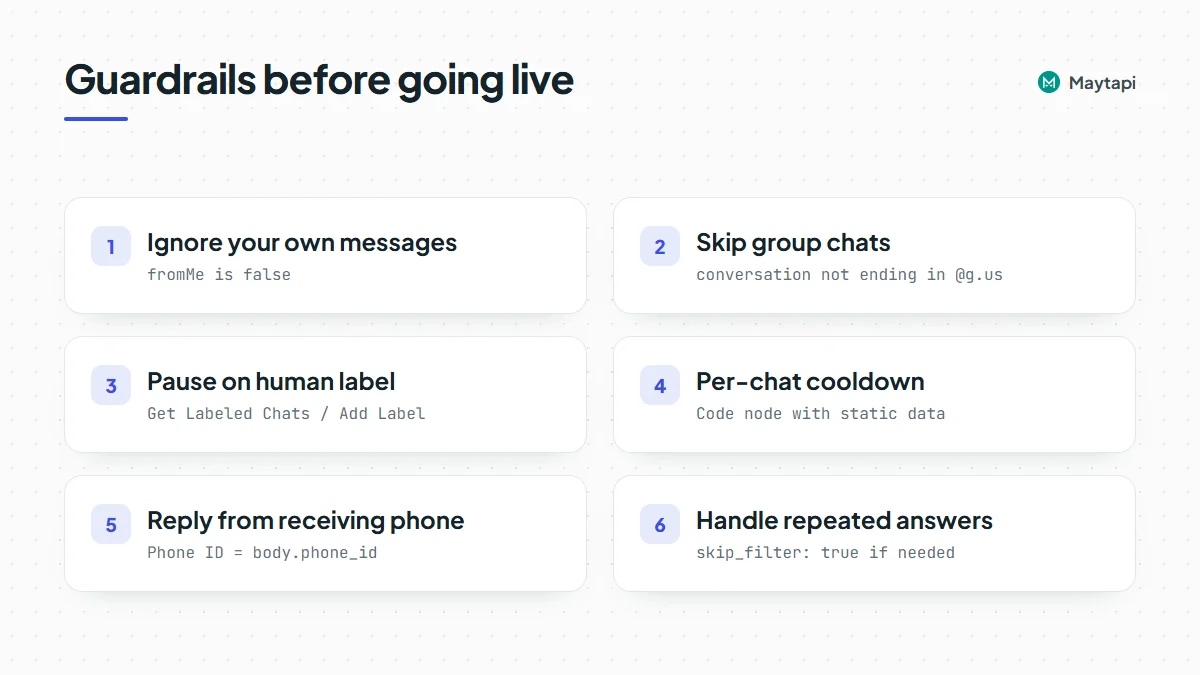
- Activate before you trust it. The editor's Listen for test event registers n8n's test URL; the production URL is registered when you activate the workflow.
- Keep the
fromMefilter first. Any change that moves it after the AI Agent brings the reply loop back. - Watch the duplicate filter.
sendMessagecan reject a message identical to the recent ones sent to the same chat (error "Found Message Dupe."). If your agent may legitimately repeat an answer, enable Skip Duplicate Filter (skip_filter: true). - Handle failures. Turn on Continue On Fail or an error workflow for the send node, so one disconnected phone or API error doesn't stall the queue silently. A Session > Get Status check tells you whether the phone is connected.
- Review answers early. Read the first few days of conversations in the n8n execution list and tighten the system message where the model drifts.
n8n agent or MCP server?
This workflow makes Claude answer your customers automatically. The other way to use Claude with WhatsApp is the reverse: you talk to Claude, and Claude operates WhatsApp for you, for example "summarize today's unread chats" or "send the delivery update to these three customers." That is what the Maytapi MCP server does in Claude Desktop, Claude Code and Cursor. Many teams use both: the n8n agent for first-line replies, the MCP server for staff tasks.
Next steps
- Install the node and build simpler flows first with the n8n automation guide.
- Use Claude as an operator instead of a bot with the WhatsApp MCP server guide.
- Sync handoff and pipeline labels with your CRM using the labels API guide.
- Learn every field the trigger receives in the webhook events guide.
- Prefer code? Build the same bot in Node.js or Python, or see all endpoints in the API documentation.